Administrators (game settings)
Game administrators are VK users responsible for developing, testing and maintaining the game on the VK game platform. They can, for example, change game settings, launch it when it's disabled for other users, and check payment operations.
In the Administrators section, you can view the list of administrators and manage it: add new users, change settings for existing ones and transfer access.
To open the section:
- 1.Go to the apps list.
- 2.Open the settings of the game you need.
- 3.Select Administrators from the left-side menu.
Access
The administrators list can be edited by:
- •Game creator.
- •
The section isn't available to administrators with limited access. Instead, they see another section — Access to the app.
Types of administrators
The user with creator rights has full control over the game. Other administrators may have full or limited access to the game settings.
Creator
The Creator is the main administrator of the game. They have access to all settings. Only they can:
- •Withdraw funds earned from ad impressions or product sales.
- •Remove the game from the platform.
Managing the administrator list is possible not only for the creator but also for administrators with full access.
Only one user with creator rights can exist in the administrator list. Initially, this is the user who registered the game on the VK Mini Apps platform.
Administrator with full access
Administrators of this type have access to the game settings, but they don't have the exclusive creator permission.
Administrators with full access have rights to all the settings sections available to administrators with limited access. Additionally, an administrator with full access can:
- •Edit the list of administrators (but can't reassign the creator).
- •Edit the list of testers.
- •Submit a request for catalog publication.
- •Contact Support.
Administrator with limited access
The permissions of an administrator with limited access consist of one or more permissions granted by the creator or an administrator with full access.
Permissions | Description |
|---|---|
Testing | Allows launching the game when its user status is set to Disabled.
Accessible settings sections: only Access to the app. Other sections are unavailable for administrators with this permission. |
Editing | Allows partial configuration and editing of game information.
Accessible settings sections:
• Sections of the Settings group
• Development | Access tokens
• Development | Stored procedures
• Social mechanics | Notifications
• Social mechanics | Missions
• Access to the app |
Payments | Allows configuring payments, viewing transaction and notification statistics, and withdrawing votes.
Accessible settings sections:
• Monetization
• Sections of the Payments group
• Statistics | Payments
• Access to the app |
Statistics | Allows viewing accumulated statistics.
Accessible settings sections:
• Statistics | Audience
• Statistics | API requests
• Statistics | Popularity ranking
• Access to the app |
Ad monetization | Allows viewing statistics on ad impressions and earnings from them, as well as withdrawing funds earned from ad impressions.
Accessible settings sections:
• Statistics | Ad monetization
• Access to the app |
Moderation | Allows submitting requests for publication in the games catalog and tracking moderation.
Accessible settings sections:
• Moderation
• Featuring
• App events
• Access to the app |
Editing the administrators list
Adding new administrators, modifying their permissions or removing them can be done by the creator or administrators with full access.
The creator has all operations available for the list. Administrators with full access can perform all actions on other administrators except the creator.
Adding an administrator
- •
To add a new administrator, click Add and specify a link to their VK page. Both regular links like
https://vk.com/id743784474and links with a nickname (short address) are acceptable. Adding an administrator
 - •
After you confirm adding an administrator, the platform will send them an invitation. The user will only become an administrator after accepting the invitation.
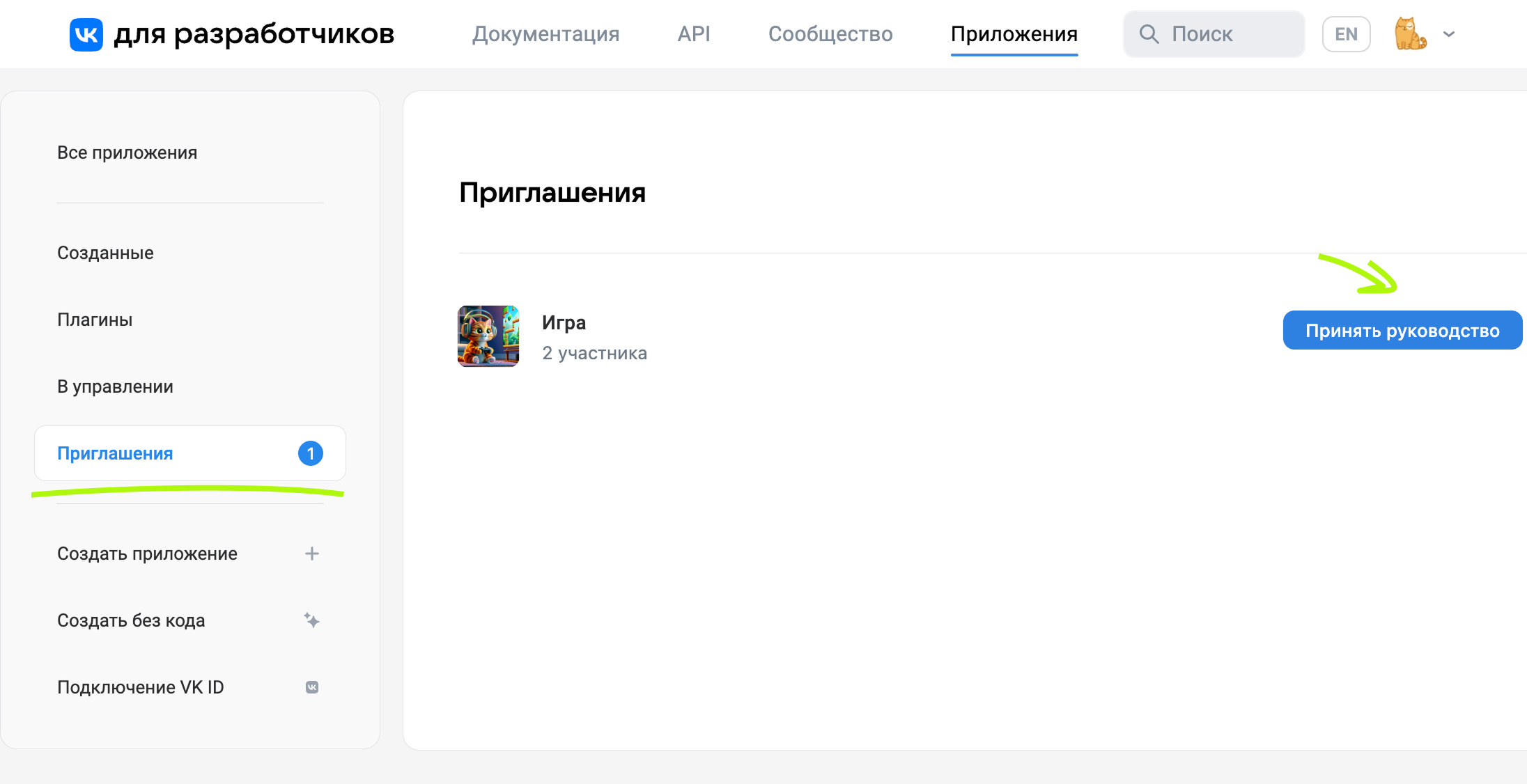 Confirmation of administrator rights receipt
Users who haven't accepted the invitation yet are displayed in the administrators list but aren't actually administrators.
Removing administrators
Administrators can be removed from the list by either the creator or an administrator with full access. To do this, click the trash can icon next to the required administrator.
The creator can't be removed from the administrators list. If the creator wishes to stop administration, they must transfer their rights to one of the administrators with full access and then either resign from administration themselves or ask the new creator to remove them.
Resigning from administration
Administrators with both full and limited access can voluntarily resign from administration. To do this, simply click Refuse access next to your name in the administrators list.
Administrators with full access see this button in the Administration section. Administrators with limited access can use this button in the Access to the app section.
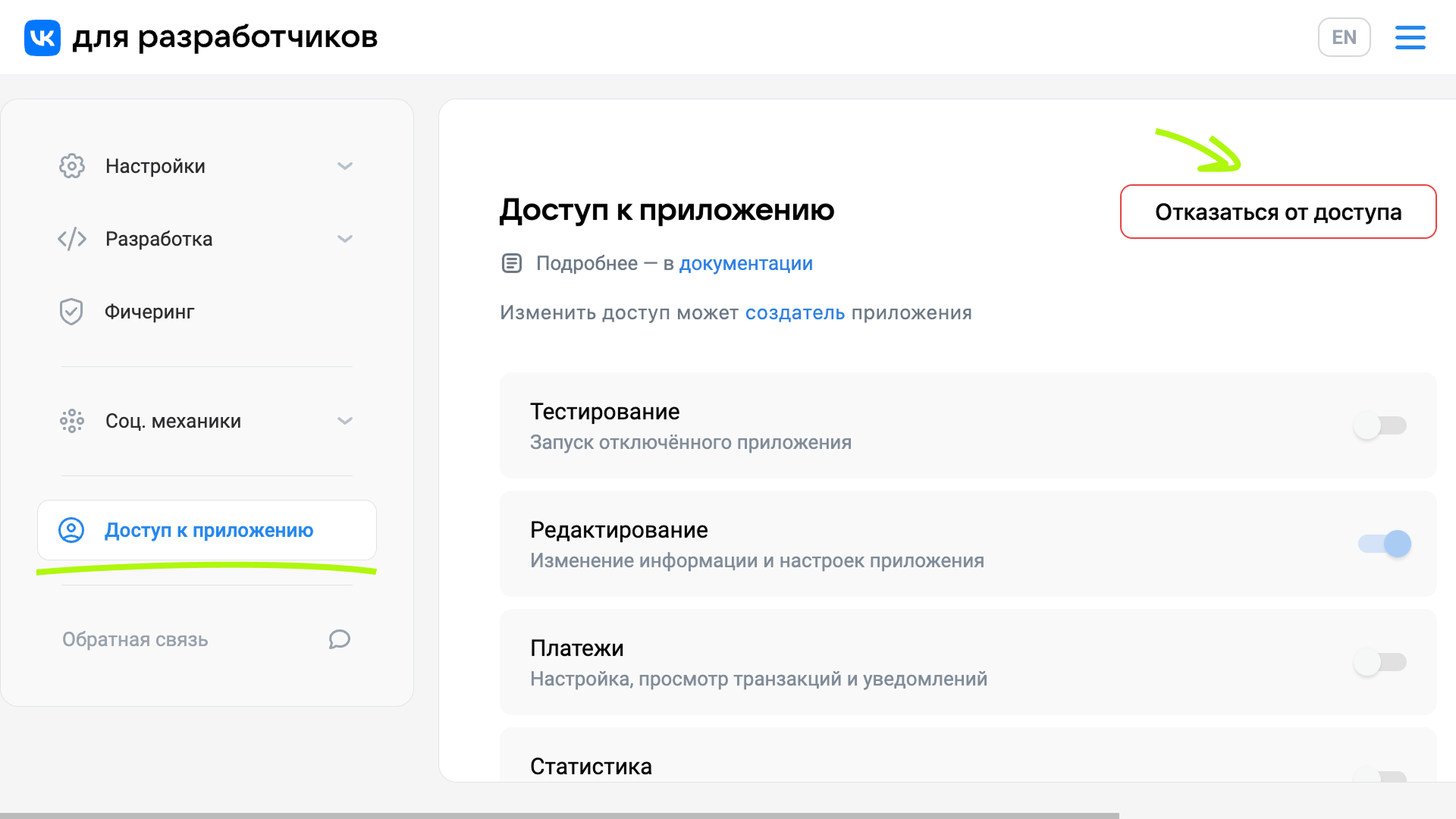 Resigning from administration for administrators with limited access
The game creator can't resign from administration. They must first transfer their rights to one of the administrators with full access.
Transfer access
The creator can transfer their rights to any administrator with full access. To do this, in the Administrators section, click Transfer access and select an administrator with full access to receive the rights.
The new creator must accept the invitation and confirm the rights transfer. Until this happens, the exclusive rights remain with the current creator.
After the transfer, the user will no longer be the game creator and will become an administrator with full access.
Related materials
- •
- •

