Placement (game settings)
This section contains the settings required to launch a game from the VK and Odnoklassniki interfaces.
Important! If placement settings are not specified, the game won't function.
To open the section:
- 1.Go to the apps list.
- 2.Open the settings of the game you need.
- 3.Select Placement from the left-side menu.
Access
The placement settings can be edited by:
- •Game creator.
- •Administrator with full access.
- •Administrator with partial access and the Editing permission.
Learn more about permissions in the Administrators section.
Status for users
This setting indicates who can access the game.
Status | Description |
|---|---|
Disabled | The game’s status right after it is created. On VK, a game with this status is available only to administrators. On Odnoklassniki, only the game creator can launch the game.
To publish the game on Odnoklassniki, you need to link an OK ID in the Other sites section. The game will become available on Odnoklassniki within 15 minutes. |
Enabled | On VK, the game will become available to all users via a link. On Odnoklassniki, access will be available only to the game creator. To make the game available to all users, you need to pass moderation. |
Learn more about game availability in the Launching a game section.
Platform settings
This section contains launch settings for the game across different platforms. You can configure the game to run on all available platforms or select only the ones you need.
Section | Description |
|---|---|
Mobile app
(previously Direct Games) | Settings for launching the game from the VK and Odnoklassniki mobile apps for Android and iOS.
The game will open in a WebView control and will look similar to regular Android and iOS apps. |
Web | |
Mobile version of website |
URL
The address for launching the game. The platform will send this address to WebView or <iframe> for loading.
To pass parameters, include them in the URL after the ? symbol, for example https://my-game.com/start?param1=value1.
Dev mode
Use this setting to enable or disable dev mode. In the field, specify the address where the version of the game available only to administrators will be hosted.
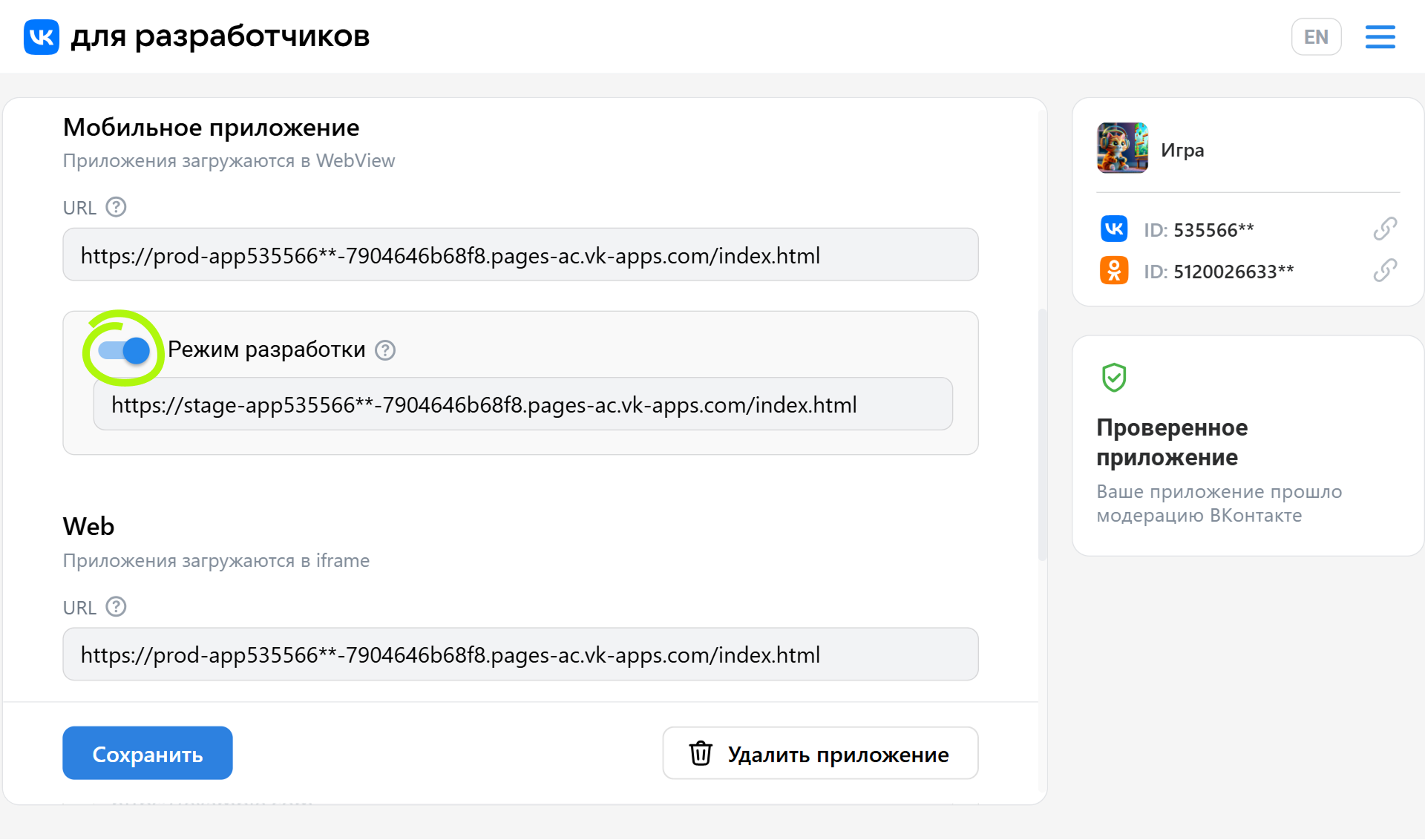 Dev mode setting
Dev mode is useful when the game is already published in the catalog, but you need to test changes in it. This mode works for all administrators of the game. When they launch the game, the platform will load it from the address specified in the Dev mode setting, not from the URL setting. For other users, the game will continue to open via URL, and no substitution will occur for them.
URL priorities for loading the game
When an administrator launches the game, the URL for loading the app is determined in the following order:
- 1.
The URL specified in the test group settings (if the administrator is included in any test group). This URL has the highest priority over the others.
- 2.
The URL specified for dev mode (if dev mode is enabled for the selected platform).
- 3.
The URL specified in the URL setting. This URL has lower priority than the addresses specified in dev mode or in the test group.
Delete app
To delete the game from the platform, click Delete app in the bottom right corner of the page. The button is only available to the creator of the game.
A deleted game cannot be restored. You can create a new one with a different ID.
Related materials
- •
- •
- •

