Test groups (game settings)
Using test groups, you can test new functionality with a limited audience or demonstrate game changes to friends and colleagues.
During game development, you can publish its versions at different addresses:
- •The address for launching the official version of the game that is available to all users. Learn more in the Settings → Placement section.
- •The address for testing the game version available only to test group members.
The unique address of the game version works regardless of launch method: from the catalog, via direct link or from the control panel.
To open the section:
- 1.Go to the apps list.
- 2.Open the settings of the game you need.
- 3.Select Test groups from the left-side menu.
Access
The main information can be edited by:
- •Game creator.
- •Administrator with full access.
Learn more about permissions in the Administrators section.
Restrictions
- •
You can create up to 25 test groups per game.
- •
Only VK users can be added to a test group.
- •
A user can only be in one test group per game.
- •
You can add up to 100 users in one operation.
Even if some users are added from a list and others via search, the total shouldn't exceed 100.
- •
A group can contain no more than 1,000 users in total.
Working with groups
Create a group
Press Create group and specify the parameters:
- 1.
Enter a group name — any text up to 48 characters.
- 2.
Specify the URL for loading the game. VK will open exactly this URL when group users launch the game.
To pass parameters, specify them in the URL after the
?character, for examplehttps://my-game.com/new-design/start?param1=value1.The test group URL takes priority over all other loading addresses, including the dev mode URL. For example: a user is a game administrator, and dev mode is enabled for this game in the Placement section. The dev mode URL will be used for launching the game.
If the same user is included in any test group, the address specified in the test group will be used when launching the game. - 3.
Select VK platforms where the URL will be used. To create a group you must specify at least one platform.
Add members
In the interface
By default the list displays all your friends. To add users to a test group, check the boxes next to their names.
To find a user in the list, enter one of the following in the search field:
- •
Username or part of it, e.g.
Ping,PenguorPing Penguin. - •
Account ID, e.g.
id743784486. - •
User profile URL, e.g.
https://vk.com/id743784486orhttps://vk.com/ping_pingvin.
To add only administrators to the test group, use the toggle on the right side of the list.
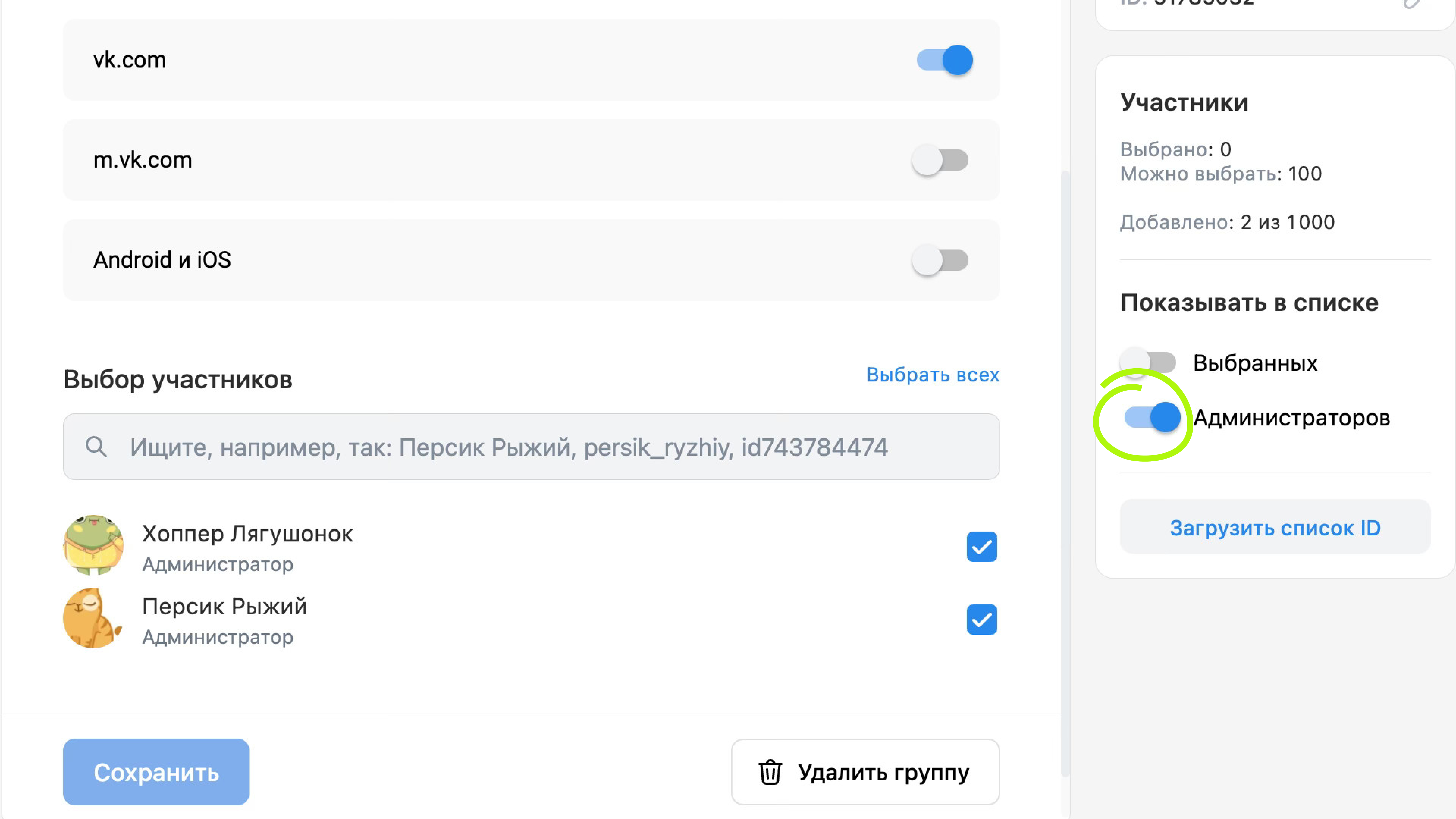 Quick search for game administrators in the list
From a list
If you frequently create test groups to verify various game changes, you can prepare lists with user IDs, save them in files and copy IDs from these lists.
- 1.
Create a list in any text editor.
The list should contain only ID numbers (without the
idprefix), one per line.Example list743784474 743784479 743784486 743784490 - 2.
In the game control panel, start creating a new group, then press Upload ID list in the right-side menu.
- 3.
Enter user IDs or press Upload CSV and select the prepared file.
You can add up to 100 users at once. Learn more in the Restrictions section.
View added members
Use the toggle Show in list → Selected.
Remove members
Find the user in the list and uncheck the box next to their name.
Related materials
- •

