Notifications to all users
Mass notifications to all active users are used to draw users’ attention to a specific event or campaign in the game. You can also set up the Friend’s achievements notification, which informs a user that their friend has completed a mission in the game.
These messages are displayed in the friends activity feed along with other messages from the game.
Setting up mass notifications is available only for VK games.
Limitations
- •Mass notifications can be sent no more than once every three months. The Friend’s achievements notification is sent automatically as long as it is enabled.
- •No more than 3 notifications can be active at the same time, plus the Friend’s achievements notification.
- •Each notification campaign can run for a maximum of 14 days.
- •Mass notifications to all users can only be sent after the game has passed moderation and has been published in the catalog.
- •To create notifications, the game’s status must be Enabled.
How to set it up
- 1.
Go to the game settings. To do this, open the apps list and click Settings next to your game.
- 2.
In the settings, go to Social mechanics → Notifications.
This section becomes available after the game passes moderation and is published in the catalog.
- 3.
Go to the All users tab and expand the event. Enter your notification text in the text box.
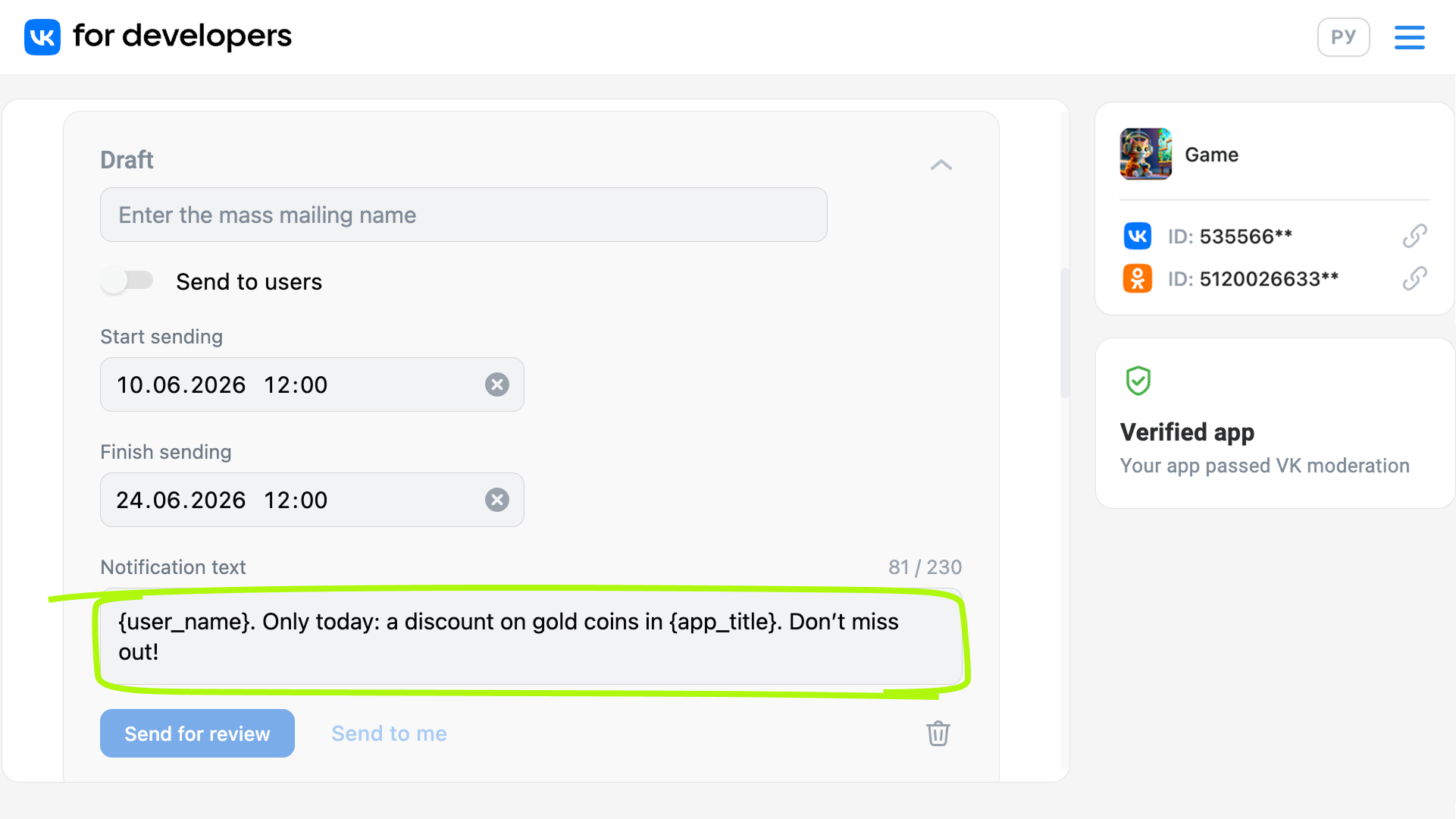 Editing the notification text
You can use the following placeholders in the notification text:
PlaceholderReplaced with{app_title}Game name.{user_name}Player name.In notifications of the Friend’s achievements type, you can also use the following placeholders:
PlaceholderReplaced with{friend_name}Friend’s name.{achievement_title}Mission name. This is the same name you specify in the mission settings.{achievement_text}Mission description. This is the same value you specify in the mission settings. The text depends on the friend’s gender.{achievement_title}and{achievement_text}may be identical in meaning. You don’t have to use both placeholders in the text. - 4.
Specify the campaign name, as well as the start and end date and time for the campaign.
Notifications aren’t delivered to all players at once. A user receives the notification when they sign in to VK. That’s why you must specify the start and end date and time for the campaign in the notification settings.
- 5.
Click Send to me to preview how the notification will appear to the user.
- 6.
When the message is ready, click Send for review. The message will be sent for moderation.
Before submitting a message for moderation, make sure that it:
- •
Contains no grammatical, spelling, or punctuation errors.
- •
Doesn't mislead the user: the message text fully reflects the event taking place in the game.
Important! The review process takes time. We recommend submitting messages for moderation 7 business days before the intended launch.
- •
Once approved by moderators, notifications will be sent to users automatically.
To stop sending notifications, disable Send to users in the relevant notification campaign.
Friend’s achievements notification
When a player completes a mission, the game platform automatically sends a notification to the user’s friends.
A mission completion notification may look similar to a Friend’s achievements notification. The difference is that the Friend’s achievements notification includes Launch and Delete notification buttons.
To avoid giving users the impression that they are receiving two almost identical notifications, try to make the texts as different as possible.
Related materials
- •
- •
- •
- •

