Missions
A mission is a sequence of actions in a game that leads to a certain result, for example, "Complete 7 levels in a row" or "Find a unicorn tail".
Players get points for completing missions. Points can be exchanged for in-game bonuses and used in leaderboards.
Games can post messages about completed missions in the activity feed of the user's friends. You can add an image to the mission description to make the post more noticeable and draw more attention to it.
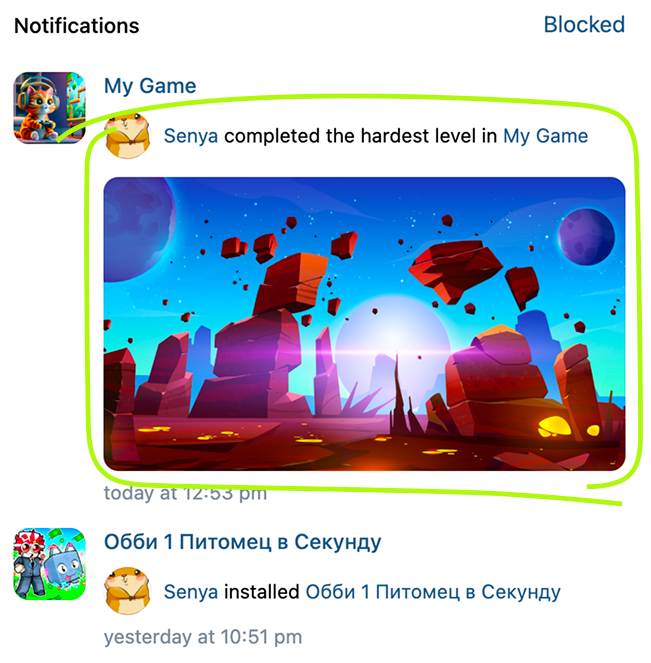 Completed mission message example
Requirements
Only after the game passes moderation and gets published in the catalog:
- •You'll be able to add missions.
- •The game will be able to send messages to the activity feed.
Implementation
Step 1. Publish the game in the catalog
See Getting published in the catalog section for more information on how to publish your game.
Step 2. Create a mission in the game settings
Separate missions by difficulty, for example, easy, normal and hard, and give a different amount of points for each.
If the game doesn't have a lot of missions and each gives the maximum amount of points, the game will quickly reach the limit. If this happens, the game won't be able to send new messages about clearing missions.
- 1.
Open the app list and go to your game's settings.
- 2.
In the left menu, select Social Mechanics → Missions and press Create. See the Missions section for more information.
- 3.
In the new mission window, set its parameters:
- •
Enter the mission name. It should start with an infinitive, such as "set", "build", "complete", "explore", "find" and so on.
- •
Specify the amount of points awarded for completing the mission.
- •
Come up with mission text that'll be published in friends' activity feed. This text should be more elaborate than the mission name.
- •
- 4.
Press Submit for moderation. The game platform will assign an ID to the mission and send it to the moderator team.
Once verified, the mission can be used in the game and the game can send mission completion events to the activity feed.
Step 3. Implement the mission in the game
Add code to your game implementing the mission's functionality.
Step 4. Send a message about a completed mission
To send a message that a mission is completed to friends' activity feed, execute the secure.addAppEvent API request on the game server's side.
Specify the following values for the request parameters:
Parameter | Type | Description |
|---|---|---|
user_id | integer | The ID of the user who the message is about. |
activity_id | integer |
The game platform will use the message text that you set when creating a mission.
The secure.addAppEvent API method adds the points for the completed mission to the total number of mission points received by the user, and stores them on the game platform side. Points for the mission can be received only once. If you call the method again, it'll return an error.
The stored value can be used in a leaderboard if its data type is mission points.
Usage specifics
- •
You can add up to 200 missions using the control panel. Every mission can be completed only once.
- •
The player can receive from 1 to 100 points per mission.
- •
The player can receive no more than 2,000 points for all missions in the game.
- •
The game can send messages about completed missions to the feed without additional confirmation from the user mentioned in the message.
- •
The message text for the completed mission doesn't contain information about the points received.
Where to find the mission ID
You can find the mission ID in the game control panel in the Social mechanics → Missions section. All mission IDs start with the number 3.
 Mission ID in the game control panel
See also
- •
- •
- •
- •
- •

