Private messages from games
Games can send players private messages. This is a great way to convey important information about in-game events to players.
Such messages should mention relevant and valuable information with the game's context. This will help avoid annoying your players and increase the likelihood of the game being launched.
To implement the functionality for sending messages, use the VK Bridge library and VK API requests.
Messages are sent to users on behalf of the official game community. Users see them as private messages, and not as their name being mentioned in a community post.
Implementation
Step 1. Specify community in the game settings
- 1.
If your game doesn't already have a community, create one.
Name the community the same way the game is named.
- 2.
Find the game in the app list and click Settings.
- 3.
Select the community in the Official community field of the Information section.
The drop-down list only shows the communities in which the game creator is an admin.
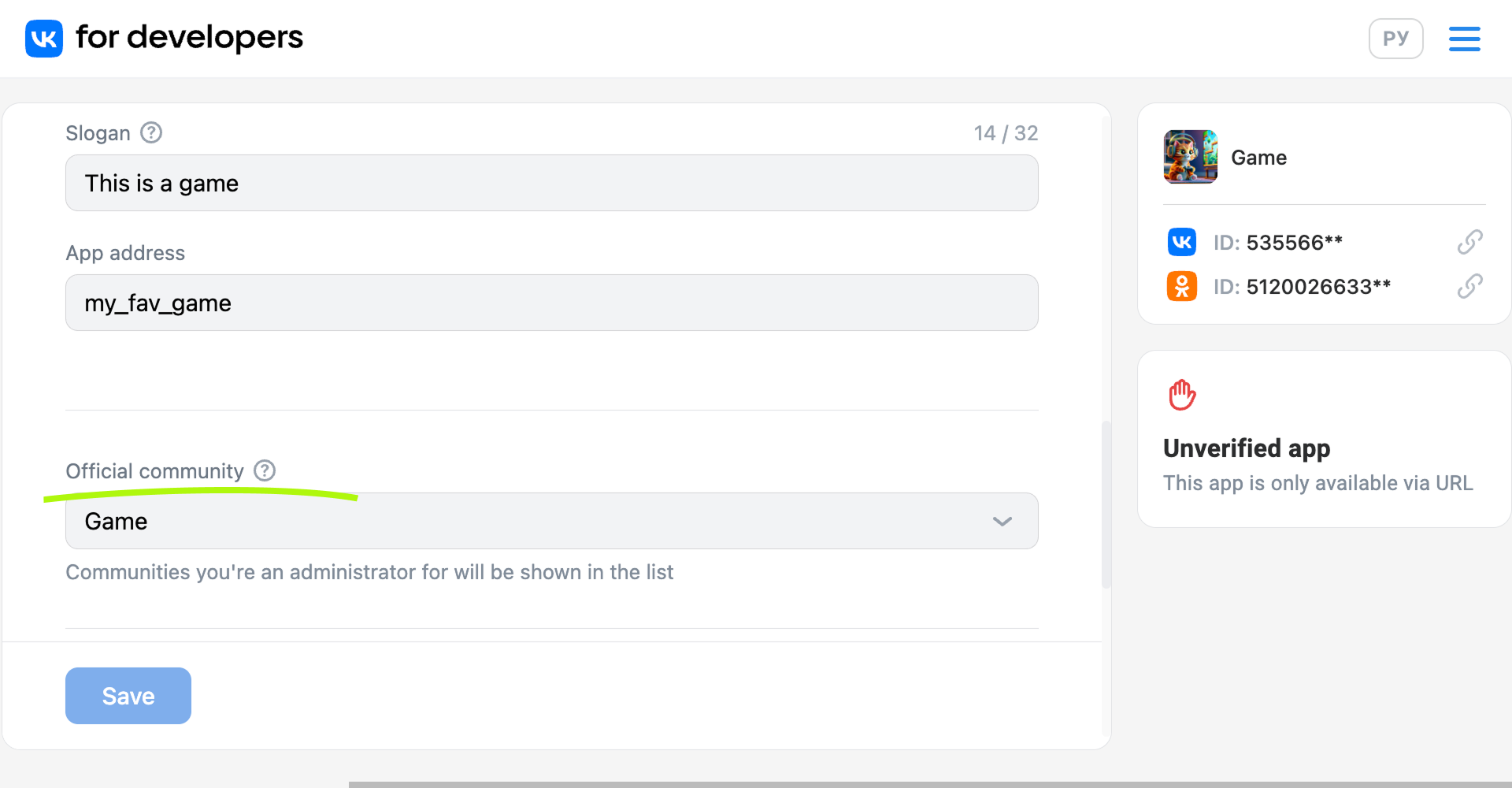 The Official community field in the game settings
 - 4.
Click Save.
Step 2. Request permission to send messages from the game
To request a user's permission to send private messages, call the VKWebAppAllowMessagesFromGroup event of the VK Bridge library in the game.
bridge.send('VKWebAppAllowMessagesFromGroup', {
    group_id: 9713780,
    key: 'axLNy12345gK' // Unique string
  })
  .then( (data) => {
    if (data.result) {
      // The user has allowed sending them messages.
      // Store the User ID and permission as variables.
    }
  })
  .catch( (e) => {
    console.log('Error!', e);
  })
If the user has allowed sending messages, store their ID and choice in the files or databases used by the game. Now you can send this user messages from the game community.
Step 3. Get an access token
Messages are sent using the VK API. To send messages, you need a community access token.
- 1.
Go to the community management page. Open More → Working with API. On the Access tokens tab, click Create token.
 Creating an access token
 - 2.
In the list of rights for the access token, select Allow the app access to community messages, click Create and confirm token creation.
The generated token will appear in the Access tokens tab.
Step 4. Send message from the game
To send a message, execute the messages.send API request on the server side of the game. To call it from the client side, use the VKWebAppCallAPIMethod event of the VK Bridge library.
In the request, provide:
- •
In the
Authorizationheader — the community access token generated in the previous step, in the formatBearer <ACCESS_TOKEN>. - •
In the parameters — the following data:
ParameterDescriptionuser_idThe ID of the user who is the message recipient.messageMessage text. For formatting, including links with arbitrary text, use theformat_dataparameter.random_idAn arbitrary number that is the message identifier. It's used to prevent the same messages from being sent to the user within an hour.For more details about the parameters, see the method description in the VK API documentation.
Usage features
General guidelines
- •
Name the community the same way the game is named. Set similar or identical icons for the game and the community. Messages will be sent to the user from this community.
- •
Players will not only receive messages from the community, but also read the posts published in it, look for answers to questions and solutions to problems. Therefore, take the time to support the community and answer users' questions. Don't use the community just to send out messages.
- •
Add a link leading to your game, such as "Start game", to your message.
The
messages.sendmethod sends a message without any buttons in it. To add a link with arbitrary text, use the following code:[https://<URL-to-go-to>|Link text]For example:
[https://vk.com/app12345#param1=context1|Start the game]The URL can contain parameters that help the game determine the launch context.
- •
When a user goes from a message to the game, it's important to correctly determine the context and display the right screens or dialog boxes. For example, if a user has received a message about a reward, a window with the mentioned reward should appear when the user follows the link.
You can specify the link context by using URL parameters. Parameters must be passed after the
#character as shown in the example above. For more information about passing and handling parameters, see the Launch parameters section. - •
Stick to the same style and tone of communication with your players. Make sure to personalize your messages.
- •
Send relevant and timely messages. Launch major game updates to make the corresponding messages meaningful.
Communication should be predictable
Your messages can both greatly increase the loyalty of the player, or scare them away with the sudden increased attention. Unexpected messages can be annoying or puzzling. Therefore, communication with players should be as predictable as possible.
Make the messages useful. Don't impose on players and don't request anything of them. Recommend things and give them rewards instead. At the same time, be sure to preserve the game context.
Keep things balanced
Not every game event needs its own notification. Don't overwhelm your players with messages. Stick to the limits on the number of messages you can send and consider the situations in which you should send them. For example:
- •
If three days have passed since the last launch of the game, you can send one message to the user.
- •
If the user didn't launch the game after the first message, send them a second reminder after five days.
- •
If the user doesn't launch the game again, send them one or two messages with a favorable personal discount or promotion.
If the user doesn't respond to them and doesn't open the game, stop sending them messages.
Remember that messages are a personal channel of communication. Constant reminders will most likely lead to a ban on sending messages.
What is considered good practice
Below are the mechanics and events that have a positive effect on getting users back into the game.
- •
Request permission from the player to send private messages at an appropriate time. For example, display a prompt saying "Allow us to send you messages, and we'll remind you when the chest opens" at the start of the countdown before a chest opens.
The welcome message and explanation of benefits can also be displayed immediately after the player has allowed private messages.
- •
Link messages to game events, awards, and updates. For example, messages can remind your players that it's time for them to make a move; a friend got ahead of them in the leaderboard; a promotion or sale has started; a tournament or championship has begun; new levels, which the player was waiting for, have been unlocked.
Don't forget to always analyze the reaction of your players to messages to find out which approaches, texts and events spark the greatest interest.
Poor practices
Some approaches and formats of communication are strictly forbidden on the platform.
- •
Avoid losing context when opening the game. For example, when your message is about a bonus, upon opening the game, the user shouldn't be met with the main screen without any hints, or dialog boxes that aren't related to the subject of the message.
- •
Don't send messages immediately after the player closes the game.
- •
Don't send general messages without a description of the context, for example, "Hurry, go back to the game! You won't believe what's going on there!!".
- •
Avoid sending any links that lead users outside of VK.
See also
- •
- •
- •
- •

