Launching game
Right after adding the game in the control panel, only its admins can launch it. To make the game available to all users, change its visibility settings. Games on OK become available to all users only after passing moderation in the catalog.
Game availability
Game visibility is set in the Placement section and also depends on whether the game is published in the catalog.
Control panel settings
- •
Status: Disabled. This is the default state after the game is created. On VK, games in this state are available only to admins. On OK, only the creator can launch them.
To publish the game on OK, link the OK ID in the Other platforms section. The game will become available on OK within 15 minutes.
- •
Status: Enabled. On VK, the game is available to all users via link. On OK, access is still limited to the game creator. To make the game available to all users, you need to pass moderation.
Test builds can be made available only to game testers. To do this, use test groups.
See more about adding admins to a game in the Control panel | Administrators section.
Publishing in catalog
- •
Publishing in the VK catalog doesn't affect game availability. Once your game is published, users can find it in the catalog and launch it through the VK interface. Without publishing, they can only use a direct link to the game.
- •
Publishing in the OK catalog makes the game available to all users. It can be found and launched from the catalog.
Summary table
The following table shows game availability depending on the settings:
Settings | Availability for users | Availability for admins |
|---|---|---|
Status: Disabled | Game not available | • All admins on VK
• Only the creator on OK |
Status: Enabled | • Available via direct link on VK
• Not available on OK | • All admins on VK
• Only the creator on OK |
Game published in the catalog | Available via direct link and through the UI of VK and OK | All admins on VK and OK |
Launching game
Once the game is published in the catalog, it can be launched from the social network interface. Until the game is published, use other ways to launch it conveniently.
In the browser
- •
Via direct link. You can find links to the game in the control panel:
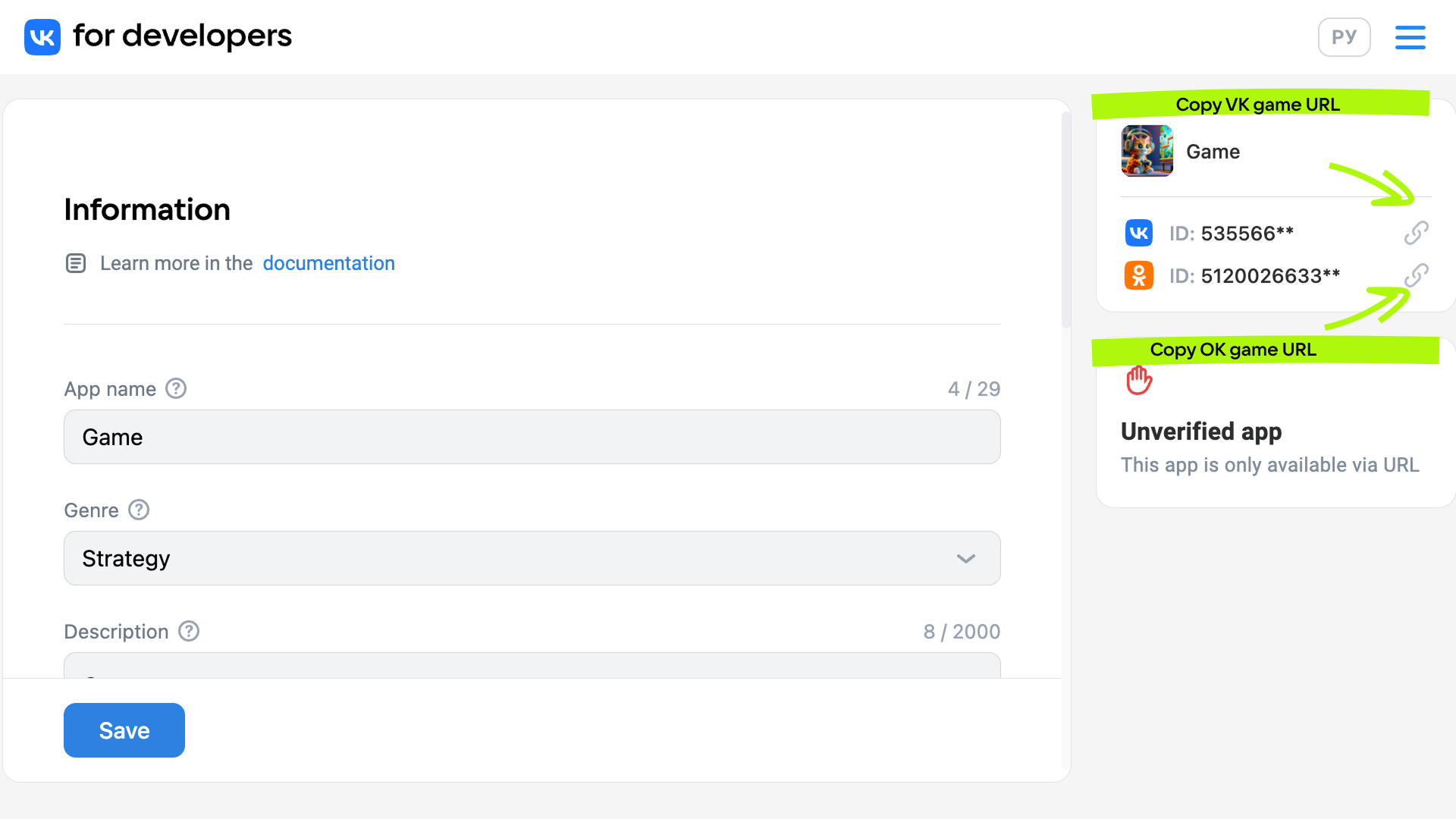 Game links in the control panel
To open the game on the mobile version, add
mto the URL, for example:https://m.vk.ru/app535566**. - •
Through VK bookmarks or Favorites. Open the game via a direct link and choose Save to bookmarks or Add to Favorites.
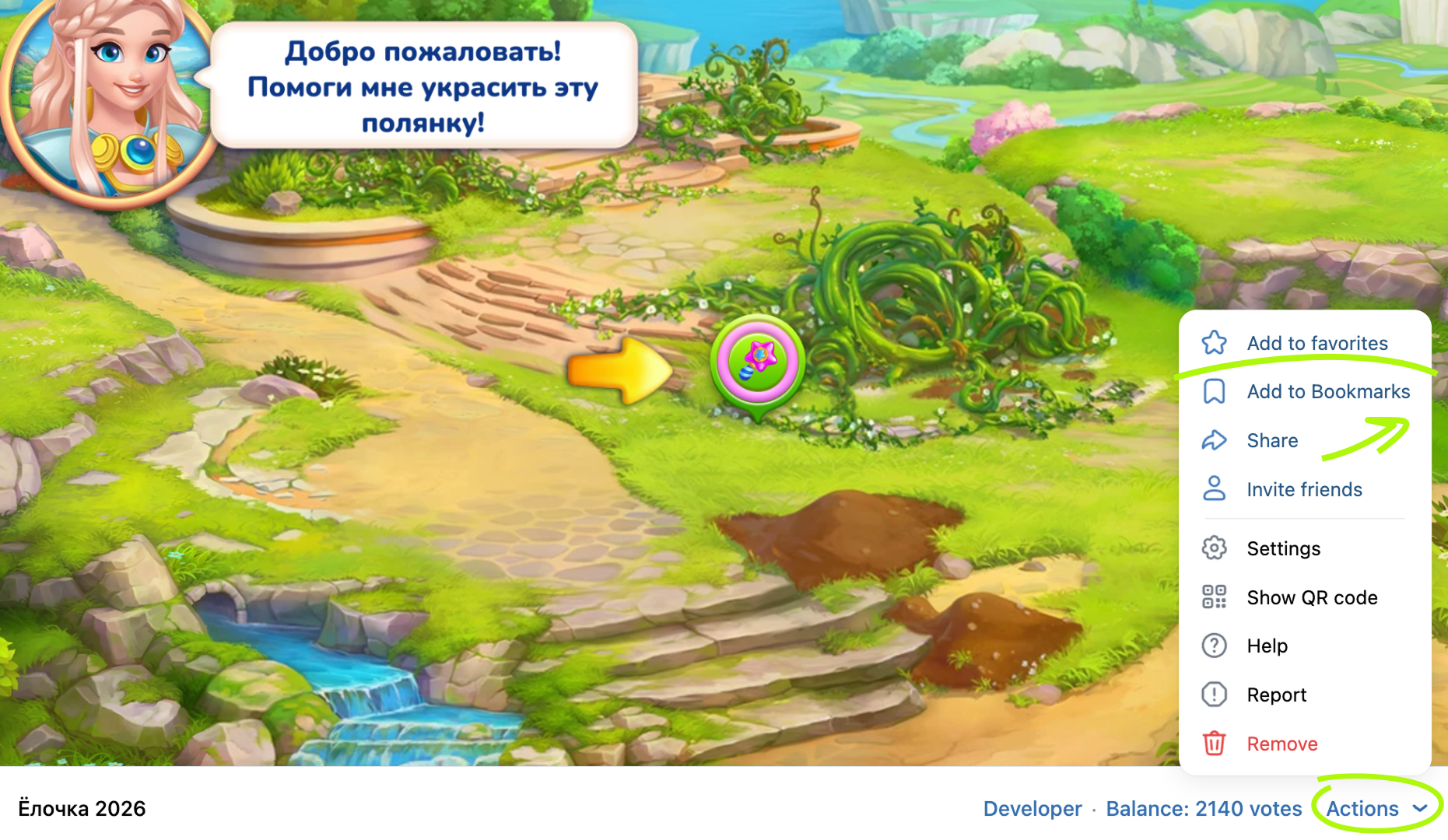 Adding a game to Favorites and bookmarks
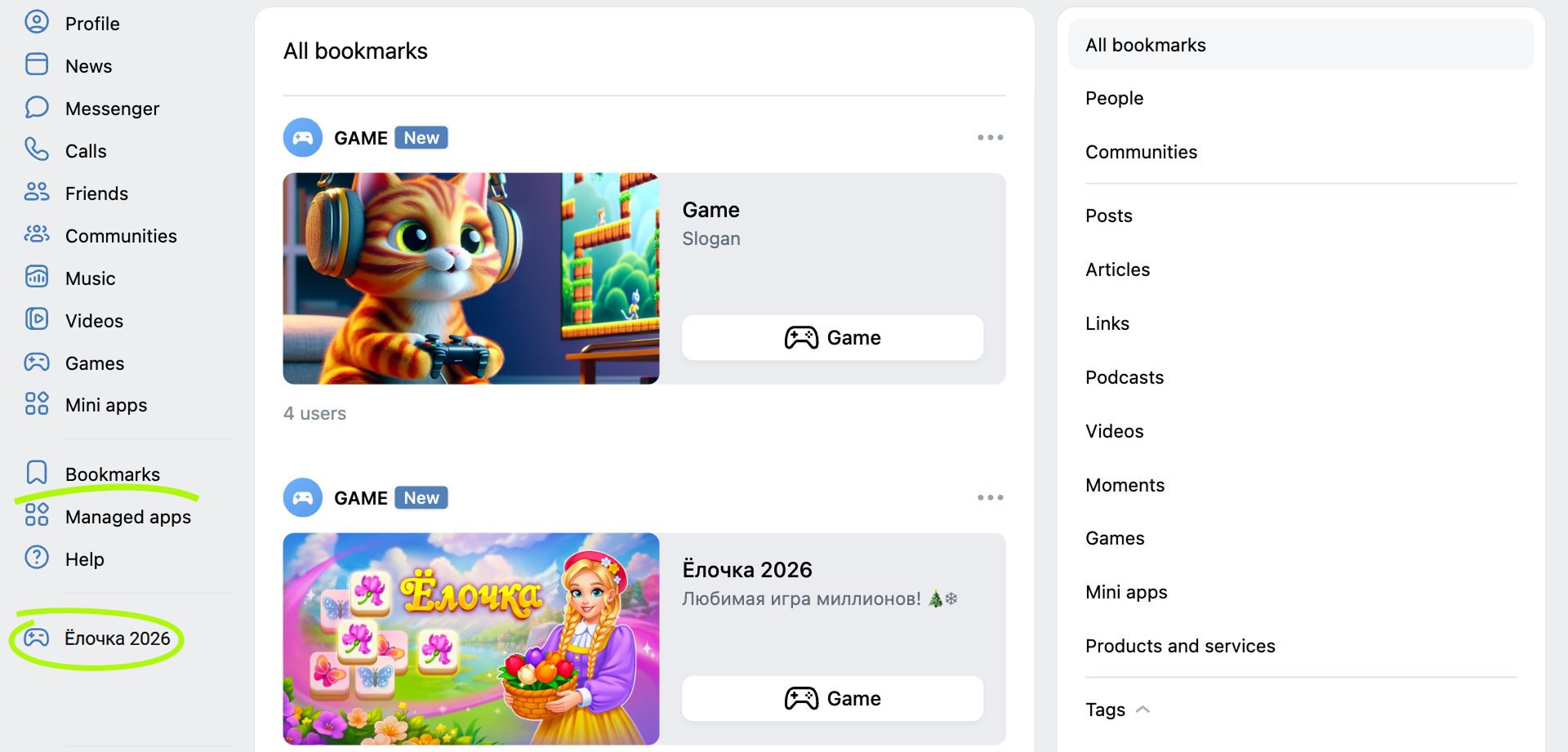 Launching a game from Favorites and bookmarks
- •A game added to Favorites can be launched from the left-side menu.
- •A game saved to bookmarks can be launched from the Bookmarks section in the left-side menu.
- •
On the mobile app
- •
From messages
- 1.
Go to the Messenger section and open the Favorites chat by opening the chat search field.
Then send the game link. You can find it in the game control panel.
- 2.
On the mobile app, open the Favorites chat and press the sent link. VK will launch the game in a WebView.
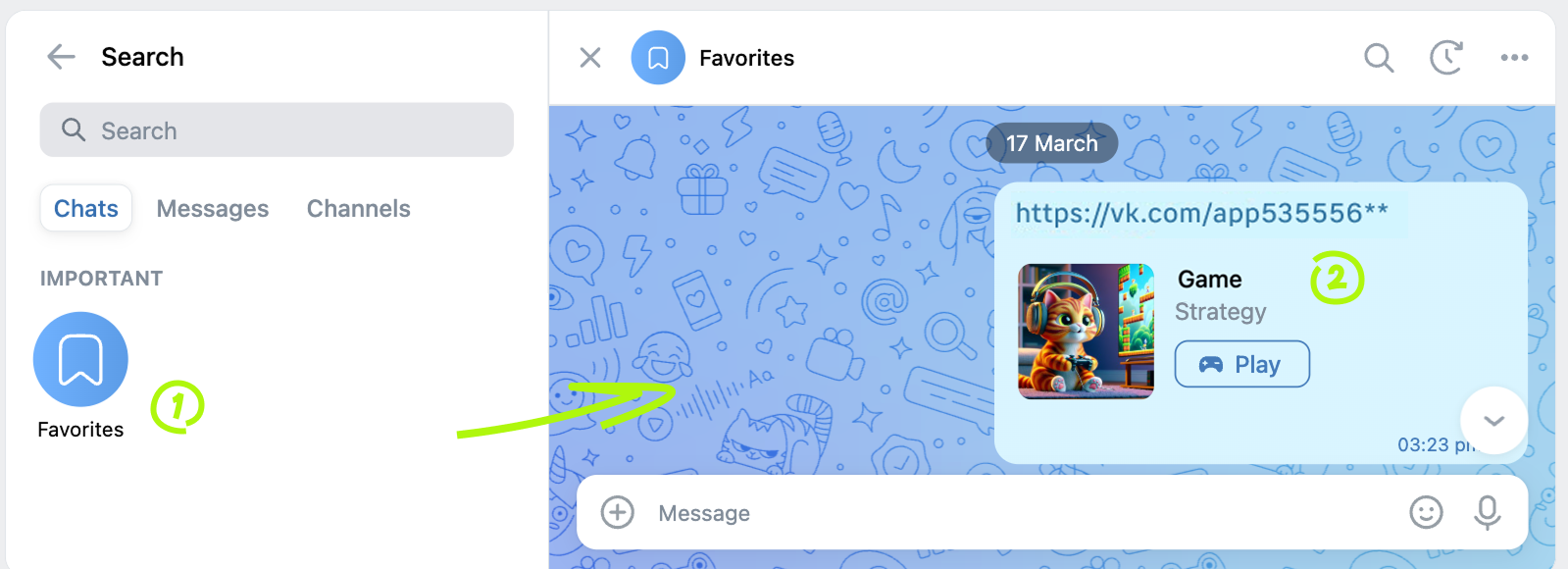 Launching from messages
When sending a message, the messenger detects that the link points to a game and adds a game snippet to the message. You can launch the game by pressing the button in the snippet.
- 1.
- •
From recently launched
- 1.Launch the game on the desktop version of the VK website. It will then appear in the list of recently launched games.
- 2.Open the VK mobile app for Android and go to the last tab.
- 3.Launch the game from the Overview section.
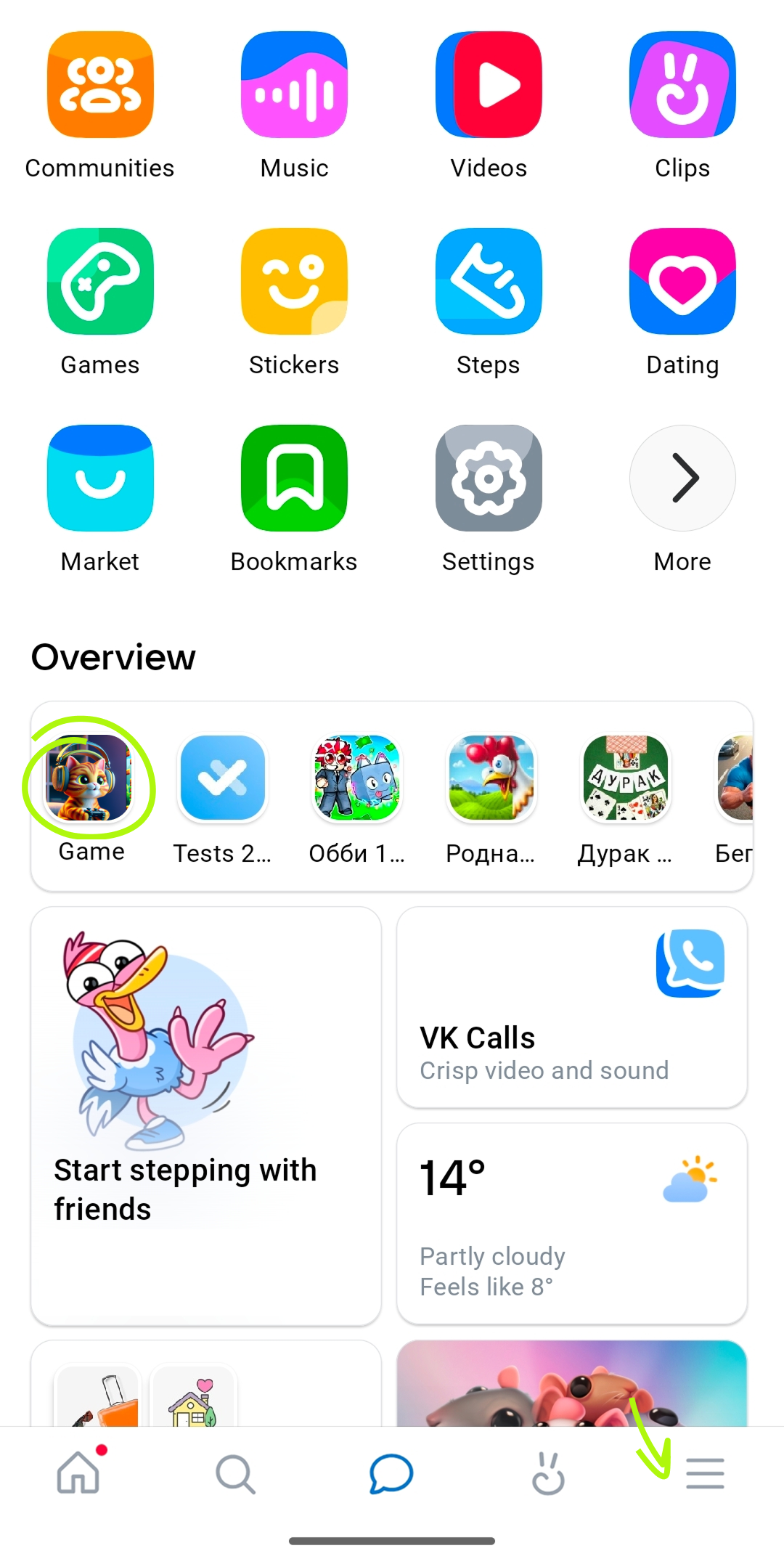 Launching a recently launched game
 - 1.
Hiding game
Set the Status to Disabled. The game will now be available only to its admins.
See also
- •
- •
- •
- •

