User profile stories
Players can share achievements and other information with friends using VK stories and Odnoklassniki moments. For example, a game can display a Share or Share a story button. Pressing this button opens the story editor with preset text and an image from the game. On VK, users can edit the image or text and publish the story on their profile.
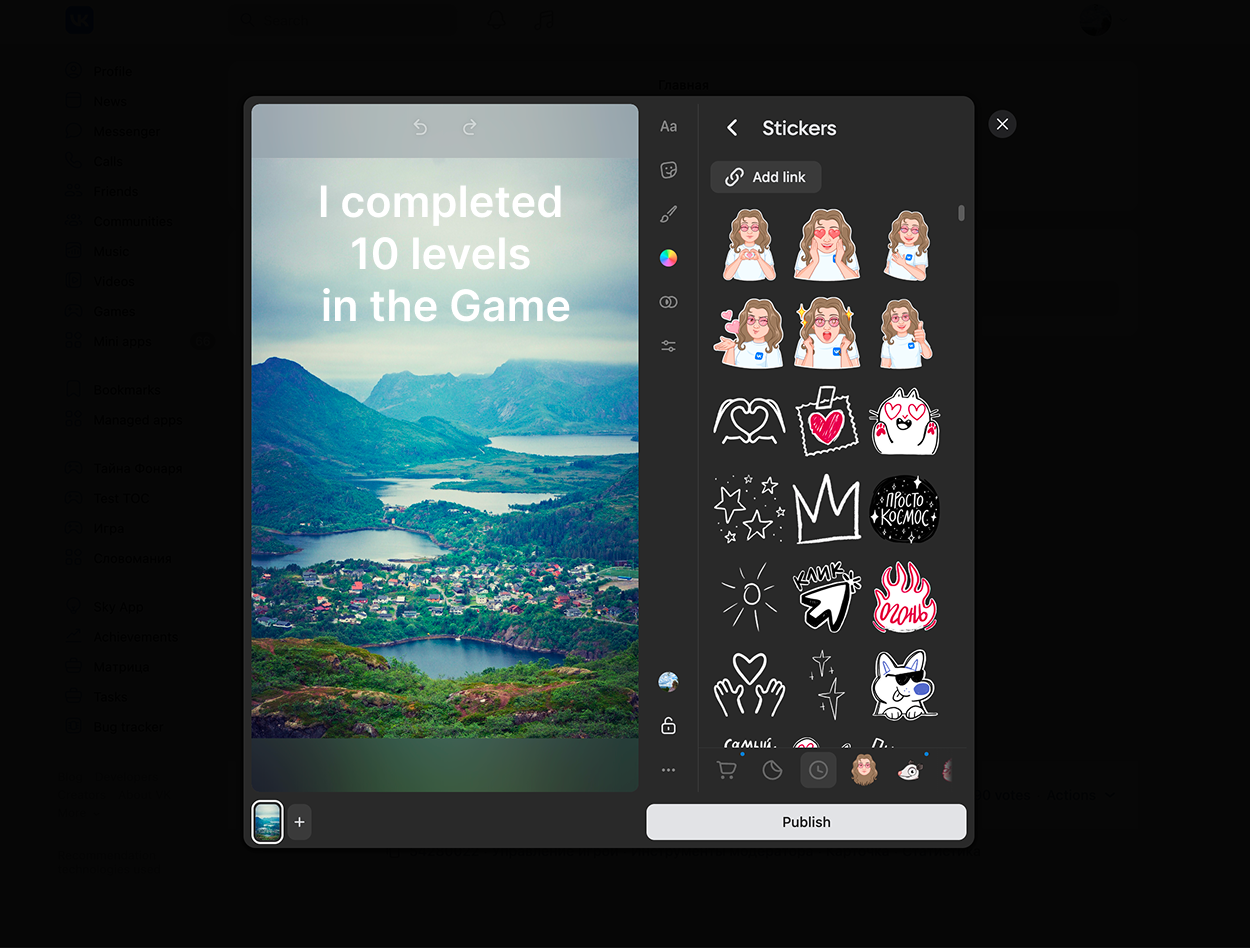 VK story editor example
On Odnoklassniki, users cannot edit the image or the text, so they'll simply publish the moment.
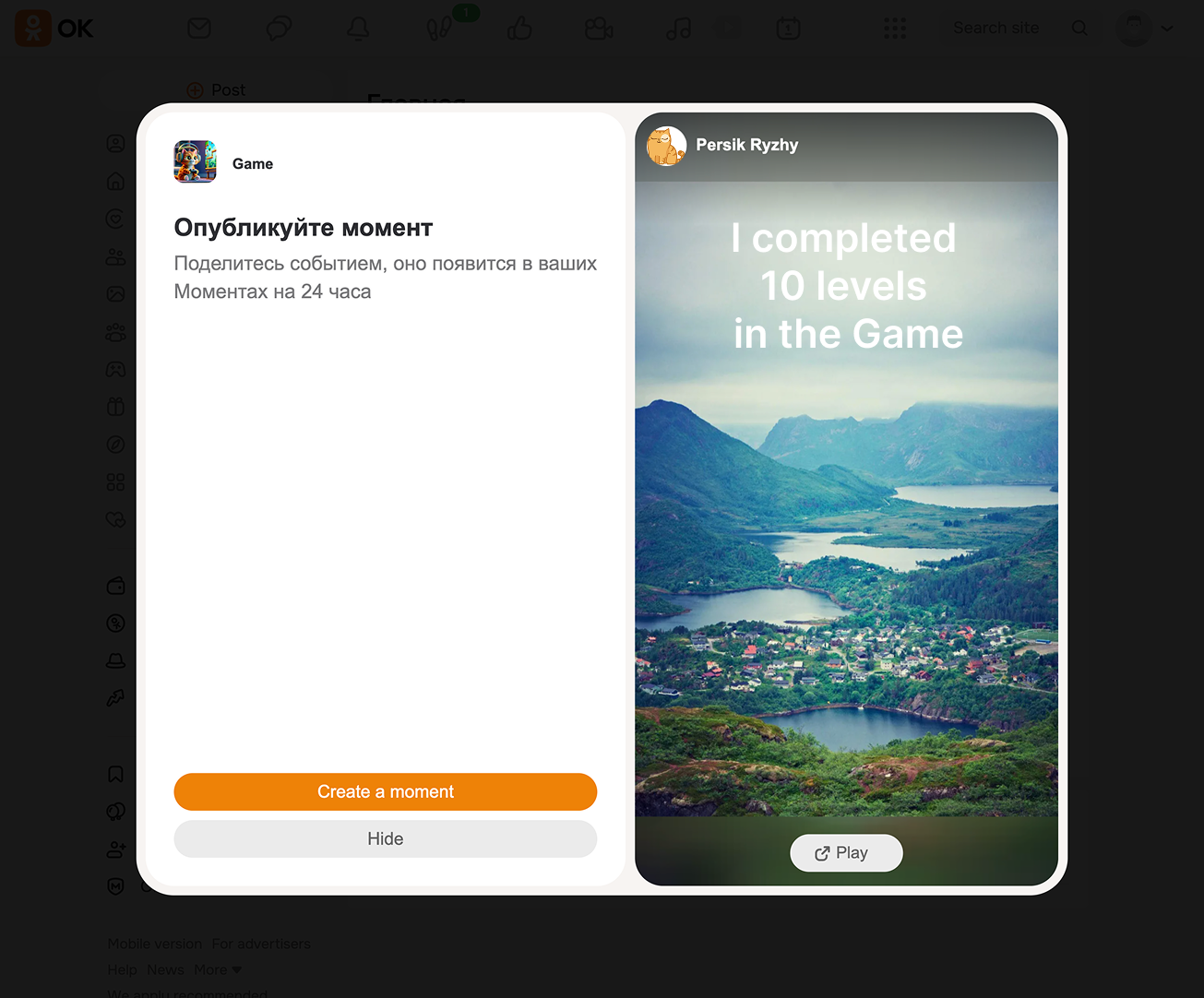 Example of moment published on Odnoklassniki
Friends will see the published story or moment and can follow the link to open the game.
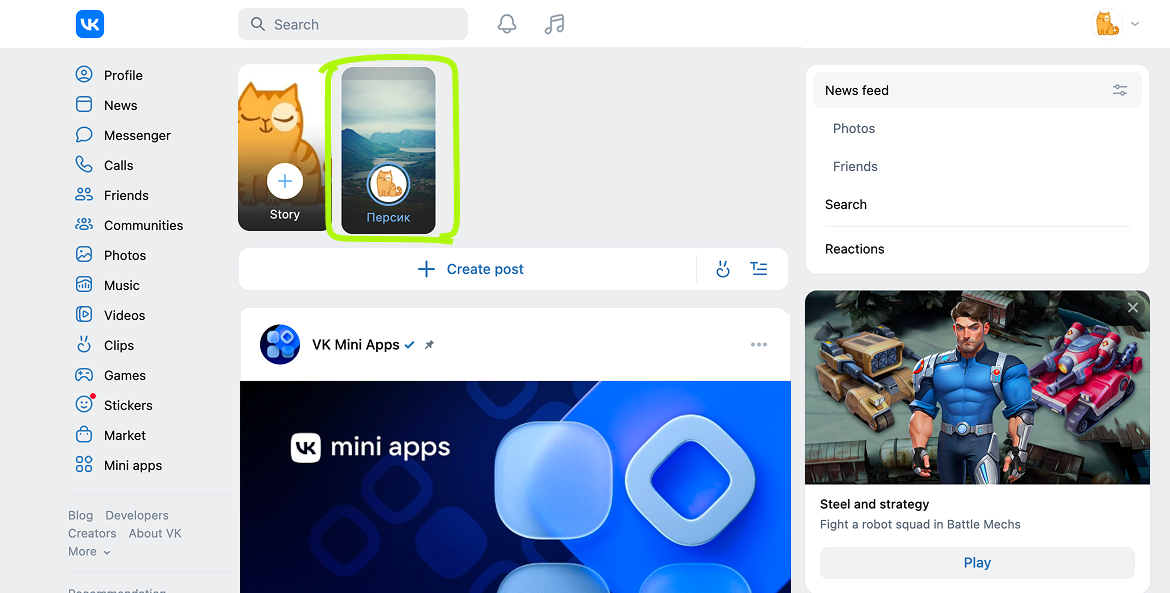 Example of a published story
To encourage users to create stories and moments, the game can offer in-game rewards for publishing them.
Implementation
- 1.
Prepare one or more templates to make creating stories and moments easier for your users, so they don't have to create them from scratch.
- •Stories can include one or multiple images, videos, text, buttons, and other visual elements.
- •Users won't be able to edit Odnoklassniki moments, so add the text to the image in advance and implement a link that opens the game.
- •
- 2.
To display the story or moment editor, call the
VKWebAppShowStoryBoxevent. Select the image or video, text and other visual elements in the event parameters.The event has many parameters available. Here are some of the most commonly used ones:
ParameterDescriptionbackground_typeandurlThebackground_typeparameter specifies the background type: image or video, whileurldenotes the link to the image or video file.lockedIf this parameter is set to: •false— the user can resize and move the background image in the story editor. •true— the image stretches to fit the entire screen of the story, and its size and position can't be changed. We recommend usinglocked: true.attachmentThis object describes an attachment, such as an image, video or link. It can be used to create a button that will be displayed at the bottom of the story so that viewers can open the game. Note that the button is not visible in the story editor, but viewers will see it in the published story. Example.stickersThis is an array that specifies additional stickers, which are visual elements in the story, such as images, texts, hashtags, time and others. Thetransformfield of the sticker determines its position and rotation angle on the story screen. To add text, use stickers of thenativetype and theaction_textsubtype. Example.
Please note. Some types of stickers and styling attributes may not be supported on different platforms. Take this into account when creating templates. We recommend developing suitable templates for different platforms. Odnoklassniki moments can only use backgrounds and attachments. For more details about parameters, see the
VKWebAppShowStoryBoxevent documentation.
Event call example
bridge.send('VKWebAppShowStoryBox', {
  // Setting the story background
  "background_type": "image", // Background type: image
  "url": "https://example.com/v850136098/story-1.jpg", // Image URL
  "locked": true, // Disabling resizing and repositioning of the background

  // Adding a button to the bottom of the story to navigate to the game
  "attachment": {
    "type": "url",  // Object type: link
    "text": "open", // Constant that determines the link text
                    // "open" - Open
                    // "game" - Play
    "url": "https://vk.com/app12345" // Game URL
  },

  // Additional visual elements
  "stickers": [
    // Text at the top of the screen
    {"sticker_type": "native",
      "sticker": {
        "action_type": "text",
        "action": { // Text and its attributes
          "text": "I found 200 diamonds",
        "style": "classic",
        "background_style": "none",
        "selection_color": "#FF8080"
      },
      "transform": { // Setting text position
        "gravity": "center_top",
        "translation_y": 0.25
      }}
    },
    // Text at the bottom of the screen
    {"sticker_type": "native",
      "sticker": {
        "action_type": "text",
          "action": { // Text and its attributes
          "text": "in the game \"Cave of the Mountain King\"",
          "style": "classic",
          "background_style": "none",
          "selection_color": "#40FFF0"
        },
      "transform": { // Setting text position
        "gravity": "center_bottom",
        "translation_y": -0.25
      }}
    }]
  })
  .then( (data) => {
    // Story published
  })
  .catch( (e) => {
    console.log("Error!", e);
  })
If you connected the VK Bridge library in the HTML code of the page, use the vkBridge object name instead of bridge.
Usage specifics
- •Stories and moments are displayed for 12 seconds.
- •If multiple stories or moments are created, they'll be displayed one after the other.
- •Stories and moments are available for 24 hours from the time of publication and then automatically deleted.
- •The
VKWebAppShowStoryBoxisn't supported on iPad and in Android games on Odnoklassniki.
Content recommendations
- •
Consider possible story formats and offer users ready-to-use templates with well-crafted phrases.
Note that the story is published on behalf of the player. Therefore, the texts should be written in the first person.
- •
Keep in mind that many users who see the story may not be familiar with your game. The images or text should provide a basic idea about the game and its genre.
- •
Provide a link or button so that viewers can launch your game from the story.
- •
Highlight achievements and key moments of the game. Give players the opportunity to show them off to their friends.
See also
- •
- •
- •
- •

