Game snippets
When users share a game link in private messages or community posts, VK adds a snippet to such messages. It's a block with the game's name, description, image and launch button.
 Snippet example in a message
Ways to create snippets
You can specify snippet parameters visually in the game settings or in your code using the VK API.
- •
You can only create one type of snippet in the settings. If there are no other snippets, VK will use it every time it detects a link to the game.
- •
Using the API, you can create additional snippets and specify the criteria for their use. These criteria include communities where snippets will be displayed or a hash (part of the URL after the
#symbol) that determines that the snippet should be used. You can create up to 10 such snippets. This way, you can create multiple snippets for one game, each better suited for different situations. For example, you can:- •
Create snippets to use them in certain communities that'll better match the community's style.
- •
Create different entry points (deep links) to the game for different user groups and use specific snippets for each entry point.
- •
A specialized snippet increases the chances of users opening the link, subsequently increasing user conversion to your app.
See How VK selects a snippet for display for more information.
Using the API, you can also specify a custom snippet title and additional description. Snippets created in the settings use the game name as the title and its genre as the description.
Creating snippets in the game settings
Requirements
Snippet settings are available to game admins with following permissions:
- •
The game creator.
- •
Admin with full access.
- •
Admin with partial access that has the App editing permission.
How to create a snippet
- 1.
Go to the app list.
- 2.
Open the game settings.
- 3.
In the left menu, select Settings → Design.
- 4.
Upload the image in the Icon for catalog and snippets block. This snippet will be shown in messages.
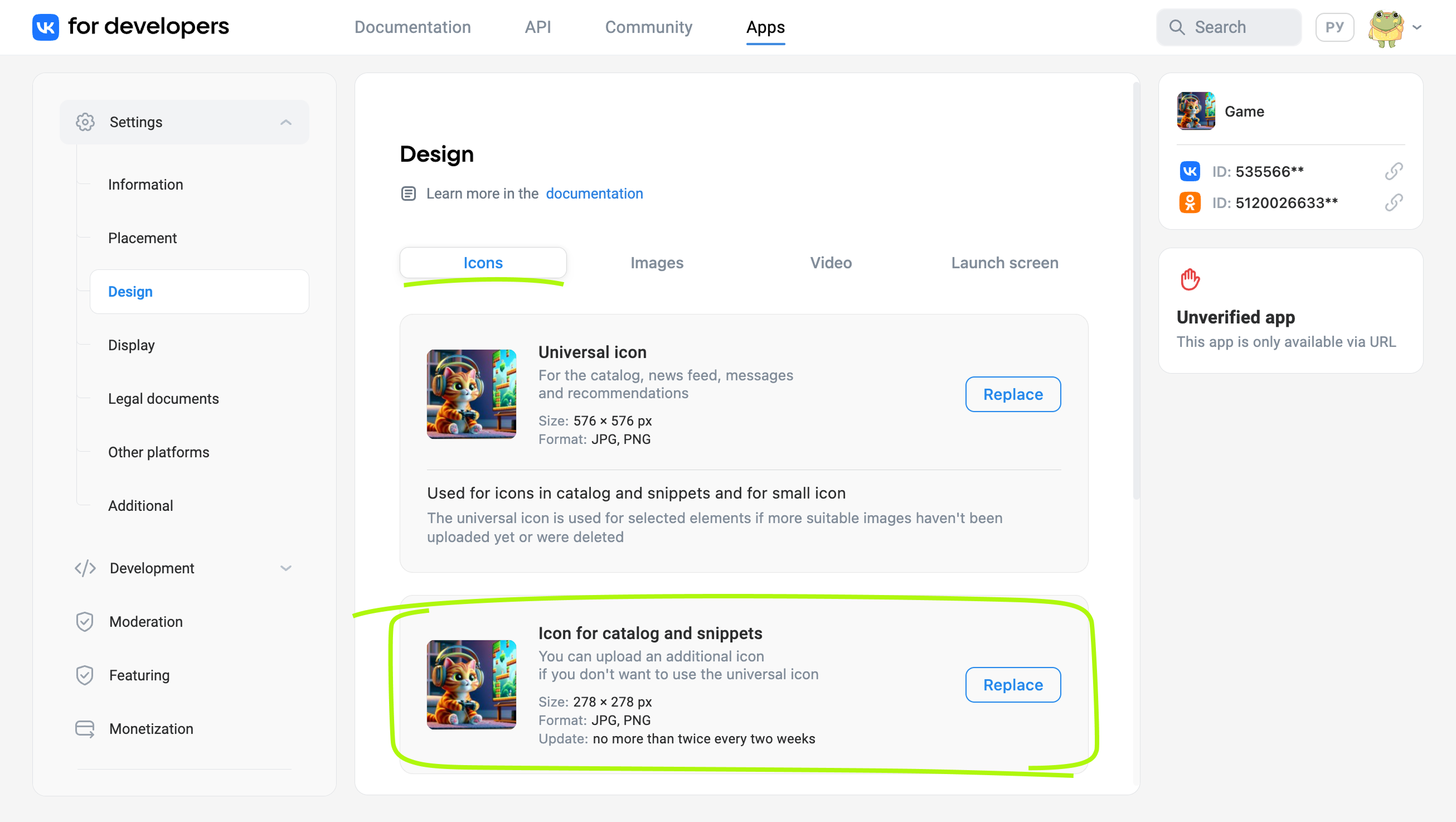 Upload the catalog and snippet icon
 - 5.
Save changes. The snippet is ready to use.
Creating snippets via API
Requirements and limitations
- •
Creating snippets via API is only possible for games that have been published in the catalog.
- •
No more than 10 snippets can be created via API.
1. Configure the game
- 1.Go to the app list.
- 2.Open the game settings.
- 3.In the left menu, select Settings → Design.
- 4.In the Custom snippets block, toggle On. Changes will be saved automatically.
2. Send an API request
To add a snippet, use the apps.addSnippet API request. In the request parameters, specify the snippet image and button name. You can also use the below parameters to set various criteria for displaying the snippet.
Parameter | Description |
|---|---|
group_id | An array of community identifiers where the snippet will be displayed. |
hash | An array of hashes associated with the snippet.
A hash is the part of the URL after the #, symbol. For example, in the address https://vk.com/app12345#start-page the hash is start-page.
If the app link contains any of the hashes specified in the array, the snippet will be displayed when using that link.
Important. Values are case sensitive.
You can specify values in an array using the mask, or * symbol. The mask equals any amount of symbols or an empty substring. For example, join* value corresponds to these links:
• https://vk.com/app123#join_invite
• https://vk.com/app123#join_msg
• https://vk.com/app123#join
An array element without * corresponds to links in which the hash is the same as the element value. For example, join corresponds to link https://vk.com/app123#join, but not to https://vk.com/app123#join_invite.
Maximum length is 100 symbols. |
Upon successful execution of the request, the response will contain the snippet ID. You can use it later to delete the snippet.
Snippets have indefinite lifespans. VK stores snippets until you delete them.
Other requests for working with snippets
- •
apps.getSnippetsretrieves information about created snippets. - •
apps.deleteSnippetdeletes a snippet.
How VK selects a snippet to display
To select a snippet, the platform analyzes the link to the app, the launch context and snippet parameters:
- •
The hash in the link must match the strings specified in the
hashparameter.If you used a mask for the hash, take note of where the
*symbol is in the hash. - •
If you specified the
group_idparameter when creating the snippet, VK will check the ID of the community where you are posting. The snippet will be used only if the ID was mentioned ingroup_id.
In case multiple snippets match the context after all checks, VK will show the most recently created snippet.
If a snippet matching the context cannot be found, VK will display the snippet created in the game settings.
See also
- •
- •
- •
- •

