The translation was generated automatically and may contain mistakes
Add a plugin to the VKontakte community
The administrator can add a plugin from the community settings, from the plugin directory, or through a direct link. After installation, the plugin will appear in the block Menu community.
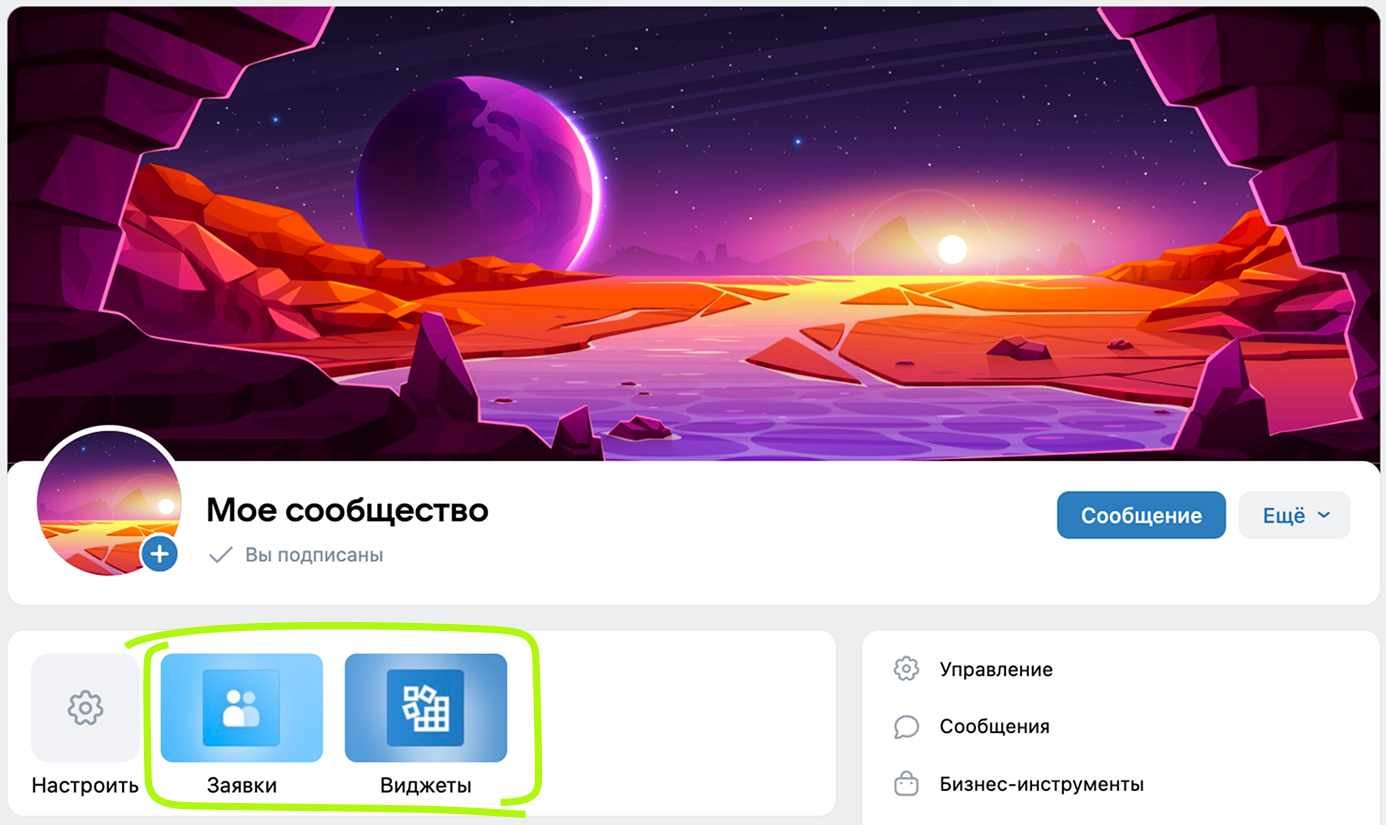 Plags in community menu
To make the plugin appear in catalogue , he must undergo moderation. Without moderation, the plugin can also be installed in any community, but it will have the status of an unverified application.
If you plan to install the plugin in the community before moderation, set it up in advance. More details in section Creating and Setting Up .
Methods of Addition
Through Community Settings
- 1.
Go to a community where you are an administrator.
- 2.
Open the section Management and go to the tab Applications .
- 3.
Select the plugin you want to add to the community:
- •
In the block Applications for any task plugins that have been moderated and added to the directory.
- •
In the block My apps plugins and mini-applications created by the community administrator.
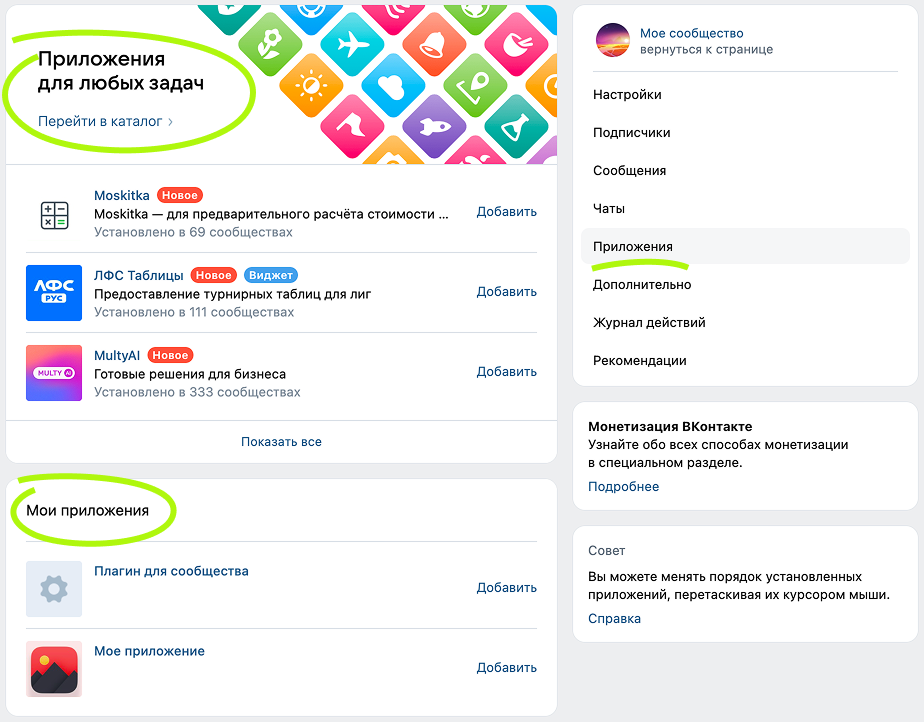 Install plugin through community settings
 - •
- 4.
Press Add in front of the selected plugin.
From the plugin directory
The directory contains plugins that have been moderated. Without moderation, the plugin can still be installed in any community, but it will have the status of an unverified application.
- 1.
Open the desktop version of the VKontakte>
- 2.
Go to plugin directory .
- 3.
Select the plugin and click Add .
- 4.
In the pop-up window, select the community and click Add .
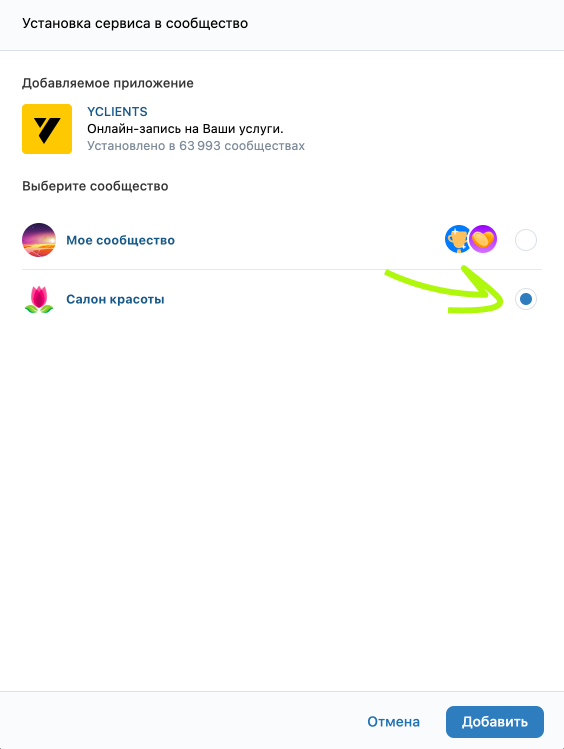 Install plugin from directory to community
A plugin developer can trigger such a window in the code with an event
VKWebAppAddToCommunity.
From the plugin action menu
- 1.
Open the plugin with the view link
https://vk.ru/app123456.The plugin works only in the community, but you can open the action menu via a direct link.
- 2.
At the bottom of the page, press Actions and choose Add to the community .
 Add plugin from the action menu
 - 3.
In the pop-up window, select the community and click Add .
Setting up a plugin in the community
- 1.
Open a section in the community Management .
- 2.
Go to the tab Applications .
- 3.
In the block Community Apps Find the plugin and click Change .
- •To customize who will see the plugin in the community, select the option in the box Who is available .
- •To change the signature on the plugin button, select the option in the box Snippet .
- •To change the name of the plugin in the community, enter a new value in the field Annex name .
- •
Removal from the community
- 1.Open a section in the community Management .
- 2.Go to the tab Applications .
- 3.In the block Community Apps Select the plugin and click Change .
- 4.Press Delete the app .
Materials on the topic
- •
- •

