The translation was generated automatically and may contain mistakes
Notifications to Inactive Users
The VKontakte sends automatic notifications if the user has not launched the mini-app within 1, 7 or 30 days.
The user will receive a push notification and notification from the mini-app to the “bell” as soon as the VKontakte enters.. The notification setting for inactive users is only available for VKontakte games..
Restrictions
- •One user can receive no more than 1 notification every 2 days, no more than 2 notifications per week and no more than 4 notifications per month. All other notifications will be blocked.
- •Notifications can only be used in a mini-app after it has passed moderation It was published in catalogue .
- •Creating Notifications state of the mini-application should be Included .
- •Users may receive notifications only after issuance of authorization .
How to implement
- 1.
Request the right to send notifications. More details in section Authorization of notifications .
- 2.
Go to the mini-app settings. Open it for that. list of Apps and press Settings in front of your mini-app.
- 3.
In the settings, go to the section Mechanics and Notifications .
This section becomes available after the application is moderated and published in the directory.
- 4.
On the tab Inactive Users Select the appropriate event and deploy it. Enter the notification text in the field.
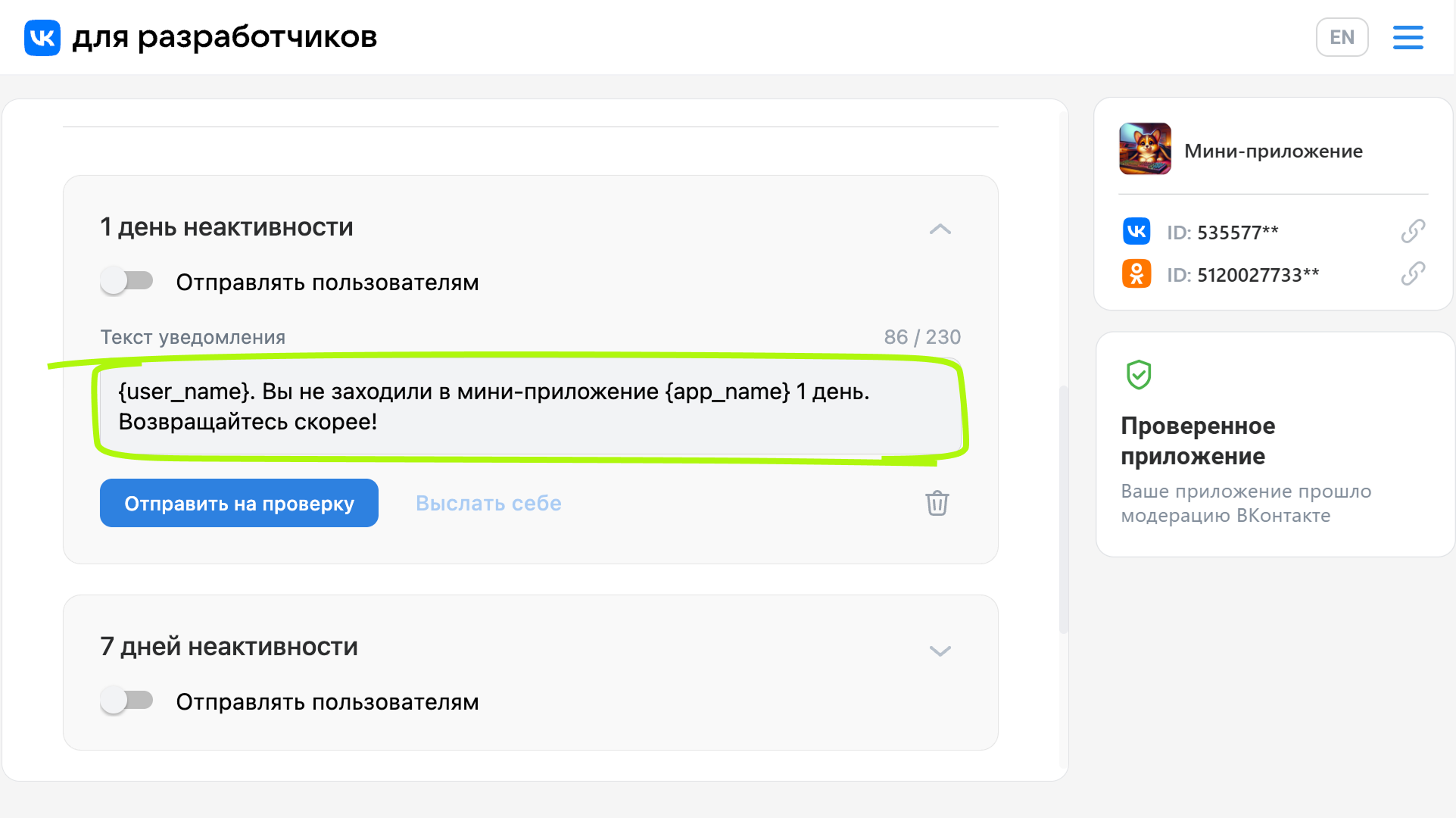 Editing the message
In the text of the notifications, the following expressions can be used to substitute values:
ExpressionWhat will be replaced{app_title}Name of the annex.{user_name}User name. - 5.
Press Send it to yourself to see what the user’s notification would look like.
- 6.
If the message is ready, press the button.. Send it for inspection . The message will go to check.
Important! Before you send a message to moderation, make sure it:
- •
It does not contain grammatical, spelling and punctuation errors.
- •
Does not mislead the user: the text of the message fully reflects the essence of the event taking place in the application.
Pay attention . Verification takes time. We recommend sending moderation messages a week before the intended launch.
- •
Once approved by the moderators, notifications will begin to leave users automatically.
To stop sending notifications, turn off Send to Users In the right mailing.
Materials on the topic
- •
- •
- •
- •
- •

