The translation was generated automatically and may contain mistakes
Personal messages from the mini-app
The mini-app can send personal messages to the user. This is a great way to convey important personal information about an event in an app.
In the messages it is necessary to indicate relevant and valuable information. In this case, the messages will not annoy the user, and the likelihood that the application will be launched will increase.
To implement sending messages, use the library VK Bridge and requests API VKontakte .
Messages are sent to users on behalf of the official mini-app community. The user sees them as personal messages, and not as the mention of his name in the community record.
How to implement
Step 1. Specify the community in the application settings
- 1.
If your mini app doesn’t already have a community, create one.
Name the community the same way the app is named.
- 2.
Find a mini-app in list of Apps and press Settings .
- 3.
In the section Information in the field The official community Select the community created.
The dropdown only shows communities where the creator of the mini-application is the administrator.
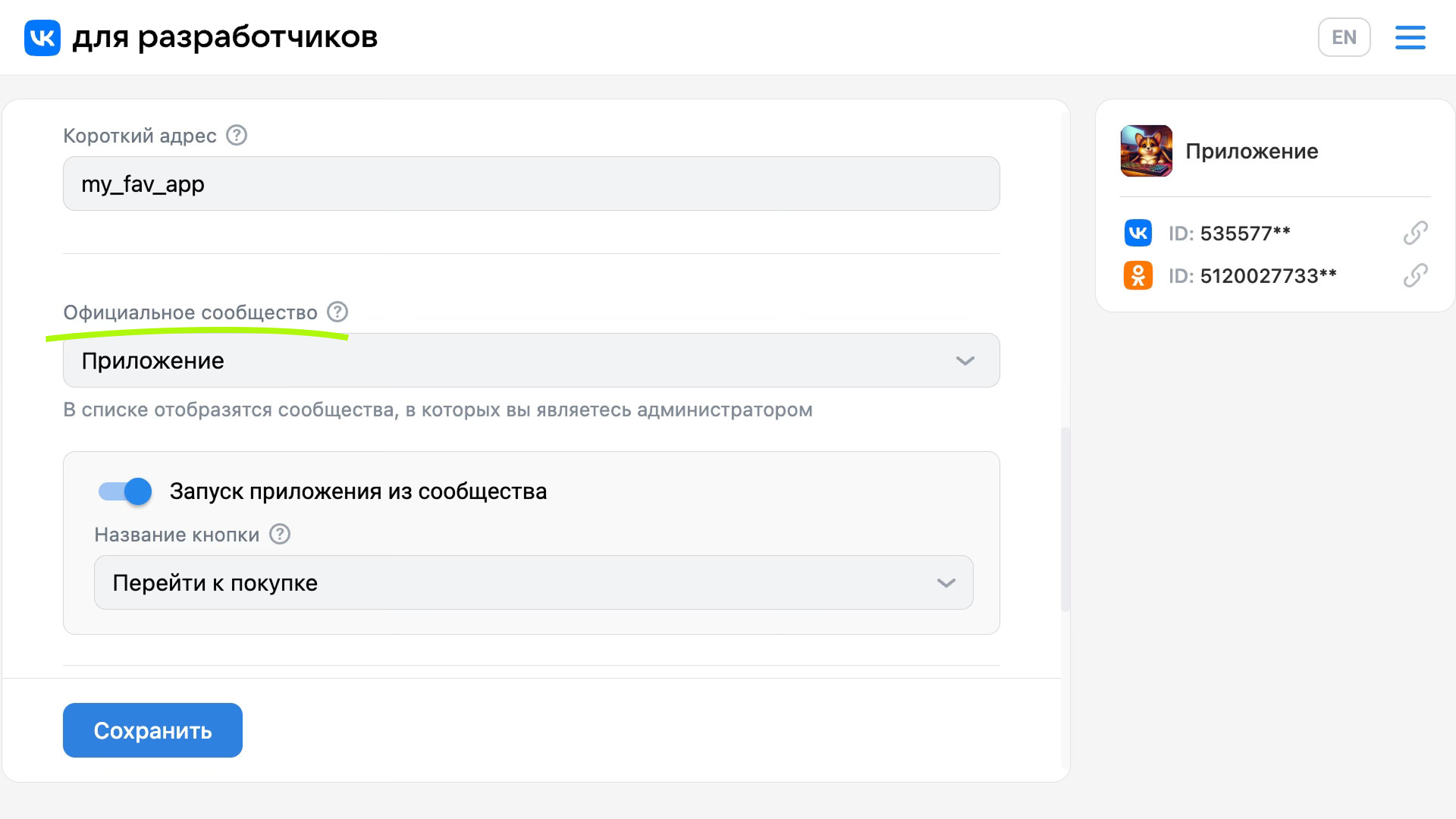 Official Community field in settings
 - 4.
Press Save .
Step 2. Request permission to send messages from the mini-app
To request permission from the user to send personal messages, call the event VKWebAppAllowMessagesFromGroup Libraries VK Bridge .
bridge.send('VKWebAppAllowMessagesFromGroup', {
    group_id: 9713780,
    key: 'axLNy12345gK' // Уникальная строка
  })
  .then( (data) => {
    if (data.result) {
      // Пользователь разреши?1?» отправку ему сообщений.
      // Сохраните идентификатор пользователя и разрешение в переменных.
    }
  })
  .catch( (e) => {
    console.log('Ошибка!', e);
  })
If the user has authorized the shipment, save his ID. You can now send messages to the user from the mini-app community.
Step 3. Get the access key
Messages are sent using the VKontakte API.. You will need to send the Community Access Key .
- 1.
Go to Community Management. Open the section Working with API . On the tab Access keys press Creating a Key .
 Creation of the key
 - 2.
In the list of rights for the access key, select Allow the app access to community messages , press Create Confirm the creation of the key.
The generated key will appear in the tab Access keys .
The community access key can also be obtained using the VK Bridge library event
VKWebAppGetCommunityToken.
Step 4. Send a message from the app
To send a message, run an API request on the server side of the mini-application messages.send . To call it from the client side, use the event VKWebAppCallAPIMethod Libraries VK Bridge .
Specify the following parameters in the query:
Parameter | Description |
|---|---|
access_token | The community access key, created on the previous step . |
user_id | The user ID is the recipient of the message. |
message | Text of the message.
For formatting, including specifying links as arbitrary text, use the parameter format_data . |
random_id | An arbitrary number is a message identifier. It is used to prevent sending the same messages to the user within an hour. |
More about Parameters in description of request in the API VKontakte documentation..
Features of use
General recommendations
- •
Name the community the same way your mini app is called. Install similar or identical icons for the app and community. It is from the community that messages will be sent to the user.
- •
Users will not only receive messages from the community, but also read the posts published in it, look for answers to questions and solutions to emerging problems. Therefore, take time to support the community, answer the questions of users. Don’t just use the community to send messages.
- •
Add a link to the message to go to a mini-app, such as “Run the app?2?.
Method
messages.sendsends a message without any buttons in it. To add a link with arbitrary text, use the following code:[https://<URL-для-перехода>|Текст ссылки]For example:
[https://vk.com/app12345#param1=context1|Запустить приложение]The URL can contain parameters that help the application determine the launch context.
- •
When moving a user from a message to a mini-application, it is important to properly define the context and show the correct screens or dialog boxes. For example, if a message is about a reward, a window should appear with the reward mentioned.
You can specify the context in the link using the URL parameters. Parameters must be passed after the symbol
#as shown in the example above. More information on the transfer and processing of parameters - in the section Startup parameters . - •
Stick to the same style and tone of communication with your users. Personalize the messages.
- •
Send relevant and timely messages. Provide valuable app updates to make posts about them look meaningful.
- •
Use chatbot keyboard to simplify and speed up communication with the user.
Communication should be predictable
Messages can not only increase user loyalty, but also scare away sudden attention. Unexpected messages can be annoying or confusing. Communication with users should be as predictable as possible.
Follow the measure
Not every event needs to be notified. Don’t bombard the user with messages. Stick to the limits on the number of messages sent and consider the situation in which it is worth sending them. For example:
- •
If 3 days have passed since the last application launch, you can send one message to the user.
- •
If the user does not start the application after the first message, send him a reminder after 5 days.
- •
If the user has not started the application again, send him one or two messages with a favorable personal discount or promotion.
Если пользователь не реагирует на ни?1?… и не переходит в приложение, прекратите отправлять сообщения.
Remember that messages are a personal channel of communication. Constant reminders are likely to lead to a ban on sending messages.
What is considered a good tone
Ниже представлены механики и события, которые положительно влияют на возврат пользователей в приложение.
- •
Ask the user for permission to send personal messages at the right time. For example, if the desired item is finished, show a request “Let me send you messages, and we will remind you when new items arrive.”
A welcome message and an explanation of the benefits can be shown immediately after the user allows sending personal messages to him.
- •
Link messages to events, rewards, updates. For example, a promotion or discount period has started, new products or levels have appeared in game mini-applications.
Don’t forget to constantly analyze users’ reactions to messages and find out which approaches, texts and events are of greatest interest.
Bad practices
Some communication approaches and formats are strictly prohibited on the platform.
- •
Avoid losing context when you go to the app. For example, when the message says bonus, and when you transition, the user sees the main screen without any hints or dialog boxes that are not related to the topic of the message.
- •
Do not send messages immediately after closing the application.
- •
Don’t send generic messages without context, such as “Go back to the app immediately! It's like this!"
- •
Избегайте отправки любы?1?… ссылок, уводящи?1?… за пределы ?1?’Контакте.
Materials on the topic
- •
- •
- •

