Adding a game to the left-side menu
To encourage users to play more often, make the game easy to launch. The left-side menu of the VK desktop website is one of the most popular ways for users to launch games. Adding your game there can help you improve player retention. The game appears in the left-side menu when users add it to favorites.
 Link to the game in the left-side menu
Implementation
Option 1
Users can add the game to favorites from the action menu:
- •On desktop: click Actions → Add to favorites.
- •On mobile devices: tap ••• → Favorite.
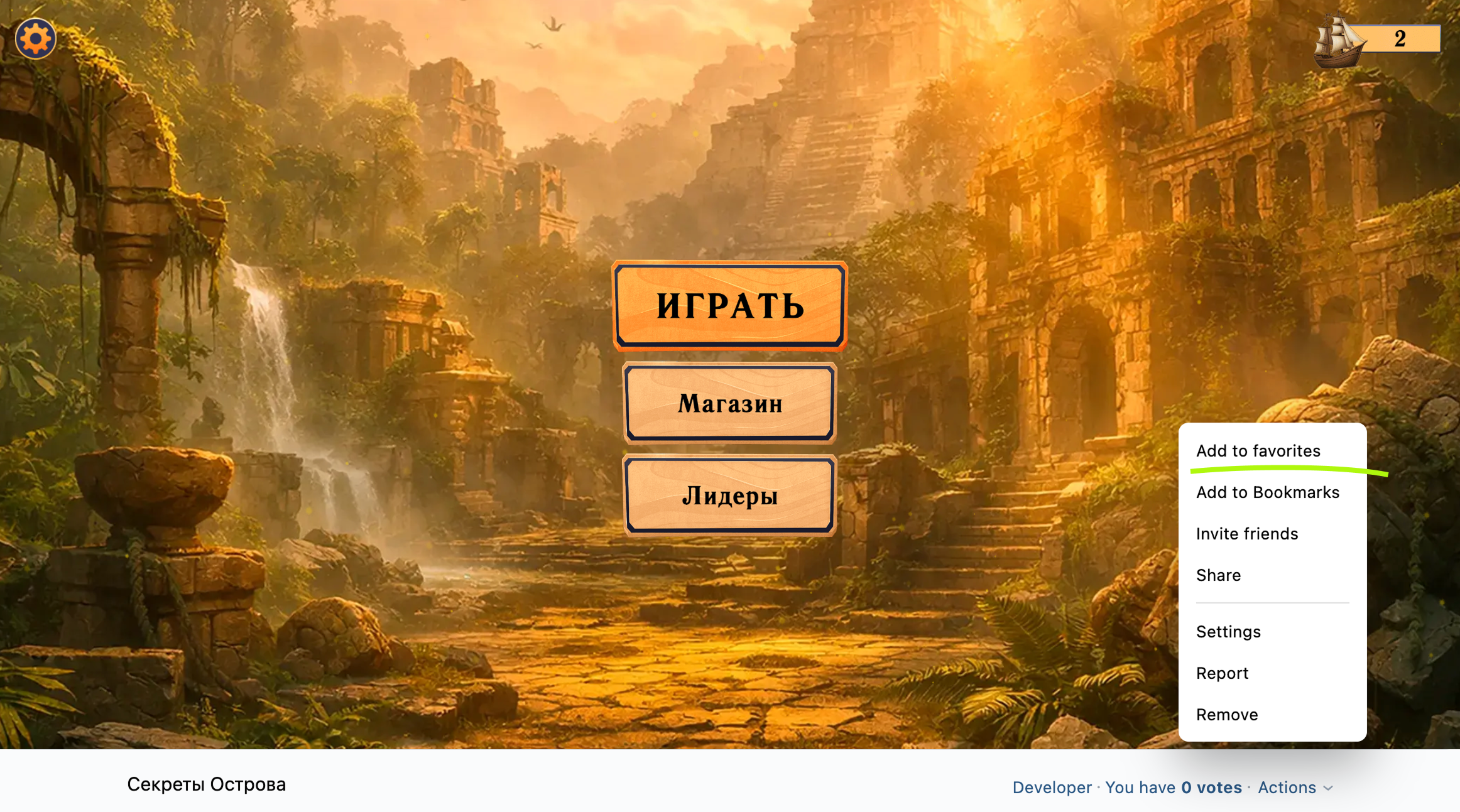 Adding a game to the left-side menu manually
 Adding a game to the left-side menu manually
After that, the game will appear in the left-side menu.
Option 2
You can prompt users to add the game to the left-side menu using the VKWebAppAddToFavorites event. If the user agrees, the game will appear there.
bridge.send('VKWebAppAddToFavorites')
  .then((data) => {
    if (data.result) {
      // The game was added to the left-side menu...
    }
  })
  .catch ((error) => {
    console.log(error); // Error...
  });
If you connected the VK Bridge library in the HTML code of the page, use the vkBridge object name instead of bridge.
If the game has already been added to the left-side menu, the dialog window won't appear. VK will report that the call was successful, and the execution goes to the then handler.
Tips
- •
Offer a reward for adding the game to favorites. Users receive a reward and ability to quickly launch the game, while you improve player retention.
- •
Avoid prompting users to add the game to favorites immediately after launch. Give them some time to get familiar with it.
- •
If the game has an important update, it can send users a notification using the
secure.sendNotificationAPI method.To attract users' attention, you can also send the
secure.setCounterAPI request to set the notification counter on the game icon in the left-side menu.Important! These methods use the service access key and can be called only from the server side.
Removing the game from the left-side menu
To remove a game from the left-side menu, hover over the game and open Settings. Uncheck the game in the Favorite games and apps tab of the dialog box. Save the changes.
 Removing the game from the left-side menu
See also
- •
- •
- •
- •
- •

