Debugging
Debugging in the browser
The VK Bridge events that are supported on the desktop version are tagged with the Web platform in the documentation. The easiest way to test receiving such events is to enable the desktop version of games and intercept them right in the browser.
Open the game in your browser, go to Developer Tools, and in the Console tab enter the code:
window.addEventListener('message', (event) => {
    if (event.data?.type === 'vk-connect') {
        console.log(event);
    }
});
The code will catch messages from the game and show their contents.
Debugging on mobile devices
Eruda console
Eruda is a console with developer tools that lets you debug Android and iOS games and works similarly to the browser console.
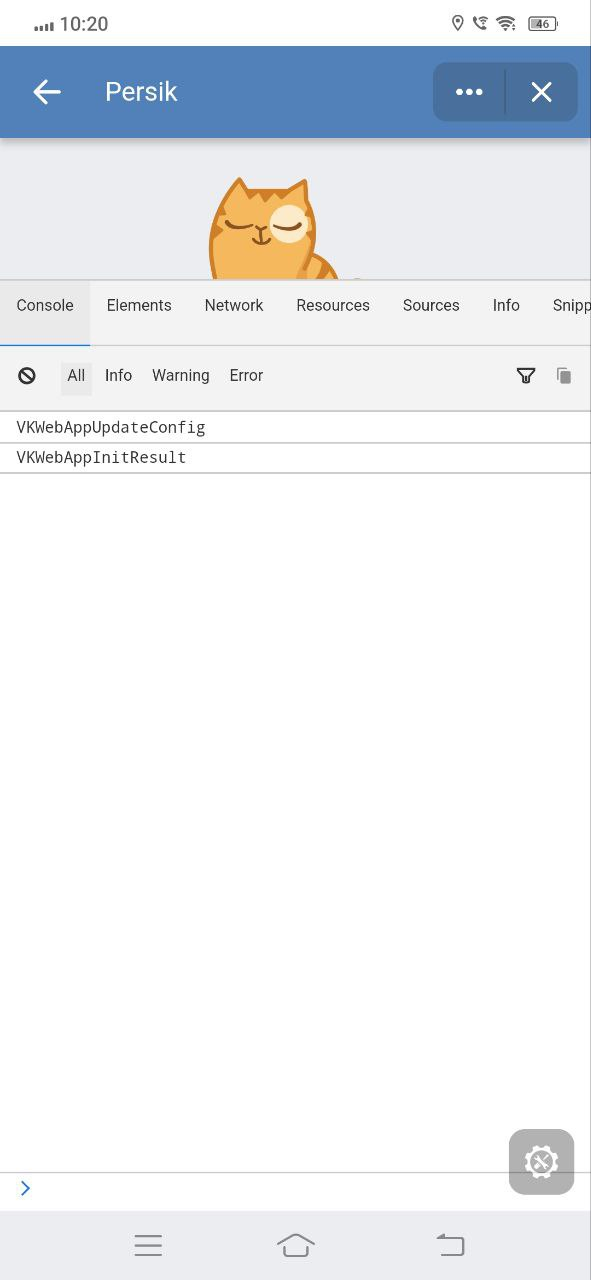 Eruda console
Enabling the console
Before developers can use the Eruda console for debugging, game administrators must enable it in the control panel. This can be done by the game creator, an administrator with full access, or an administrator with partial access and the Editing permission.
Learn more about permissions in the Administrators section.
- 1.
Go to the apps list and open your game settings.
- 2.
Go to Settings → Additional and in the Eruda console block select Enabled.
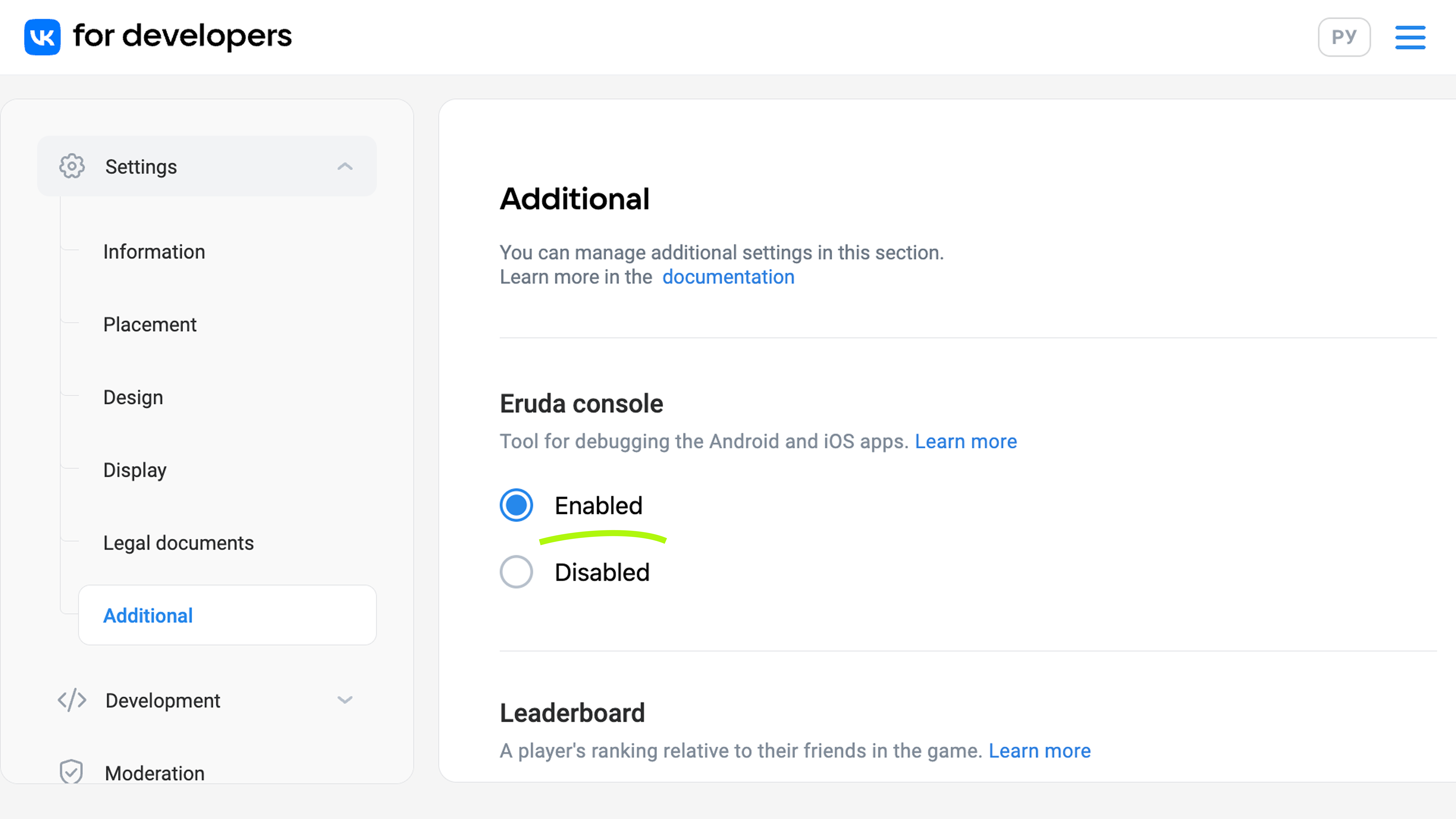 Enabling the Eruda console
Using the console
- 1.
Launch the game.
- 2.
Click •••.
- 3.
From the menu, select Show console. If the console is already open, the menu will display the Hide console option.
 Eruda console
 - 4.
To open the debug console directly within the game, click the icon that appears in the bottom right corner.
You can see an example of how it works in the Eruda mini app.
Chrome DevTools
Debugging is performed using the desktop version of the browser. To debug an Android game, use Сhrome Remote debugging on Android devices.
To get the game to display in Chrome Developer Tools:
- 1.
Connect the device to your computer via USB.
- 2.
- 3.
Open the VK app on Android, go to Settings → Debug, and enable WebView debugging.
For the Debug item to appear in settings, go to Settings → About and tap the VK icon 11 times.
Now, when debugging via USB, the game opened on an Android device will appear in Сhrome DevTools:
chrome://inspect/#devices.
Debugging using vk-bridge-mock
If you don't have an Android device on hand, use the vk-bridge-mock library, which emulates receiving data when working on a computer. When you call library events, you will get test data that can be used for debugging.
Using the library
- 1.
Install the library:
Shellnpm install @vkontakte/vk-bridge-mock || yarn add @vkontakte/vk-bridge-mock - 2.
Connect the library in the
index.jsfile:JavaScriptimport bridge from '@vkontakte/vk-bridge-mock'; - 3.
Use the methods of the
bridgeobject:JavaScriptbridge.subscribe((e) => { if (e.detail.type === 'VKWebAppGetUserInfoResult') { // do something } }); bridge.send('VKWebAppGetUserInfo', {});
Example of the test data returned
{
  "type": "VKWebAppGetUserInfoResult",
  "data": {
    "id": 743784474,
    "bdate": "21.12.2000",
    "bdate_visibility": 1,
    "city": {
      "id": 2,
      "title": "Saint Petersburg"
    },
    "country": {
      "id": 1,
      "title": "Russia"
    },
    "photo_200": "https://sun1-91.userapi.com/s/v1/ig2/Dcf-SWu7nVYDDldq9oQegiC06VqsSa43-HpDxzPjrvFCUUk9nSevY2Uf9xzm0bxvLfgsTOH6XiiW-zeLcDhPDj_w.jpg?size=200x200&quality=96&crop=26,26,204,204&ava=1",
    "photo_max_orig": "https://sun1-91.userapi.com/s/v1/ig2/trHNebJQhG4BmLxC8h4hOpDU6bKRy6uJi586wcyFcCj5fzrwYk7AtoNab-RSil0Bp9b569VQyGK_skG9e6oK7Ap7.jpg?size=256x256&quality=96&crop=0,0,256,256&ava=1",
    "sex": 2,
    "photo_100": "https://sun1-91.userapi.com/s/v1/ig2/M4vtl7tcmeP6ANUgE0vU7JZWuJszbHaN5QcCcK2xD66EIc6SeSA1NyFVLTSOt2iLOkFhJSJ4DawEJGOjzKtszMpR.jpg?size=100x100&quality=96&crop=26,26,204,204&ava=1",
    "first_name": "Persik",
    "last_name": "Ginger",
    "can_access_closed": true,
    "is_closed": false
  }
}
Changing test data
If you need to modify the test data to see how the game will behave if the user, for example, hasn't specified a city, you can override it:
import { response as res } from  '@vkontakte/vk-bridge-mock';
res.VKWebAppGetUserInfo.data = {
  type: 'VKWebAppGetUserInfoResult',
  data: {
    city: {
      id: 1,
      title: 'London'
    },
    country: {
      id: 1,
      title: 'UK'
    },
    photo_200: 'https://pp.userapi.com/c841034/v841034569/3b8c1/pt3sOw_qhfg.jpg',
    photo_max_orig: 'https://pp.userapi.com/c841034/v841034569/3b8c1/pt3sOw_qhfg.jpg',
    sex: 0,
    photo_100: 'https://pp.userapi.com/c841034/v841034569/3b8c1/pt3sOw_qhfg.jpg',
    first_name: 'Friedrich',
    last_name: 'Engels'
  }
}
Supported events
The vk-bridge-mock library supports working with the following events:
- •
- •
- •
- •
- •
- •
- •
- •
Game testing
To test new features or show changes in the game to specific VK users, set up test groups in the control panel. In each test group, you can specify a link to a game version that will be available only to members of that group.
Learn more in the Test groups section.

