The translation was generated automatically and may contain mistakes
Payment window for payers
In the payment window, the user will see a description of the purchase, the amount of payment and the available payment methods.
Payment by bank card
1. Enter card details and email for the check
If the user has chosen to pay with a card and does not yet have any cards attached, you will need to enter details in the payment window. The service will offer to save the card data so that the user does not have to re-enter them next time.
In the payment window, the user also needs to specify the email to which he wants to receive an electronic check. The e-mail address for the check must be indicated at each payment.
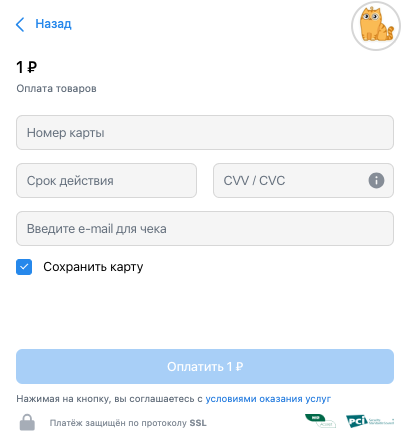 Example of the payment window when entering bank card details
If the user has saved the card data, at the next payment, he will see a card tied in the payment window. The user can choose both a saved card and another payment method.
You can unlink the card in the VK ID personal account in the section VK Pay: Cards and Payments .
2. Confirmation of payment card
При оплате картой пользователю придёт push-уведомление или SMS от банка-эмитента, с помощью которого нужно будет подтвердить платёж.
The message will come to the phone number that the user indicated when setting up notifications from the bank that issued the card.
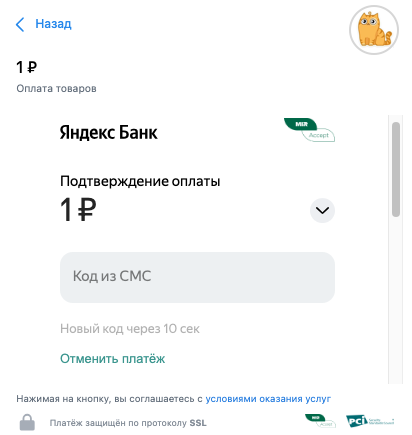 Example of the payment window: waiting for payment confirmation
3. Display the result of the payment
When the payment passes, the user will see a notification in the payment window and receive an email check confirming the payment.
 Example of payment window: successful payment
If there are not enough funds on the user's account, an offer will appear in the payment window to choose another card or replenish the VK Wallet.
 Example of payment window: not enough funds
Payment with VK Wallet
1. Replenishment of VK Wallet
If there are enough funds on the VK Wallet for payment, the user will immediately move to the next step - confirmation of payment.
If there are not enough funds on the VK Wallet, the user will see an offer to replenish the wallet in the payment window.
Transfer money to VK Wallet is now possible only through the system of fast payments (SBP). The exception is the bank cards previously tied to the VK Wallet, from which regular transfers to the wallet are set up.
When replenishing the SBP, the phone number specified in the contact details is automatically used private office of VK ID . It should match the phone number tied to the sender bank account. If the numbers are different, change the phone in the personal account VK ID to the current one
The replenishment process depends on type of VK wallet Basic or Extended.
Basic VK Wallet
If you have a basic VK Wallet, you can replenish its balance only through the mobile application of your bank.
To do this, open the application, select the transfer through the SBP and specify the phone number associated with the VK ID account. Detailed instructions for payment for each bank are available on the SBP website.
The bank can define the transfer address as VK Payment Solutions — this is the VK Wallet Balance.
Extended VK Wallet
If you have an extended VK Wallet, you can replenish it directly in application of VK Pay :
- 1.Click on the VK Wallet Balance Replenish .
- 2.Enter the amount and press Continue .
- 3.Select the bank.
- 4.Confirm the operation on the phone with the number tied to the VK ID account.
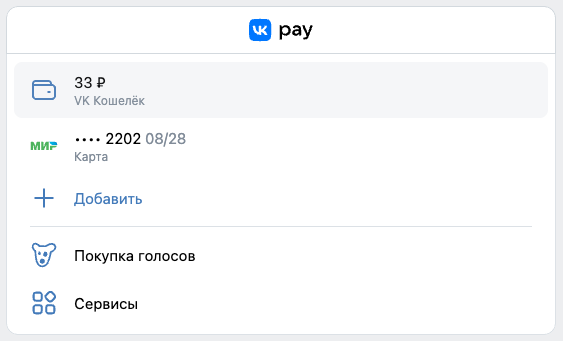 Supplement VK Wallet
 Supplement VK Wallet
 Supplement VK Wallet
:::
2. Display the result of the payment
After successful payment, the user will see a notification of the result and a receipt in the payment window. In the user's business message VK Pay Notifications There will be a link to the check confirming the payment.
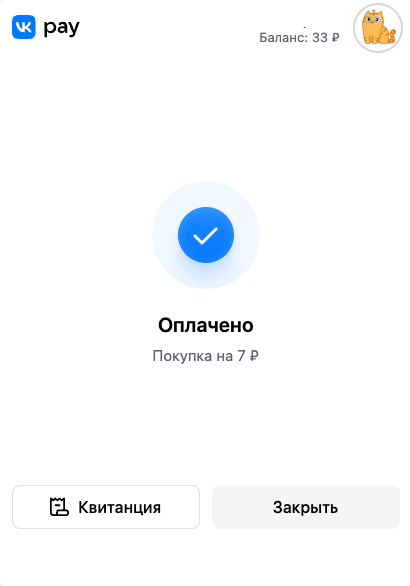 Example of payment window: successful payment

