Withdrawal of funds for legal entities and individual entrepreneurs (tax residents of Russia)
To withdraw funds, legal entities and individual entrepreneurs (tax residents of the Russian Federation) must register in the payments account. Withdrawals will be made to a bank account.
After registering in the payments account, you'll be able to submit your app for moderation. Once the app passes review, you can receive earnings from the sale of goods for virtual currency (votes, OKs) and from ad impressions on VK and Odnoklassniki.
Registration in the payments account
The creator of the app must register in the payments account. They'll be able to add other participants to it. Adding an app to the account is only available to the app creator, while changing account details is only allowed for the account owner.
The payments account is a unified account for withdrawing funds from the sale of goods for virtual currency (votes, OKs) and from ad impressions. You need to register in the account only once, after which you can add all your apps with monetization enabled.
To register in the payments account:
- 1.
Go to the payments account by following the link below:
You can also access the payments account from the control panel in the Monetization section.
- 2.
Select the type of account and organization: legal entity or individual entrepreneur.
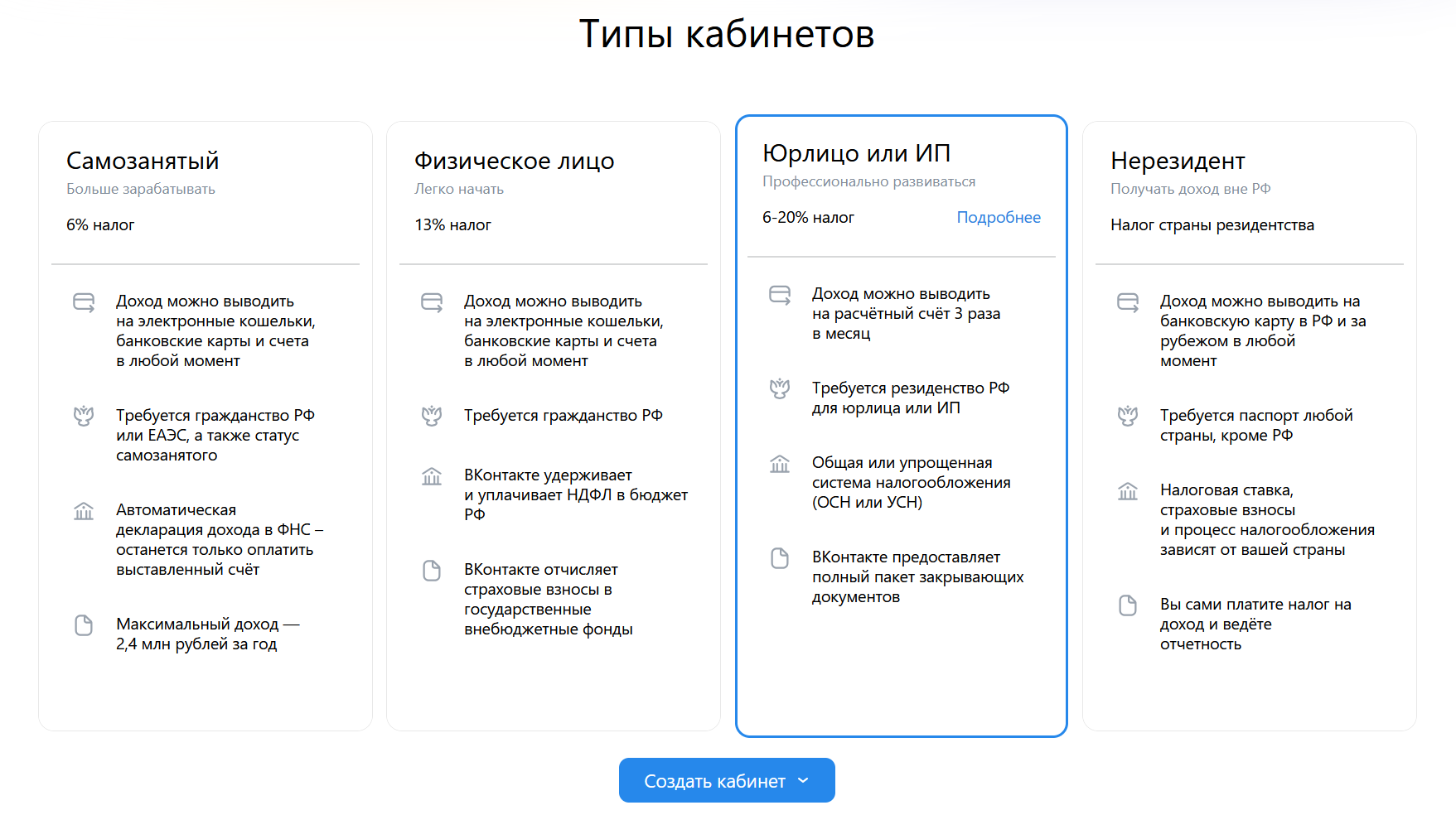 Selecting account type
 - 3.
Fill in the organization’s details, bank account information, and contact information.
Important! If your company is a VAT payer, be sure to indicate this in the application. You can specify the VAT rate in the payments account after completing registration or when making your first withdrawal from the app account.
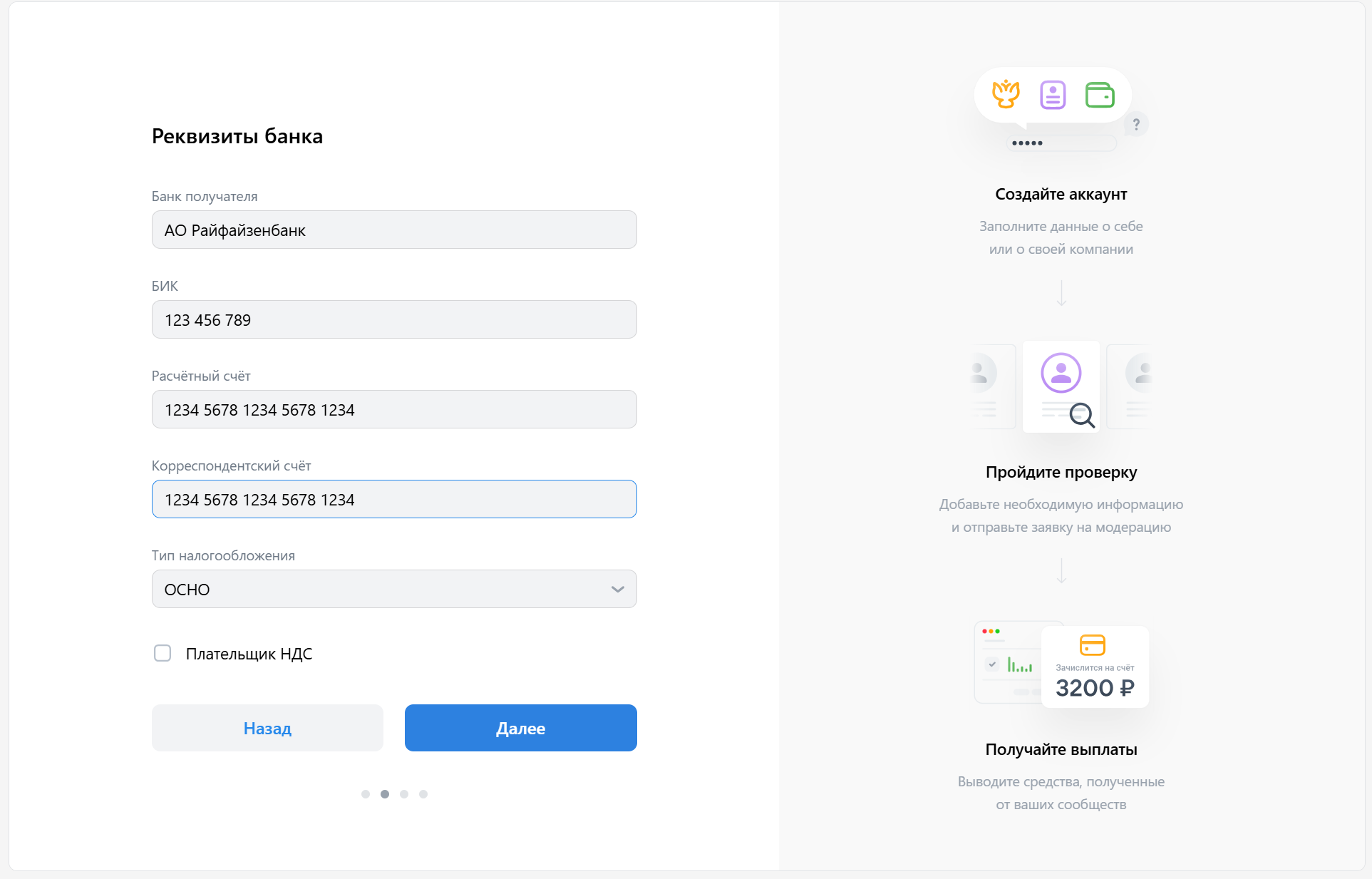 Filling in bank details
 - 4.
Review the offer and confirm your consent to the processing of your data.
- 5.
Submit the application. The review process takes 2 to 5 business days.
You don't need to provide documents when submitting the application. However, during the review, we may request some documents from the list.
The payments account will become available immediately after submitting your application. You can check the application status in the app control panel in the Monetization section.
In the Participants section of the payments account, you can add your organization’s employees and assign them roles that determine their access to account sections and withdrawing funds.
Enabling monetization in the Payments account
Only the creator can enable monetization for a mini app in the Payments account. This ensures that the app’s rights are linked to the individual entrepreneur, legal entity, or self-employed account.
To display mini apps from different platforms (VK and Odnoklassniki) in the Payments account, connect the creator’s VK ID in the Security and VK ID section on Odnoklassniki.
To enable monetization for a mini app, you need to assign a performer and pass moderation on the VK Mini Apps platform:
- 1.
Register in the payments account as a self-employed individual, legal entity, or individual entrepreneur.
- 2.
In the left-side menu, press Go to management and select Mini apps and games. You can also access management via the direct link.
- 3.
Select the mini app from the list and press Assign performer.
- 4.
Find the desired account in the list and press Assign. The performer can be the mini app creator or an administrator with full access. This user must have a verified profile in the payments account.
- 5.
In the mini app control panel, submit the app for moderation. Once the mini app passes moderation, you'll be able to withdraw revenue through the payments account and view statistics for ads and sales of goods for virtual currency (votes and OKs).
For more details on the moderation process, see the Moderation (mini app settings) section.
Test ads and test payments
Only test payments and test ads will be available in the app until all of the following conditions are met:
- •
The app is registered in the payments account.
- •
A performer is assigned for app monetization in the payments account.
- •
The app has passed moderation on Odnoklassniki or is published in the VK mini app catalog. For more details on the moderation process, see the Moderation (mini app settings) section.
- •
The app status for users is set to Enabled. For more information about app statuses, see the Placement (mini app settings) section.
Viewing data
Statistics
Statistics in the Payments section
To view payment statistics in the mini app or game settings:
- 1.
Open the app list in your browser.
- 2.
Find the app you specified when registering the agreement and press Settings.
- 3.
In the left-side menu, select Statistics → Payments.
The page shows charts displaying statistics for virtual currency (votes, OKs) spent by users. The charts are updated several times a day.
You can select any time period you need for analysis.
Chart data can be exported to an Excel file (.xlsx) for further analysis and processing using other tools.
Ad impression statistics
After the agreement is signed, the Ad monetization section will appear in the settings of your mini app or game. To open it, do the following:
- 1.
Open the Apps page in your browser.
- 2.
Press Settings next to the app.
- 3.
In the left-side menu, go to Statistics → Ad monetization.
The page shows two charts that provide information about ad impressions and the revenue earned from them. The charts combine data for all ad types. They're updated several times a day.
You can select any time period you need for analysis.
Chart data can be exported to an Excel file (.xlsx) for further analysis and processing using other tools.
Amount of funds
You can view information about accumulated funds in the payments account.
- 1.
Go to the payments account by following the link below:
- 2.
In the Mini apps and games section, select:
- •Votes or OKs to see funds accumulated from the sale of virtual goods.
- •Ad monetization or Odnoklassniki ads to see funds earned from ad impressions. For each app, the number of records and the total amount across all apps are displayed.
- •
VAT rate
Funds earned in the account of a game or mini app are shown without VAT. However, when transferring funds, you must specify the VAT rate. You can do this:
- •by pressing Change rate in the top-left corner of the payments account.
- •when making your first withdrawal to the account (in the window that appears for entering the rate).
You can change the VAT rate until you receive your first payment in the current month. After that, the rate can only be changed in the following month.
Note that the balance in the payments account doesn't include VAT. When a payment is processed, the amount will automatically be adjusted according to the specified rate.
At the end of the month, a package of closing documents will be generated in the Payments section of the payments account, including an act, a certificate, and an invoice with the VAT rate you specified.
VAT rate rules
- •If you've already received a payment this month with a specific VAT rate, you can't change it during the current month. You can update the rate next month, but it can't be lower than the rate used in the previous month. For example, if you set the rate to 5% this month, the lowest you can set it to next month is 5% (or higher).
- •If you entered the wrong rate and have already received at least one payment this month, you can correct it through Support. Press Help in the Mini apps and games section on the Votes or OKs, Ad monetization or Odnoklassniki ads tabs.
- •You can't transfer funds from the app account to the payments account without specifying a VAT rate.
Withdrawing funds
You can receive payments three times a month. Withdrawals are processed in two steps.
Step 1. Transfer funds from the app account to the agreement account
Initially, payments from virtual currency (votes, OKs) and ad impressions are collected in the mini app or game account. You need to transfer these funds to the payments account.
- 1.
Open the payments account by following the link below:
- 2.
Go to the Mini apps and games section. Select the monetization type: Votes or OKs, Ad monetization or Odnoklassniki ads.
- 3.
To transfer funds from a single mini app or game, press Transfer next to it. All funds in the app account will be moved to the payments account.
You can also transfer all funds from all apps at once by pressing Transfer all.
To transfer funds from the app account to the payments account, you must specify the VAT rate. For more details, see VAT rate.
Step 2. Withdraw funds to a bank account
- 1.
Funds from the payments account balance are transferred to your bank account three times a month. Amounts are fixed on the 10th, 20th and last day of the month at 23:59. All necessary closing documents are available in the account. Keep in mind that bank transfers can take up to five business days.
Closing documents are generated once on the first day of the month following the reporting month. They can be found on the Payments tab.
- 2.
The procedure for submitting closing documents depends on your taxation system:
- •If a company or an individual entrepreneur uses the simplified tax system with a 0% rate, there is no need to sign or send the original closing documents.
- •Companies and individual entrepreneurs using the general tax system, or the simplified tax system with a rate above 0%, must download, check, and sign the closing documents upon receipt. They must then send them to pay@corp.vk.com by the second day of the month following the reporting month, or by the tenth day if using electronic document management.
Send the original documents to:
125167, Moscow, Leningradsky Ave., 39, Bldg 79, SkyLight Business Center. Contact person – Anastasia Karpenko, +7 (495) 725-63-57.
Be sure to list the recipient as VK LLC.
If you don't submit the closing documents within two months after the reporting period, further payments will be frozen until the documents are provided.
- •
Updating information in the payments account
After signing the agreement, you can update:
- •Contact information, including phone number and email address.
- •Users linked to the account.
- •Linked mini apps and games (available only to their creator).
- •Bank account details (available only to the account creator).
Support
Questions regarding the agreement, documents, fund transfers or data shown in the payments account can be asked in the Help section of the payments account. You can also send an email to pay@corp.vk.com.
For technical questions about data exchange with the platform or using VK libraries, contact Support.
See also
- •
- •

