The translation was generated automatically and may contain mistakes
Notifications
Important! Notifications are only available to mini-applications from catalogue .
If your application is already in the directory, you can set up automatic notifications to its users when certain events occur. The user will receive a push notification and a bell alert from the mini-app as soon as it is online.
Notifications are:
- •
- •Automatic — tied to the days of inactivity of users.
- •Mass Sending to active users when an event occurs.
To go to the section, open My apps → Edit → Notifications .
Advice. To create quality notifications, study the following sections:
- •
- •
Authorization of notifications
You can send notifications to the mini-application only after the user allows it.
To enable notifications in the mobile app:
- 1.Go to section Services .
- 2.Open the mini-app and press the **• • ** button..
- 3.Press Enable notifications .
Automatic Notifications
You can set up to automatically send notifications to users if they haven’t launched your mini-app within 1, 7 or 30 days.
How to Enable
- 1.
In the block Automatic Notifications press Details in front of a suitable event.
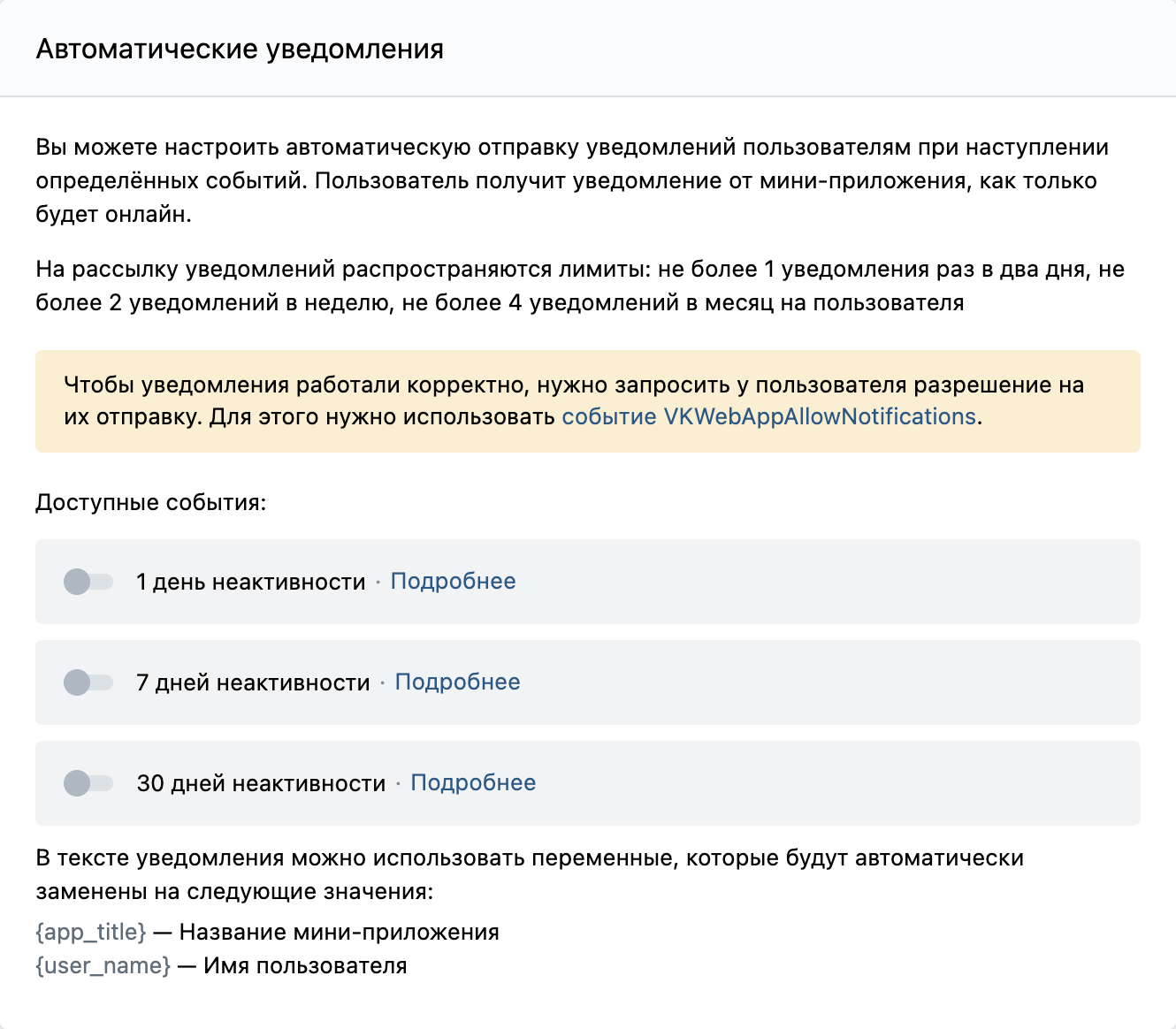 Automatic notifications
 - 2.
Enter the text of the message that users will see in the notification.
Press Send a message to yourself to see what the user’s notification would look like.
- 3.
Press Send to Moderation .
- 4.
Set the switch to the active position.
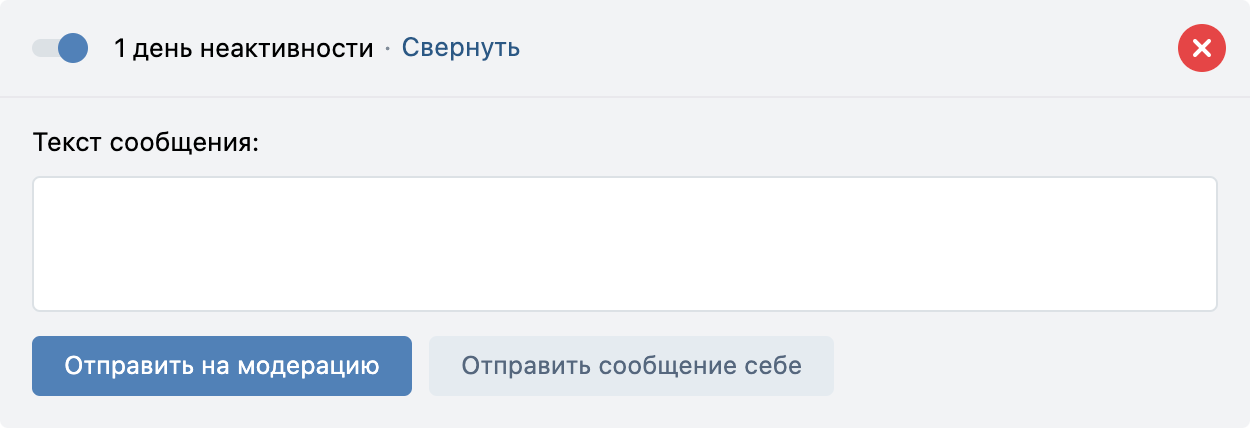 Automatic notification
As soon as your application is approved by moderation, you will receive a message in the section Assistance , and the notifications will begin.
Limits
The user will receive no more than 1 notification every two days, no more than 2 notifications per week, no more than 4 notifications per month.
Mass mailings
To attract active users to any event in the mini-app, launch a mass mailing of notifications.
How to Enable
- 1.
In the block Mass mailings press Create a mailing list .
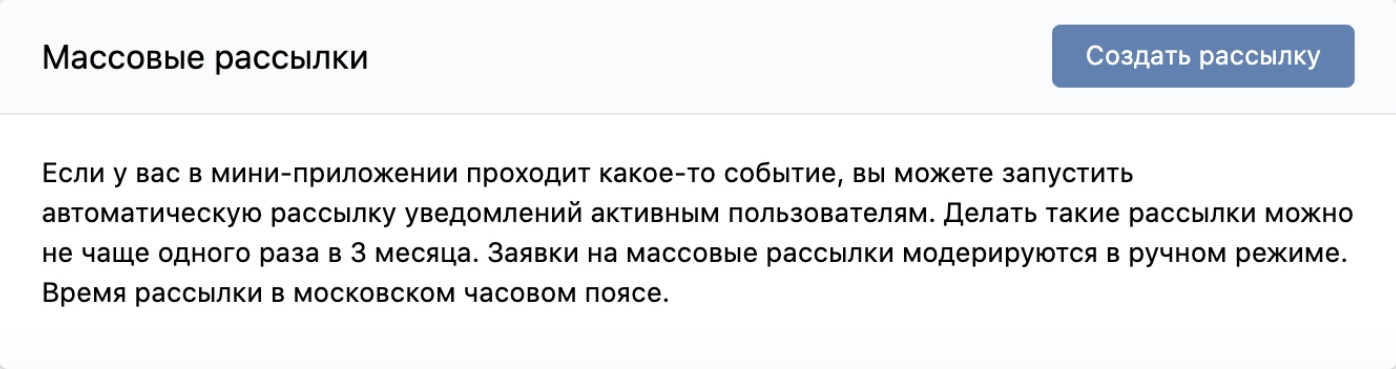 Mass mailings
 - 2.
Enter the mailing name and click Add .
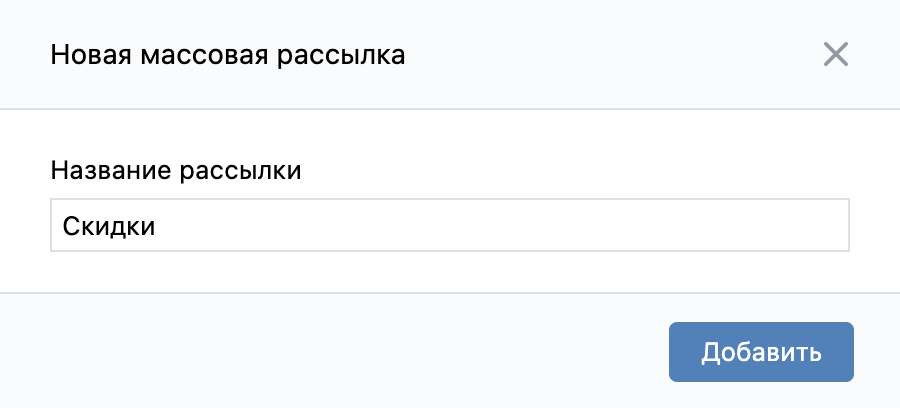 Addion of mass mailing
 - 3.
Indicate the period in which the mailing will work: dates and time.
- 4.
Enter the text of the message that users will see in the notification.
Press Send a message to yourself to see what the user’s notification would look like.
- 5.
Press Send to Moderation .
- 6.
Set the switch to the active position.
 Mass mailing
As soon as your application is approved by moderation, you will receive a message in the section Assistance And we'll start sending out notifications.
Limits
Mass notifications are sent no more than once every 3 months.
Disabling notifications
To disable notifications in the mobile app:
- 1.Go to section Services .
- 2.Open the mini-application, click **• • • ** Disable notifications .
Materials on the topic
- •
- •

