The translation was generated automatically and may contain mistakes
iOS SDK
Start of work - iOS
Your audience is 20 Millions of active VKontakte users who prefer iOS on a monthly basis.
You can create a brand new product or add VKontakte capabilities to an already existing application to increase user activity.
The SDK will help you quickly integrate the VKontakte API into your iOS app.
The SDK simplifies the use of the VKontakte API in iOS applications. Users will be able to go through authorization without entering a login and password. After that, you can start using API methods right away.
Documentation
- •Acquaintance with API — if you have not dealt with the API VKontakte before starting work, we recommend you to learn about the basic principles of its use.
- •iOS SDK A guide to using the iOS SDK for API VKontakte>
- •
- •The gaming platform A guide to creating VKontakte games.
SDK capabilities
Authorization through the official VKontakte
Offer the user to use an existing account — it is much easier than filling out the registration form, and you can get all the necessary data from his profile in the VK
Publication of content
Implement the ability to share with friends VKontakte interesting events, photos, videos - and your product will not go unnoticed.
Access to the social graph
Work with the connections and preferences of your customers. By analyzing the list of friends and communities, you can individually assess the needs of the user.
What else?
Audio, video, community administration, news feed, messaging — almost everything that is available in the full version of the VKontakte can be implemented using our API and using the SDK.
Project page and source code on GitHub: https://github.com/VKCOM/vk-ios-sdk
iOS 8.0 and higher are supported.
Preparation for use
Before you start working with the VK SDK, you need to create a Standalone application. Save your application ID (in the documentation it corresponds to the parameter APP_ID ) and fill in the field “App Bundle for iOS?2?.
Setting up a URL Schema in an iOS App
To configure authorization through the VK App, you need to configure the URL scheme of your application. The URL must be _vk_+_APP_ID_ (for example, vk1234567 ).
More information on how to do this can be found here:
- •
- •
Changes to iOS 9
In iOS 9, there have been changes related to the overall application security policy and the use of unprotected connections. If you plan to use it in your application scope = nohttps , you need to change the security settings as follows (file Info.plist ):
<key>NSAppTransportSecurity</key>
<dict>
    <key>NSExceptionDomains</key>
    <dict>
        <key>vk.com</key>
        <dict>
            <key>NSExceptionRequiresForwardSecrecy</key>
            <false/>
            <key>NSIncludesSubdomains</key>
            <true/>
            <key>NSExceptionAllowsInsecureHTTPLoads</key>
            <true/>
        </dict>
    </dict>
</dict>
We do not recommend using scope=nohttps .
Also, to work in iOS 9, you need to add schemes that will be used for canOpenUrl . Add to Info.plist ' as follows:
<key>LSApplicationQueriesSchemes</key>
<array>
    <string>vk</string>
    <string>vk-share</string>
    <string>vkauthorize</string>
</array>
Connection in the Annex
Installation in CocoaPods
CocoaPods is a dependency manager for Objective-C that automates and simplifies the use of third-party libraries such as the VK SDK. You can find more information in the guide Getting Started .
Add the following to your Podfile:
platform :ios, '8.0'
pod "VK-ios-sdk"
Then import the main header file:
#import Installation in Carthage
Only for iOS 8 and above.
Add the following to your Cartfile:
github "VKCOM/vk-ios-sdk" >= 1.3.8Carthage build instructions you can find here.. .
Then import the main header file:
#import Installing with a framework
If you’re working with iOS 8 and above, you can use the Framework Target for the SDK. Add VK-ios-sdk.xcodeproj in your project as a subproject. Open your project in XCode, then go to the tab General Find the section Embedded Binaries Press it Add items (Plus) Please Select VKSdkFramework.framework from the project VK-ios-sdk , and finally import the main header file:
#import Source code for GitHub .
Working with SDK
SDK Initialization
- 1.
Place this code in the application delegate method:
Objective-C//iOS 9 workflow - (BOOL)application:(UIApplication *)app openURL:(NSURL *)url options:(NSDictionary<NSString *,id> *)options { [VKSdk processOpenURL:url fromApplication:options[UIApplicationOpenURLOptionsSourceApplicationKey]]; return YES; } //iOS 8 and lower -(BOOL)application:(UIApplication *)application openURL:(NSURL *)url sourceApplication:(NSString *)sourceApplication annotation:(id)annotation { [VKSdk processOpenURL:url fromApplication:sourceApplication]; return YES; }Pay attention : if you are already using Facebook SDK and one of these methods returns
[FBSDKDelegate ...], you can solve this problem as follows:Objective-C-(BOOL)application:(UIApplication *)application openURL:(NSURL *)url sourceApplication:(NSString *)sourceApplication annotation:(id)annotation { [[FBSDKApplicationDelegate sharedInstance] application:application openURL:url sourceApplication:sourceApplication annotation:annotation]; [VKSdk processOpenURL:url fromApplication:sourceApplication]; return YES; } - 2.
Initialize the SDK with your own
APP_IDFor any delegate:Objective-C[VKSdk initializeWithDelegate:delegate andAppId:YOUR_APP_ID];Description of delegate methods
Starting with version 1.3 , two types of delegates are available:
common delegateandUI delegate. You can register as many common delegates as necessary, but the UI delegate should be the only one. Once the SDK is initialized, you can register delegates individually:Objective-C[sdkInstance registerDelegate:delegate]; [sdkInstance setUiDelegate:uiDelegate];or
Objective-C[[VKSdk initializeWithAppId:APP_ID] registerDelegate:delegate];You can find a full description of the protocols..
VKSdkDelegateandVKSdkUIDelegatehere.. or here.. - 3.
You need to check if the previous session is available, use the asynchronous method call to do so
wakeUpSession:completeBlock:Objective-CNSArray *SCOPE = @[@"friends", @"email"]; [VKSdk wakeUpSession:SCOPE completeBlock:^(VKAuthorizationState state, NSError *error) { if (state == VKAuthorizationAuthorized) { // Authorized and ready to go } else if (error) { // Some error happend, but you may try later } }];
Full list of available scope You can find on this page .
Check the value of the parameter VKAuthorizationState . You can get one of the following states:
- •
VKAuthorizationInitializedmeans that the SDK is ready to work, and you can authorize the user using the method+authorize:. Maybe the old session was over and we destroyed it. It's not a mistake.. . - •
VKAuthorizationAuthorizedmeans that the previous session is fine and you can continue working with user data. - •
VKAuthorizationErrorThis means that there was an error during the check. Perhaps the quality of the Internet connection is too poor. We'll have to try again later.
[VKSdk wakeUpSession:SCOPE completeBlock:^(VKAuthorizationState state, NSError *err) {
       if (state == VKAuthorizationAuthorized) {
           // authorized
         } else {
           // auth needed
         }
}];
User authorization
If the user has a VKontakte application installed, then authorization will pass through it without entering a login and password. Otherwise, the web interface will open.
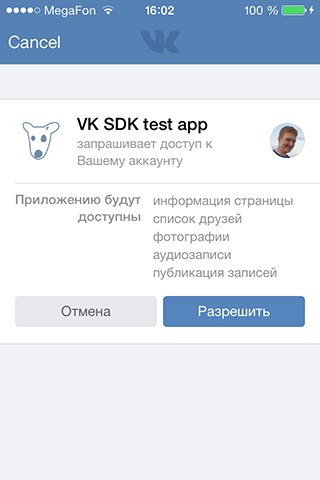
A method can be used for authorization
[VKSdk authorize:scope];The delegate is responsible for authorizing:
- (void)vkSdkAccessAuthorizationFinishedWithResult:(VKAuthorizationResult *)resultIf successful, we will get a token to work with the API:
if (result.token) {
// Пользователь успешно авторизован
} else if (result.error) {
// Пользователь отмени?1?» авторизацию или произошла ошибка
}
Calling API Methods
To access the API, you can use both the methods built into the SDK and your library after receiving the access key.
Preparing requests
- 1.
A simple request.
Objective-CVKRequest * audioReq = [[VKApi users] get]; - 2.
Query with parameters
'''
VKRequest * audioReq = [[VKApi audio] get:@{VK_API_OWNER_ID : @"896232"}]; - 3.
A request with a given maximum number of attempts.
Objective-CVKRequest * postReq = [[VKApi wall] post:@{VK_API_MESSAGE : @"Test"}]; postReq.attempts = 10; //or infinite //postReq.attempts = 0;Up to 10 attempts will be made until successful, or the error API will be returned.
- 4.
Call the VK API method.
Objective-CVKRequest * getWall = [VKRequest requestWithMethod:@"wall.get" andParameters:@{VK_API_OWNER_ID : @"-1"} andHttpMethod:@"GET"]; - 5.
Upload the photo to the user’s wall.
'''
VKRequest * request = [VKApi uploadWallPhotoRequest:[UIImage imageNamed:@"my_photo"] parameters:[VKImageParameters pngImage]
userId:0 groupId:0];
Sending a request
[audioReq executeWithResultBlock:^(VKResponse * response) {
       NSLog(@"Json result: %@", response.json);
} errorBlock:^(NSError * error) {
       if (error.code != VK_API_ERROR) {
             [error.vkError.request repeat];
       }
      else {
             NSLog(@"VK error: %@", error);
       }
}];
Error Handling
Mistakes NSError return SDKs can be of two types: network errors and internal SDK errors (e.g., request cancelled). Category NSError+VKError Complementary Class NSError property vkError which can be analyzed for the error that occurred.
When checking for errors, you should first check code Coincidence with the global constant VK_API_ERROR . If this is the case, then the field must be treated.. vkError which contains a description of the VK API error. Otherwise, you are dealing with a network error.
Some SDK errors can be handled by the SDK itself (captcha error, validation error). To do this, the delegate will be called on the appropriate methods.
An example of handling an error in a delegate that requires a captcha input:
- (void)vkSdkNeedCaptchaEnter:(VKError *)captchaError
{
    VKCaptchaViewController *vc = [VKCaptchaViewController captchaControllerWithError:captchaError];
    [vc presentIn:self];
}
Packet processing of requests
The SDK allows multiple methods to be executed in a single request.
- 1.
Required requests are made:
Objective-CVKRequest * request1 = [[VKApi audio] get]; request1.completeBlock = ^(VKResponse*) { ... }; VKRequest * request2 = [[VKApi users] get:@{VK_USER_IDS : @[@(1), @(6492), @(1708231)]}]; request2.completeBlock = ^(VKResponse*) { ... }; - 2.
The necessary requests are combined into one.
Objective-CVKBatchRequest * batch = [[VKBatchRequest alloc] initWithRequests:request1, request2, nil]; - 3.
The request is loaded in a standard way.
Objective-C[batch executeWithResultBlock:^(NSArray *responses) { NSLog(@"Responses: %@", responses); } errorBlock:^(NSError *error) { NSLog(@"Error: %@", error); }]; - 4.
For each method, the result will be returned to
completeBlock, ehbatchIt will containVKResponsefor each method in the order of their addition.
Publication of records
The SDK allows you to publish a record on the user’s wall VKontakte two ways: using the Share dialog and directly calling the method wall.post .
Working with Share dialog
The SDK allows you to create a user-friendly dialog to share text or photos from the app directly to VK.
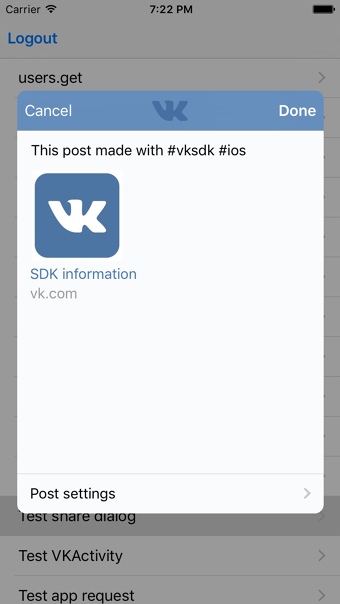
- 1.
Create an instance of the dialog controller in the normal way.
Objective-CVKShareDialogController * shareDialog = [VKShareDialogController new]; - 2.
Add textual information to the dialogue. Please note that users will be able to modify it.
Objective-CshareDialog.text = @"This post created using #vksdk #ios"; - 3.
Attach images previously uploaded to VK. If you want the user to upload a new image, use the
uploadImagesproperty.Objective-CshareDialog.vkImages = @[@"-10889156_348122347",@"7840938_319411365",@"-60479154_333497085"]; - 4.
Attach a link to the right page
Objective-CshareDialog.shareLink = [[VKShareLink alloc] initWithTitle:@"Super puper link, but nobody knows" link:[NSURL URLWithString:@"https://vk.com/dev/ios_sdk"]]; - 5.
Add a block that tracks the completion of the dialogue.
Objective-C[shareDialog setCompletionHandler:^(VKShareDialogControllerResult result) { [self dismissViewControllerAnimated:YES completion:nil]; }]; - 6.
Present the dialog controller in your controller.
Objective-C[self presentViewController:shareDialog animated:YES completion:nil];
Working with UIActivityViewController
The SDK contains a special class for working with UIActivityViewController — VKActivity .
- 1.
Prepare the information that the user must share:
UIImage,NSStringandNSURL.Objective-CNSArray *items = @[[UIImage imageNamed:@"apple"], @"Check out information about VK SDK" , [NSURL URLWithString:@"https://vk.com/dev/ios_sdk"]]; - 2.
Prepare
UIActivityViewControllerwith a new copyVKActivity.Objective-CUIActivityViewController *activityViewController = [[UIActivityViewController alloc] initWithActivityItems:items applicationActivities:@[ [VKActivity new] ] ]; - 3.
Set additional required properties to
activityViewController.Objective-C[activityViewController setValue:@"VK SDK" forKey:@"subject"]; - 4.
Set the completion handler to
activityViewController, if necessary.Objective-C[activityViewController setCompletionHandler:nil]; - 5.
If using iOS 8 or higher, and if the user is using an iPad, it is necessary to display the controller in the pop-up window (
popover), or you’ll get a system error.Objective-Cif (VK_SYSTEM_VERSION_GREATER_THAN_OR_EQUAL_TO(@"8.0") && UIUserInterfaceIdiomPad == [[UIDevice currentDevice] userInterfaceIdiom]) { UIPopoverPresentationController *popover = activityViewController.popoverPresentationController; popover.sourceView = self.view; popover.sourceRect = [tableView rectForRowAtIndexPath:indexPath]; } - 6.
Present the controller in the usual way.
Objective-C[self presentViewController:activityViewController animated:YES completion:nil];
Working with wall.post
You can release the recording via a normal call wall.post .
An example code for uploading a photo to a VKontakte server and posting a post on the user’s wall with that photo:
VKRequest *photoRequest = [VKApi uploadWallPhotoRequest:[UIImage imageNamed:@"sliced_truffles"] parameters:[VKImageParameters pngImage] userId:user.id.integerValue groupId:0];
[photoRequest executeWithResultBlock: ^(VKResponse *response) {
NSLog(@"Photo: %@", response.json);
VKPhoto *photoInfo = [(VKPhotoArray *)response.parsedModel objectAtIndex:0];
VKRequest *post = [[VKApi wall] post:@{ VK_API_ATTACHMENTS : [NSString stringWithFormat:@"photo%@_%@", photoInfo.owner_id, photoInfo.id]}];
[post executeWithResultBlock: ^(VKResponse *response) {
NSLog(@"Result: %@", response);
} errorBlock: ^(NSError *error) {
NSLog(@"Error: %@", error);
}];
} errorBlock: ^(NSError *error) {
NSLog(@"Error: %@", error);
}];
