Optimization (mini app settings)
On this page, you can view and analyze data about the launches and performance of your mini app, collected using Lighthouse, which is an open-source tool created to improve the quality of web apps.
How to open
Open the mini app control panel and select Statistics → Optimization from the left-side menu.
What it looks like
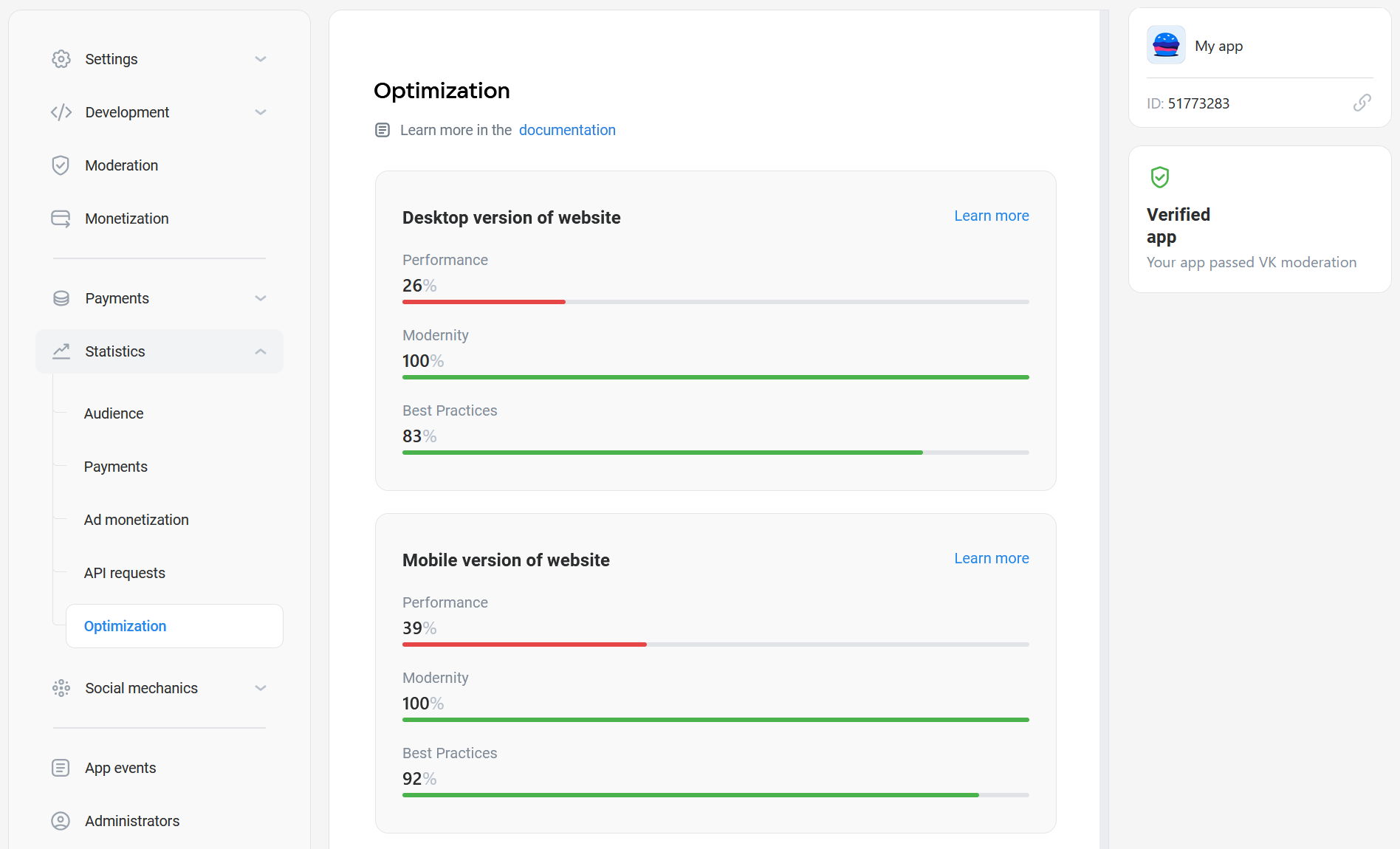
Who has access
This section is available to mini app administrators with the following permissions:
- •
Creator of the mini app.
- •
Administrator with full access.
How data is collected
- •
The platform collects data using Lighthouse. The check is automatically performed every few days. The platform runs the app in a Chromium-based browser in headless mode (without a visual interface) and collects data when the first page of the app is loaded. To obtain information about the operation of VK Bridge events, mock web services are used.
- •
The platform collects data separately for instances of the mini app running on the desktop version of the VK website, the mobile version of the website and the VK mobile app for Android. You can view different metrics for these categories on the Optimization page.
If no launch URL for a particular platform is specified, you'll see a message about it.
- •
Analysis is performed for mini apps with more than 100 daily active users (DAU) on the day prior to the check. Data won't be displayed for apps with fewer users.
How to use
- 1.
When you open the page, it displays general analysis results for various platforms. To view the details, press Learn more for one of the platforms.
A popup window with the test results will appear.
- 2.
Review the results. Scroll the window to see the metrics. Pay attention to the checks marked in red or orange. These colors indicate issues.
- 3.
Expand the data blocks to view more details.
All texts are provided by the Lighthouse tool. Our documentation doesn't include problem descriptions or solutions.
Tip
Consider the checks marked in red and orange as indicators of areas to improve in your app.
In some cases, you may need more detailed information. For example, the popup window may suggest compressing text resources but not provide the list of such resources.
To get additional data, try opening your app as a regular web app outside of VK. Use the Chrome browser. Open the developer tools panel and run Lighthouse checks in it. Analyze the results.
Related materials
- •

