Advertising methods
To draw in visitors to your mini app, use the VKontakte ad platform. Create and run an ad in just a few simple steps.
How it works
- •
Use the VKontakte ad account to create an ad, configure an ad campaign and launch it.
There are several steps to creating your ad: select a suitable design, think of its contents, specify the target audience parameters, ad placements, promotion price, and then launch the ad. The main steps are explained in detail below.
- •
Depending on their format, VKontakte can show your ads among community posts, in the news feed, in clips or stories.
Ads can be displayed on all platforms or limited to just mobile devices or the desktop version of the website. In addition to VKontakte, we can also show your ads on other platforms such as Odnoklassniki, Mail.ru Mail, Youla, Avito. Read more about ad placement.
- •
VKontakte uses special algorithms to show targeted ads. We will show your ads to users whose interests match the audience characteristics that you set up in the ad settings.
- •
Payment will be deducted from your account for ad impressions or ad clicks.
You can find out more about how our ad platform works in Ad Help.
Before you create an ad
- •
Publish your mini app in the catalog. You can create ad campaigns only for published mini apps.
- •
Think about the ad format. In some cases, a colorful picture and a short text work well, while in others, a short video from the mini app is the way to go.
- •
Make sure that your ad complies with ad placement rules. Ads that violate the rules will not pass moderation.
How to launch a mini app ad
Step 1. Sign in to your ad account and create an ad
Sign in to your ad account using your VKontakte account credentials.
If you don't have any ad campaigns created yet, you'll see a new ad screen after signing in.
 New ad screen
If you already have ad campaigns, you'll see a list of them. Click the Create ad button.
 Create ad button
A screen for creating a new ad should appear.
Step 2. Select ad goal and format
- 1.
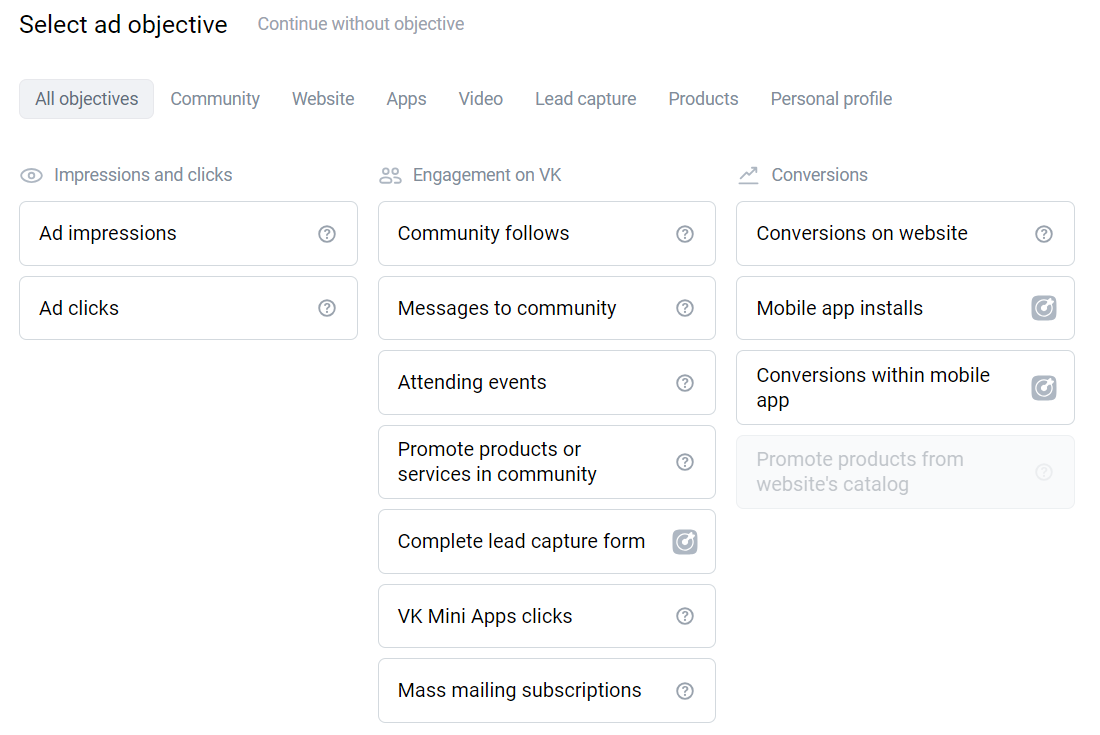
Choose a goal, which is the result you want your ad to achieve. This will help the ad platform show ads in such a way that you can get the most out of your ad campaign. Choose one of these goals to promote your mini app:
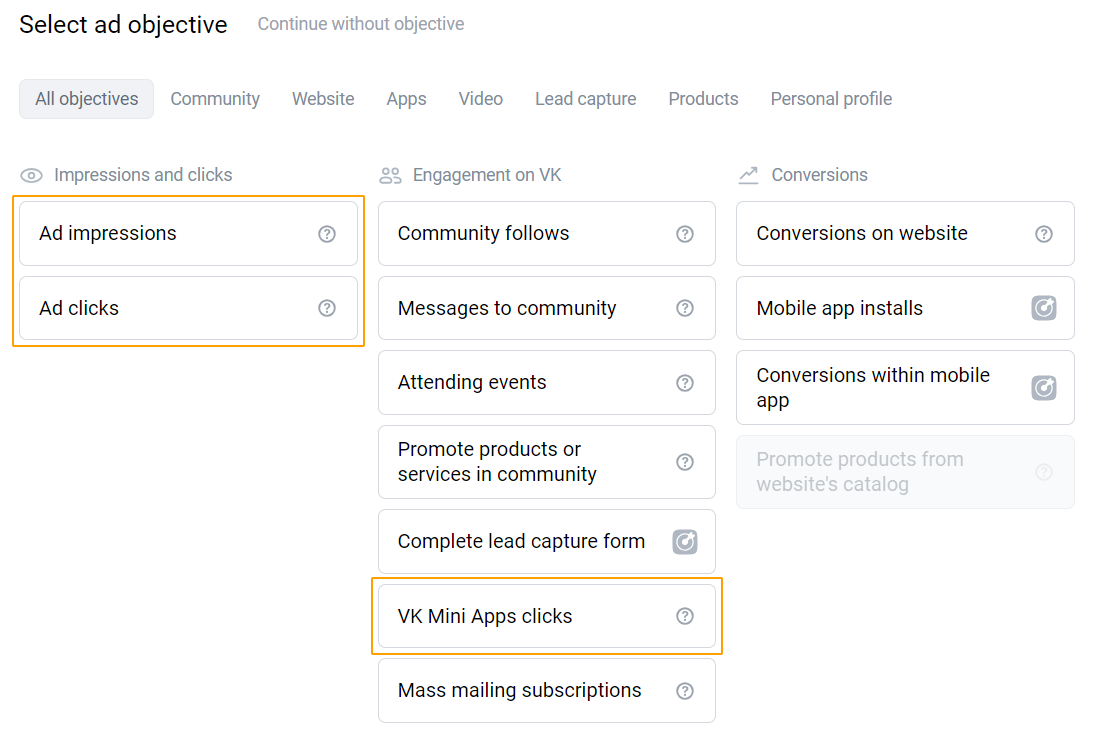 Promotion goals
 - 2.
Choose a suitable format for your ad. The available formats depend on the goal selected in the previous step. If necessary, you can change the goal at the top of the page.
 Select ad format
For more information about the available formats, see VKontakte ad formats.
- 3.
Specify the parameters of the ad. They are different for each format. Follow the instructions on the screen.
For example, if you chose Post with button as your ad format, click Create post to specify the text, image and other contents of your ad. If you already have an existing ad, click the select an existing one link to specify its URL.
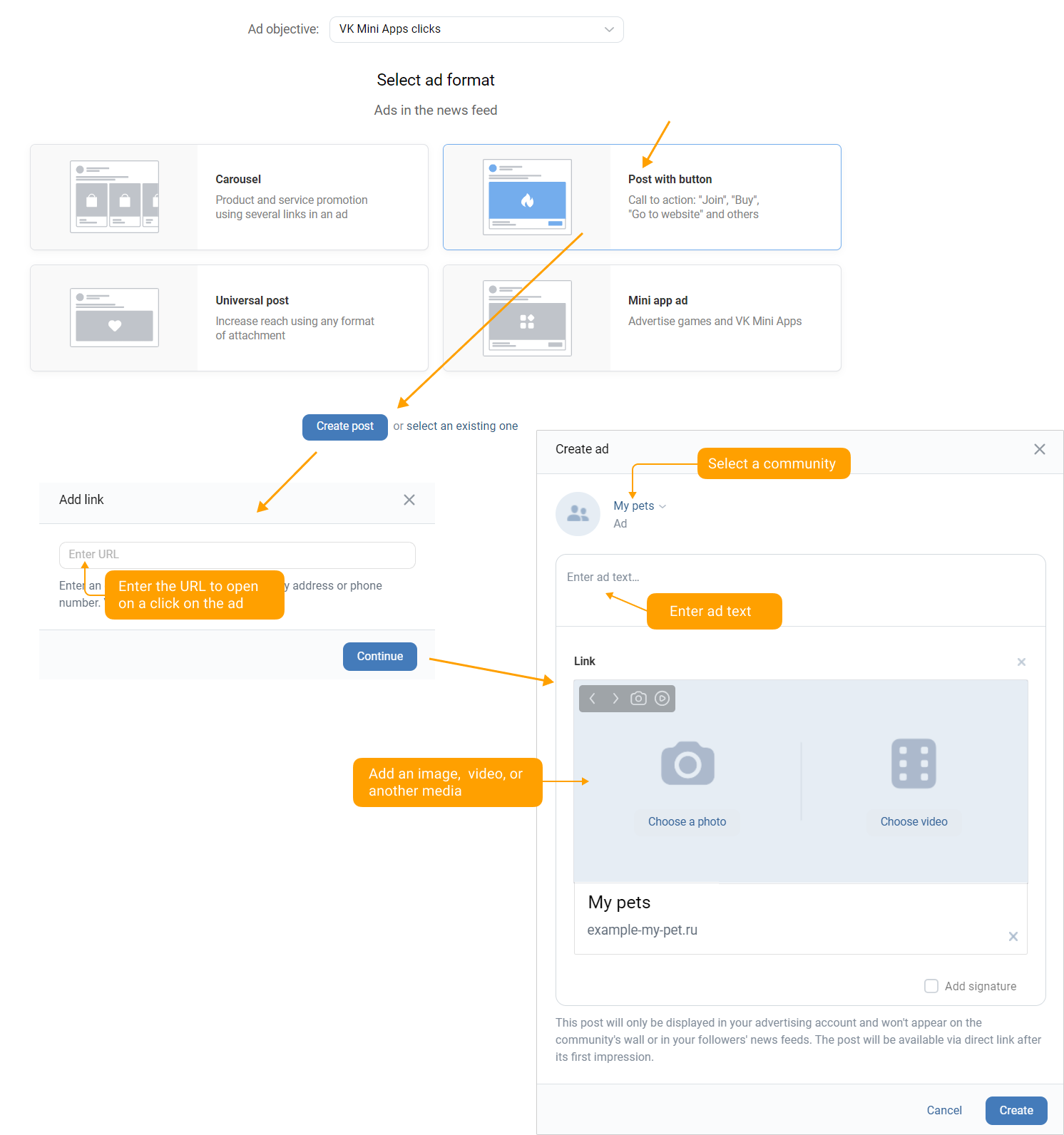 Example of creating a "Post with button" ad
VKontakte has requirements for the length of text, the formats and resolutions of video and images, as well as the size of files attached to ads. You can find Detailed technical requirements for different ad formats in the Ad Help section.
To change the content of an ad after it has been created, click Edit ad. To change the ad format or goal, click the Edit button.
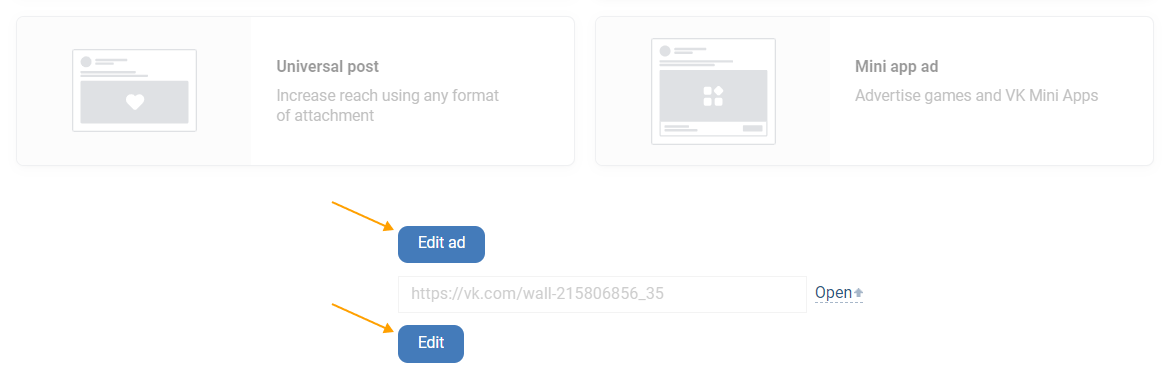 The "Edit ad" and "Edit" buttons
Step 3. Set up your target audience
To show ads only to those who may be interested in them, configure targeting settings by selecting your desired target audience. VKontakte offers more than 20 parameters for this, from basic ones such as gender, age, geography, and interests, to advanced ones like the types of devices people use to go online.
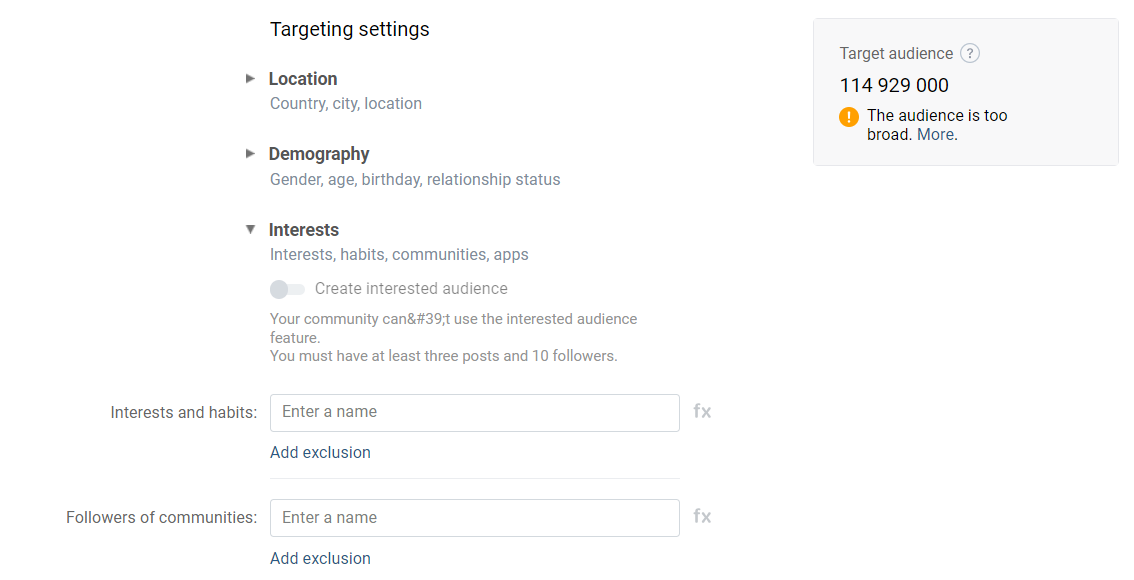 Audience settings
Use the Interests parameters in the Targeting settings section. This way you can reach users who may be interested in your mini app.
In some cases, such as when you already have a community with posts, VKontakte makes it possible for you to automatically configure the Interests settings. We recommend that you take advantage of this feature.
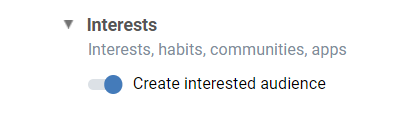 Automatic ad targeting mode
If automatic configuration isn't available or you don't want to use it, you can manually specify the target audience parameters.
- •Interests and habits. In this parameter, specify user interests that match your mini app. This will target your ad to those users who have recently shown an interest in the topic of your app, visited related communities or external websites.
 The "Interests and habits" setting
- •Followers of communities. Specify communities related to the topic of your mini app or similar mini apps. This way, you will draw in users who have been reading and discussing subjects that match your mini apps.
 The "Followers of communities" setting
- •Key phrases. Specify the phrases that users enter when searching for products or services. With this parameter, you can narrow down your target audience more accurately. The most important thing here is to choose the right key phrases. When entering them, think of search requests you would like your ad to be shown in.
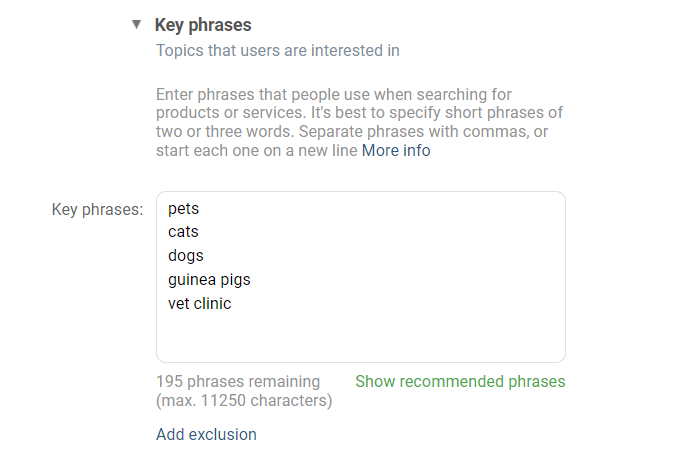 The "Key phrases" setting
Tip. See keyword recommendations in the Ad Help section.
VKontakte offers other settings for more precise ad targeting. For example, you can select users of various apps, visitors to certain websites, fans of select musicians, owners of specific models of mobile devices. Review the available parameters on the page to more accurately determine your target audience coverage.
Recommendations for specifying target audience interests
- •
The parameters listed above are separate settings. All of them make ads more targeted to an appropriate audience segment. In most cases, you don't want to use all of them at once for one ad, as it would narrow down your target audience too much.
On the other hand, an audience that's too broad can reduce the effectiveness of your ad campaign, as most targeted users will ignore your ad. Here, it's important to find a balance.
We recommend creating several ads with different promotion strategies within one campaign and using statistics to choose the most effective one.
- •
For more precise settings, you can enter a formula in each field with the operators
AND,OR, andNOor specify the segment of the target audience (set an intersection). To enable these modes, use the buttons to the right of the input fields.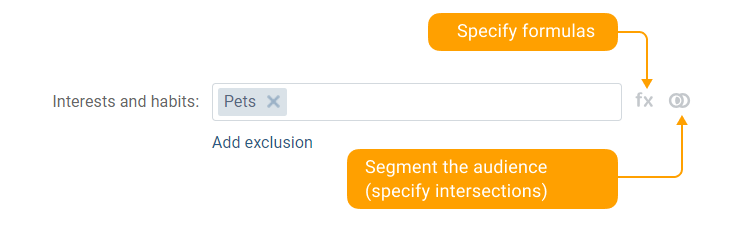 Advanced modes for fine-tuning your settings
 - •
You can see the estimated size of your target audience on the right side of the page. This value is updated dynamically as you change your target audience settings. This can help you understand how much your settings narrow down or broaden your target audience coverage.
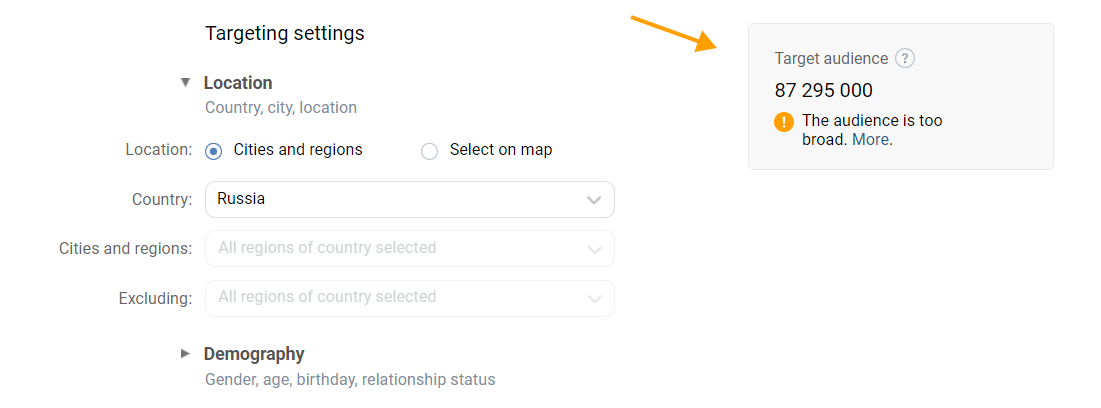 Audience size assessment in the ad account
Tip. Read more about target audience settings in Ad Help.
Step 4. Choose ad campaign
Specify the ad campaign to which you want to add the new ad. Campaigns help you group and manage ads.
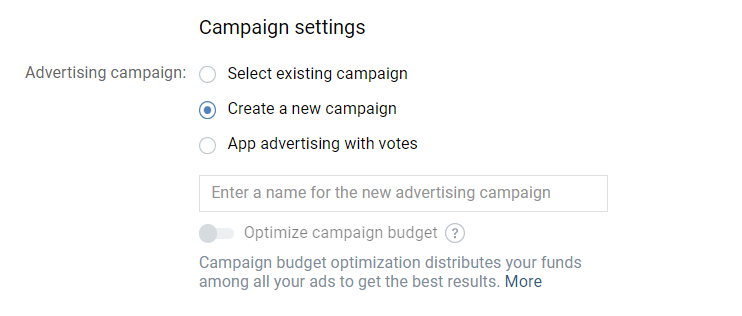 Ad campaign selection
Step 5. Set promotion price
Depending on the selected goal, you can pay for ad impressions or ad clicks. To pay for ads, you deposit money to your account, from which it is periodically deducted.
Desired bid
You can set the desired bid in the ad settings. This lets you choose the cost of an ad impression or click, depending on the ad's goal.
 Manual promotion price adjustment
How bids work
Before displaying the ad, VKontakte conducts an automatic auction among ad bids. The ad with the highest bid wins. This doesn't mean that the platform displays only the ads from the most affluent advertisers. Because of how frequently ads are shown, those with lower bids will still get the users' attention. They just win auctions less often. Read more about the ad auction.
Automated bid management
To make sure that your promotion is effective, we recommend using automated price management.
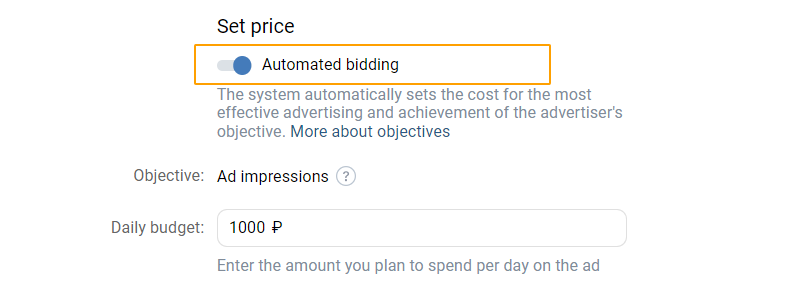 Automated promotion price adjustment
With automated bid management enabled, a special algorithm monitors the auction and adjusts the cost per impression in such a way that the ad campaign achieves the desired result. Here, ad spending has a required daily limit, which prevents you from going over budget. Read more about automated price management.
Ad cost forecast
Ad account shows the approximate cost of promotion. This will help you better plan your budget and ad settings.
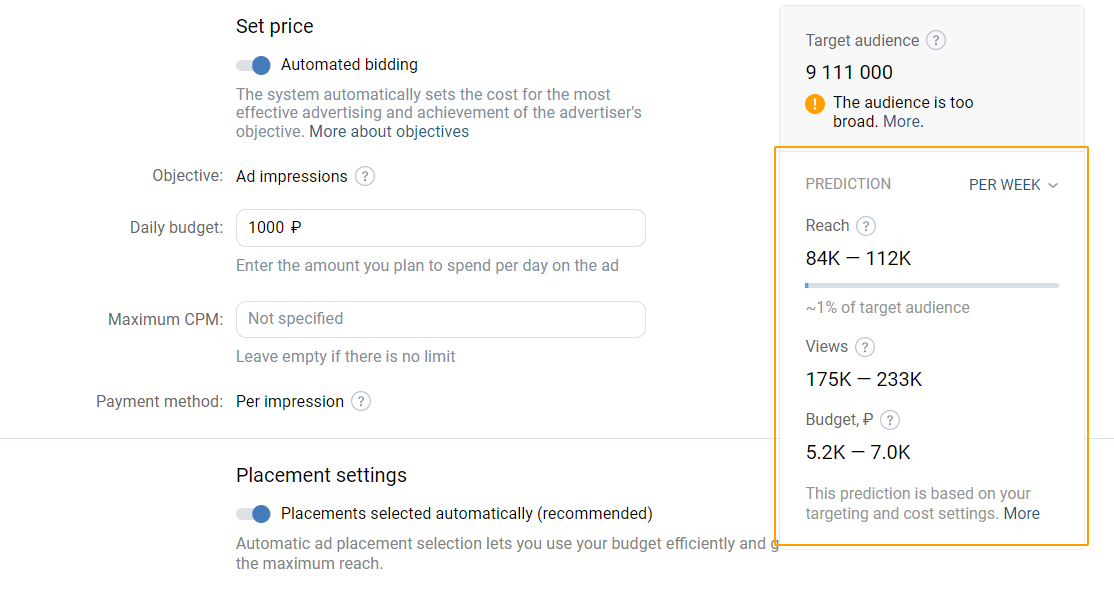 Promotion price estimate
Step 6. Select ad placements
In the ad settings, you can specify one or more platforms and websites where your ad will be shown, as well as set limits for impressions. In most cases, you can simply enable automated placement selection.
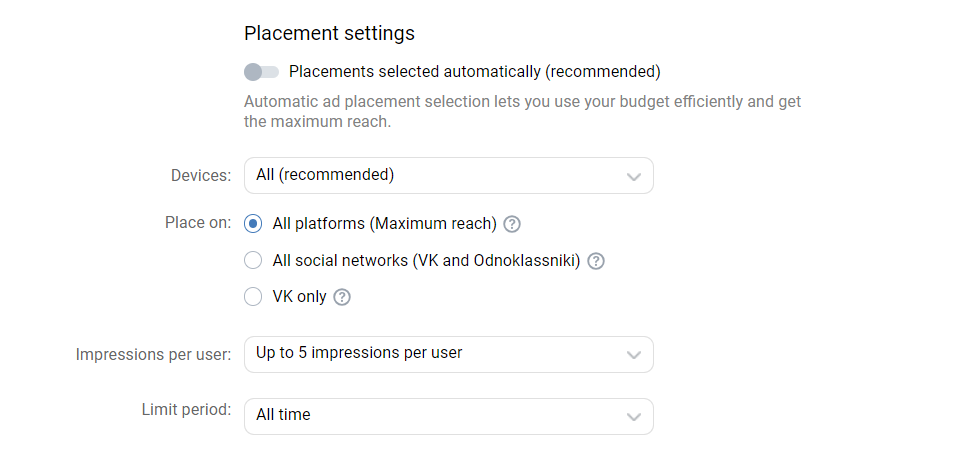 Placement Selection (manual mode)
 Placement Selection (automated mode)
Important! When placing ads on platforms other than VKontakte, remember that the users there may be signed out or not have a VKontakte account. In these cases, when clicking the ad, users will see a page where they have to sign in to VKontakte before launching your mini app. This may reduce conversions, as users usually don't expect having to perform additional actions.
If you want to advertise your mini app on platforms other than VKontakte, edit the ad or the page it leads to so that it's clear that your mini app works on VKontakte.
If the user is not signed in to VKontakte, they will see a page with a description and screenshots when trying to launch your mini app in the browser. You can specify your mini app's description and screenshots in the mini app settings in the Information section.
Step 7. Launch your ad
- 1.
After configuring all the required settings, click the Create ad button at the bottom of the page:
 Creating ad
The ad account will show a screen with the parameters of the created ad.
- 2.
Click the Launch button. This will send your ad to our moderators for review.
 Ad parameters screen
Moderation usually takes a few hours, after which the ad will start showing to users.
To launch an ad, you have to launch the campaign it's part of.
Learn more about starting ads and moderation in Ads Management. You can ask questions related to moderation in the VKontakte for Business community messages.
Next steps
- •
To understand how the ad works and whether it achieves its results, analyze statistics and track expenses in the ad account. See Ad Campaign Analysis and Statistics in Ad Help for details.
- •
Optimize your ad campaign based on the analysis results to achieve your goals faster and using a smaller budget. See the section Optimization and Efficiency to learn more.
- •
Specify the parameters of the target audience, create new ads to retain users who have already launched the mini app, visited your community or website. For details, see the Retargeting section.
Additional information and support
- •
Ad Help contains detailed information about working with the ad platform and answers to frequently asked questions.
- •
If you have any questions about how to use the VKontakte ad platform, the ad account, or how we moderate ads, contact us using the VKontakte for Business community messages.
Tips for setting up ads
Below are several examples and tips on how to set up ads and select ad formats.
Desired result: increased coverage
Parameter | Description |
|---|---|
Goal and format | One of the following combinations:
• Ad impressions → Carousel
• Ad impressions → Ads in clips and stories |
Content | A story about your mini app or use cases. Use clear ideas and memorable images that will make your mini app recognizable. |
Target audience | Choose the criteria by which you can reach the widest yet most relevant audience: gender, interests and age. |
Desired result: growth of in-app sales
Parameter | Description |
|---|---|
Goal and format | One of the following combinations:
• Ad clicks → Carousel
• Ad clicks → Post with button
• VK Mini Apps clicks → Mini app ad |
Content | The ad should contain information about bonuses and special offers. |
Target audience | One or more of the following categories:
• Users who have purchased something in the mini app.
• Users who have run similar mini apps. |
Desired result: attracting new users
Parameter | Description |
|---|---|
Goal and format | One of the following combinations:
• Ad clicks → Post with button
• VK Mini Apps clicks → Mini app ad |
Content | Dynamic and impressive content with motivational text. |
Target audience | One or more of the following categories:
• Users who are looking for solutions that your mini app provides.
• Users of other mini apps that are similar to your mini app. In the app settings, don't forget to exclude existing users of your app to avoid wasting your ad budget. |
To learn more about VKontakte ad opportunities for mini apps, follow the VKontakte for Business community.
See also
- •
- •
- •

