The translation was generated automatically and may contain mistakes
Moderation
Send a request for moderation to:
- •
- •
- •
The Council . To decide if you need to send a mini-app to the directory, look at the description section advantages of the catalogue , and rules and Advice on Moderation .
To go to the section, open My apps ⟶ Edit ⟶ Moderation .
 Moderation
Moderation of the button in profiles is not available, as the functionality is no longer supported.
Application for moderation
To get into the mini-application directory:
- 1.
In the block Moderation press the button Send a request .
- 2.
Choose I read the recommendations .
- 3.
Press Send to Moderation .
- 4.
Fill out the application.
- 5.
Press Send . The moderation team will check your mini-app and share their recommendations, and the testing team will test and point out errors if they are found.
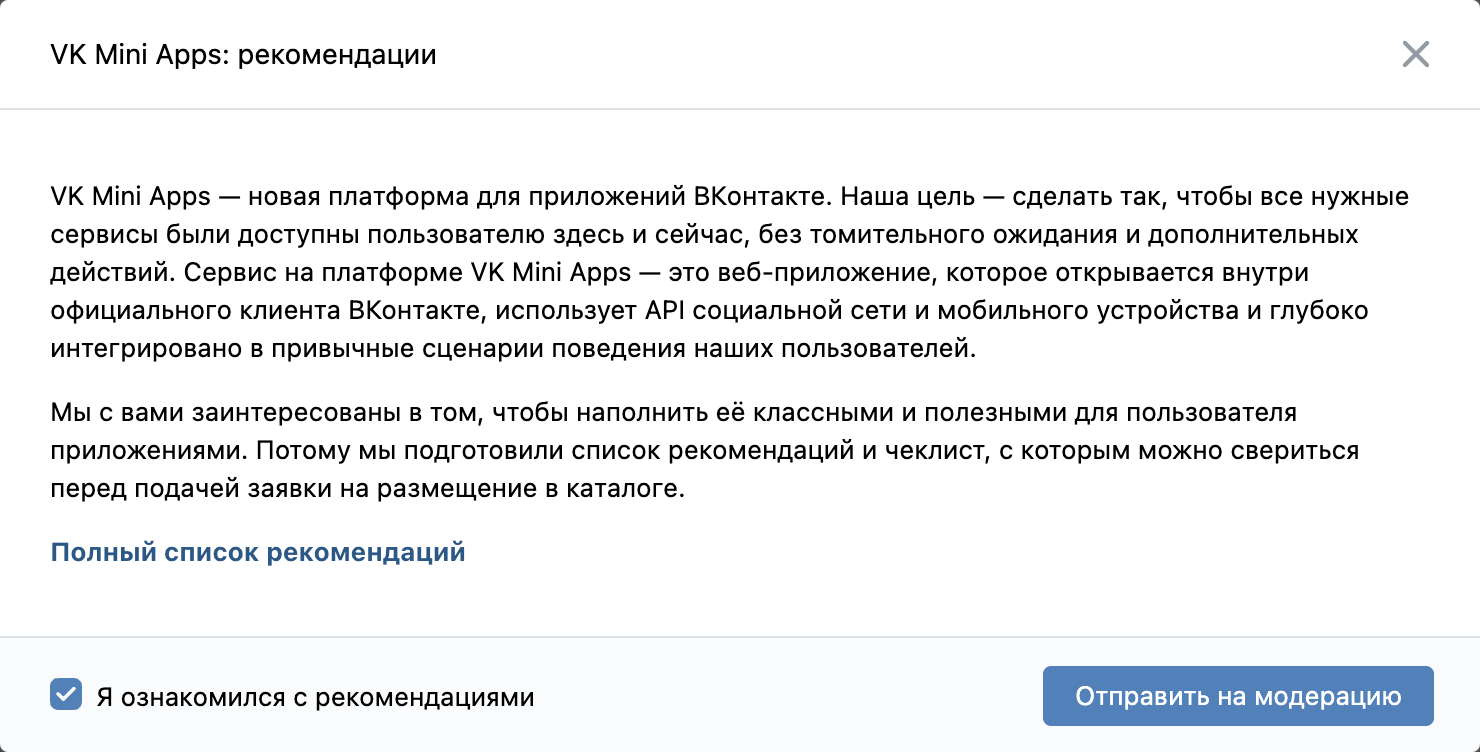 Application for moderation in the catalog
 - 6.
Correct the errors found.
If your application is approved, the mini-app will be included in the catalogue .
- •
Once the application is created, it will be available in the section Assistance in the tab All questions .
- •
The application status will be available in the section Moderation . Moderation in the catalog takes from 5 days to several weeks.
Moderation only for use of votes
To use the vote payment in the mini-app:
- 1.In the block Moderation only for use of votes press Send a request .
- 2.Fill out the application.
- 3.Press Send it for inspection .
 Application for moderation for the use of votes
- •
Moderation for the use of voices takes from several hours to 2 days.
- •
A mini-app outside the catalog can also accept payment by votes. You can apply for the connection of payment by votes before submitting an application to the catalog or during moderation.
- •
In case of failure to connect the voices, the reason will be displayed in the block History of operations .
Benefits of VK Cloud
Note. The block is displayed if the moderation to the directory is successfully passed.
To get a bonus use of VK Cloud:
- 1.
In the block Benefits of VK Cloud press the button Send a request .
 Bonus use of VK Cloud
 - 2.
In the open window:
- •Enter your project ID is VK Cloud .
- •Press the button Send a request .
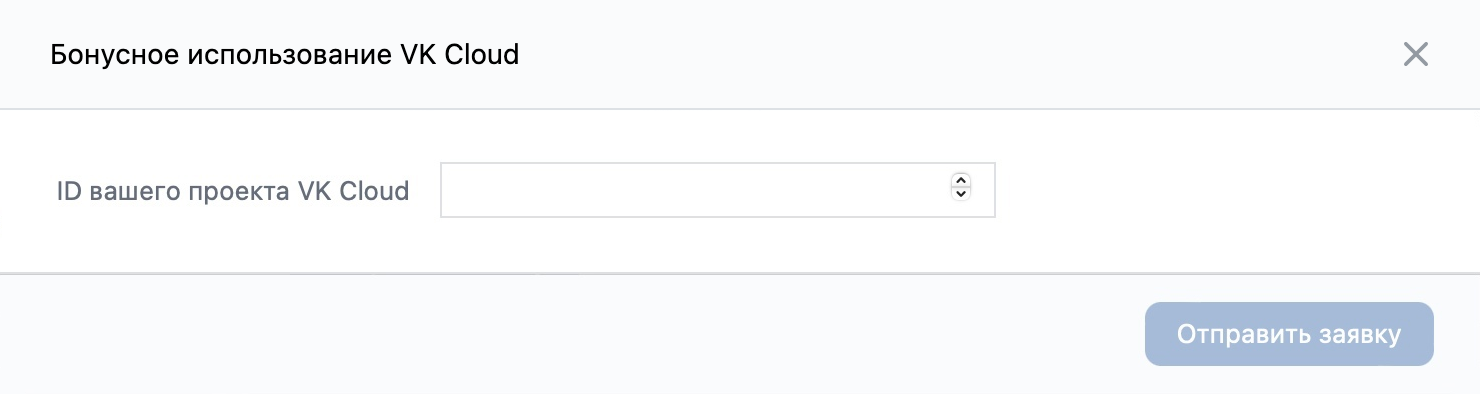 VK Cloud project input field
 - •
Materials on the topic
- •
- •

