The translation was generated automatically and may contain mistakes
Information
The section contains information about the mini-application that the user sees at launch and which is necessary for publication in the directory. Fill in the fields of this section so that the mini-app becomes informative and attractive to users.
If these fields are not filled, the mini-app will not pass moderation It will not be published in catalogue .
To go to the section, open My apps → Edit → Information .
Information
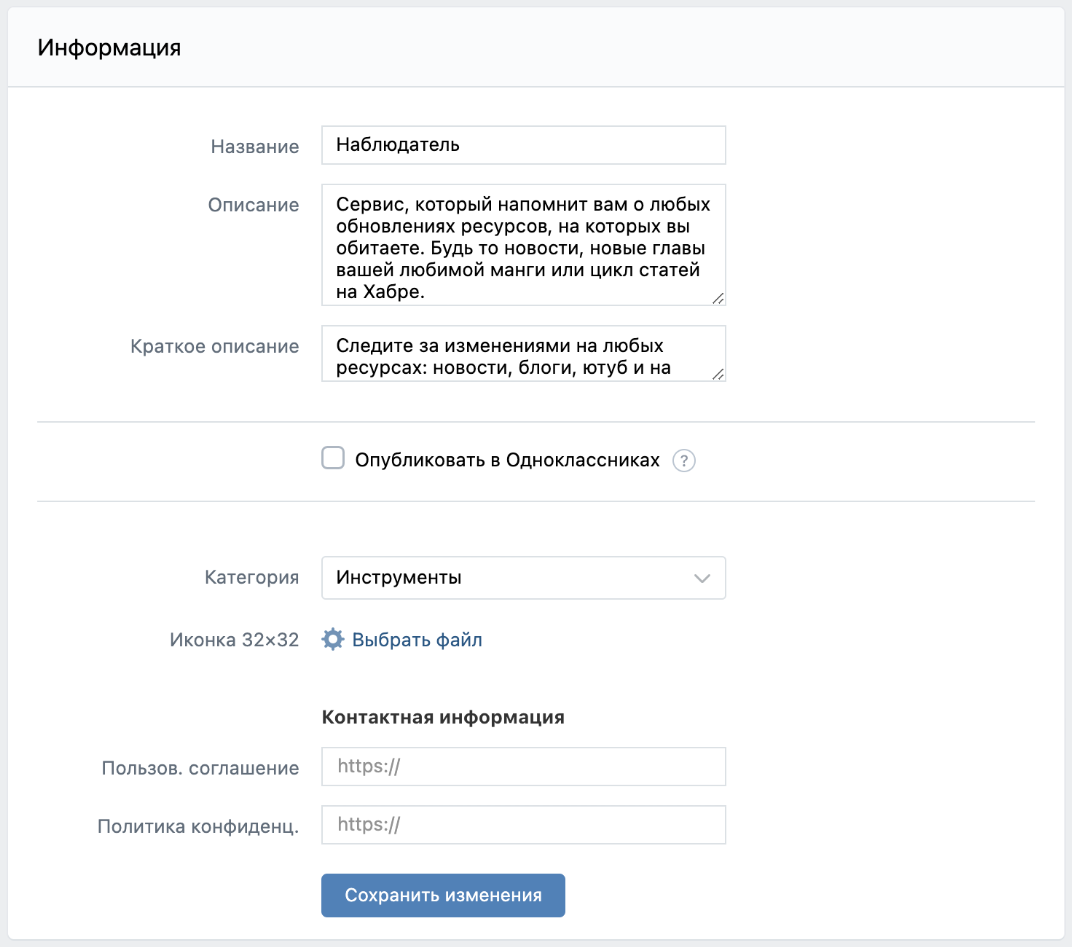 Information
Block Information It contains the following mandatory fields:
- •Title
- •Category
Title
- •The name of the mini-app can contain only letters, numbers, hyphens, commas and spaces.
- •The maximum number of symbols is 34.
Description
The description of the mini-app is displayed in the section Annex in the mobile application VKontakte>
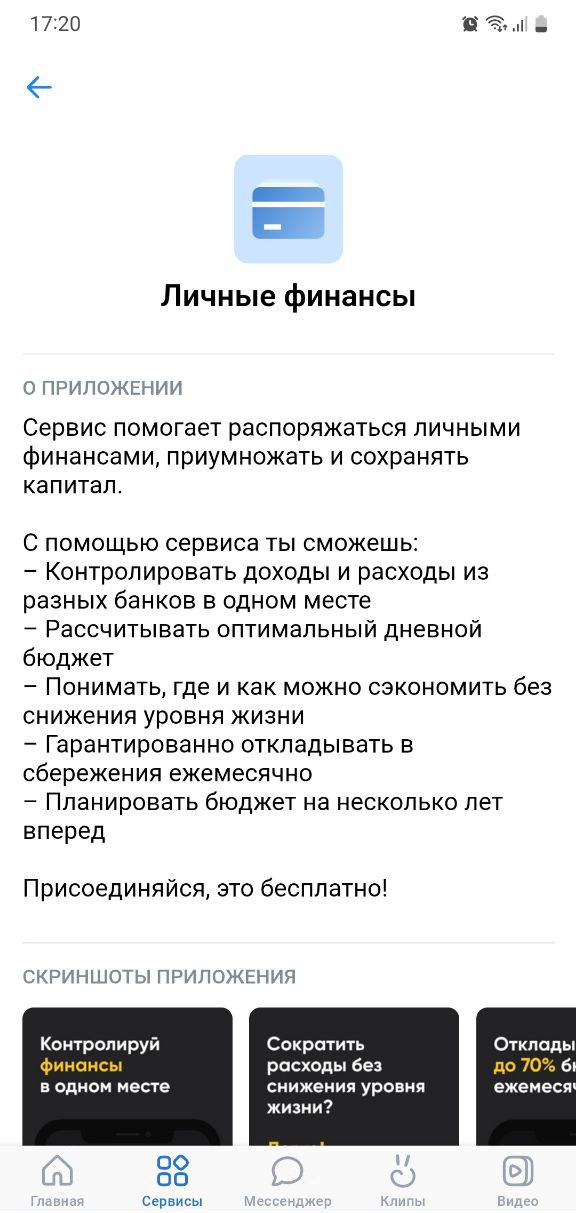 Description
The maximum number of symbols is 2000.
How to find:
- 1.Open the VKontakte app..
- 2.Go to section Services .
- 3.Select the mini-application and click the button • •
- 4.Press the button Annex .
Brief description
 Short description
A brief description of the mini-application is displayed in the directory.
The maximum number of characters is 128.
How to find:
- •hover over the name of the mini-application in catalogue .
- •B. snippet of Service .
Publish in classmates
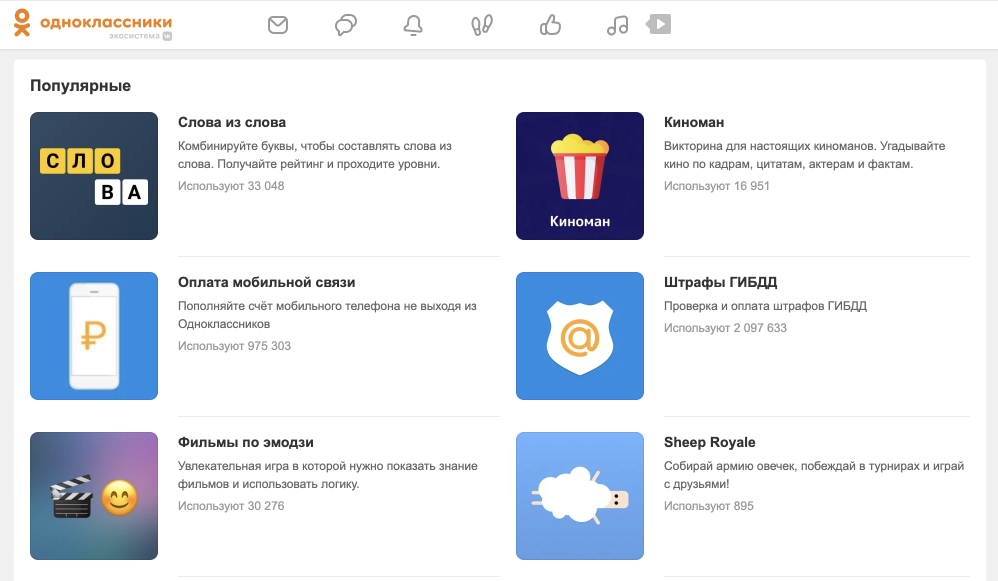 Catalogue in Classmates
To publish a mini-app in catalogue of classmates :
- 1.
Check the box Publish in classmates .
 Publish in Classmates
 - 2.
Press the button Get it right id .
- 3.
In the window Classmates :
- •
Sign in.
If there is no email address attached to your Odnoklassniki account, link it in your personal account.
- •
Choose I have read and accepted the terms of the agreement .
- •
Press the button Get developer rights . Field OK User ID It will fill automatically.
- •
Read more about mini-app moderation in Odnoklassniki official documentation .
Category
Select a category so that when moderated, the mini-app is distributed to the most appropriate section. After moderation, the category in the block Information It may not be the same category as the mini-app.
Icon
An icon is a mini-app icon that appears in the window tab in the browser.
- •The file size should not exceed 5 MB.
- •File Format: JPG, PNG, GIF or BMP.
If the image is larger than 32×32 px, it will be compressed to that size.
Terms of Use, Agreement and Confidant Policy.
Provide links to the user agreement and privacy policy. Fields may not be filled in if these documents are inside the mini-app.
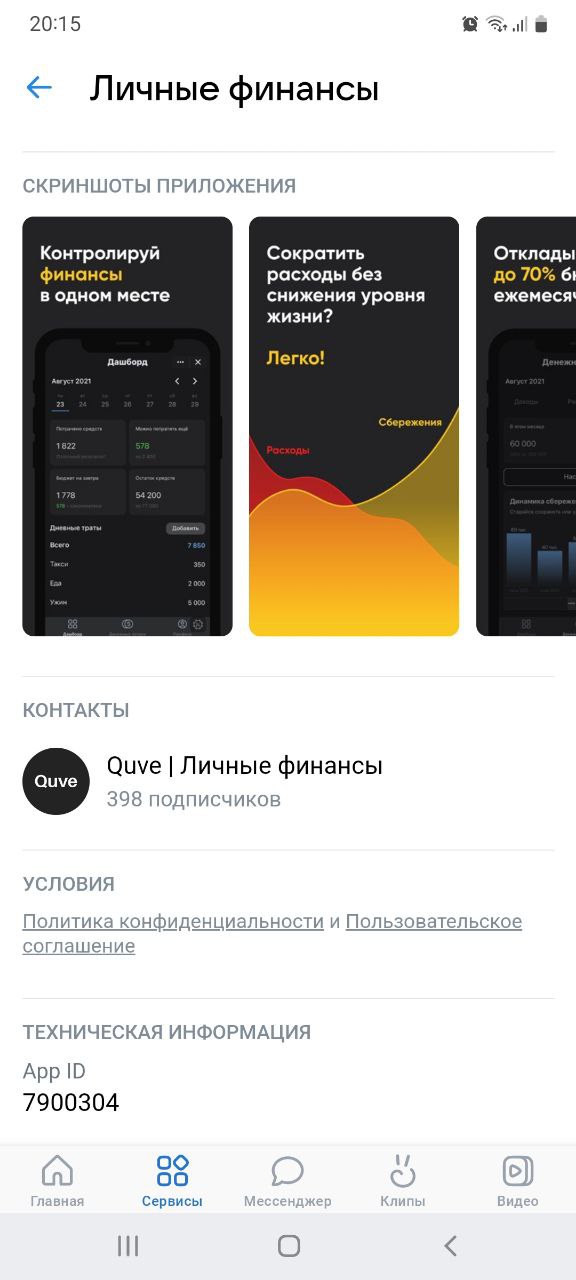 User Agreement and Privacy Policy
How to find:
- 1.Open the VKontakte app..
- 2.Go to section Services .
- 3.Select the app and click on its name.
- 4.Press the **** button.
- 5.Press the button Annex .
- 6.Go to section Conditions .
In addition
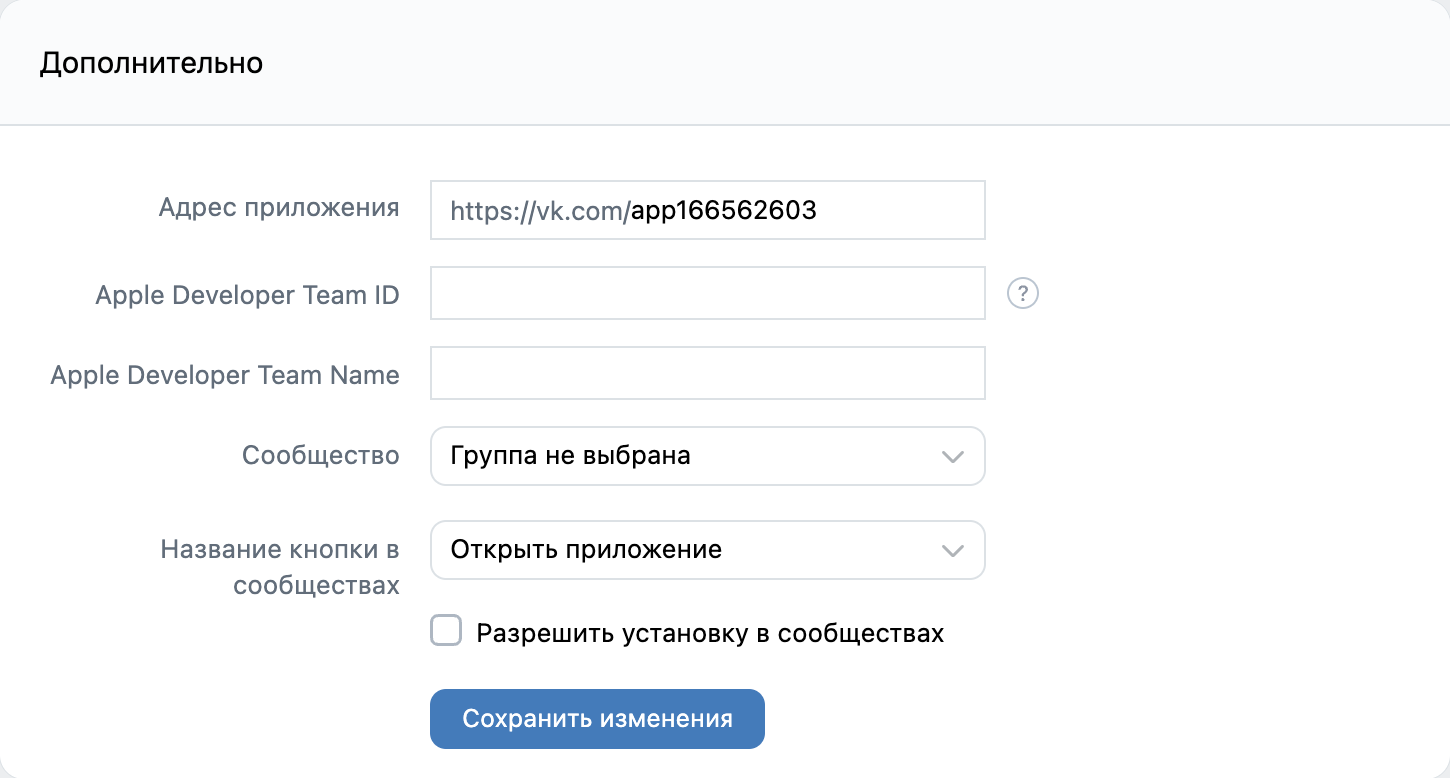 Additional
Application address
Note. The field appears only after the mini-application is published in catalogue .
Short address of the mini-app.
The minimum number of characters is 5, the maximum number is 32.
Use the short address of the mini-application so that users can quickly remember it. Example:
https://vk.com/dating.
Apple Developer Team ID and Apple Developer Team Name
The block contains information about the ID and name of your Apple Developer team. Specify this data to publish a mini-application in a directory on iOS or to run a mini-application in WebView. Enter the same values that are listed on the site Apple Developer Program .
Filled field Apple Developer Team ID can't be cleaned.
Without this information, your mini-app will not be able to get into the directory on the iOS platform.
Community
Specify in the field the community that will be considered the author of the mini-application. After moderation, it will be possible to change the official community only in a year.
The name of the button in communities
The name appears on the button in Menu community.
Allow installation in communities
Choose Allow installation in communities to add a button with a mini app and run it on behalf of the community.
Loading the application
Read more about the functionality of downloading the application on the page Application Launch Screen .
Snippet Settings
A snippet is a block with a picture and a button that appears when a link is published in a community record or in a personal message.
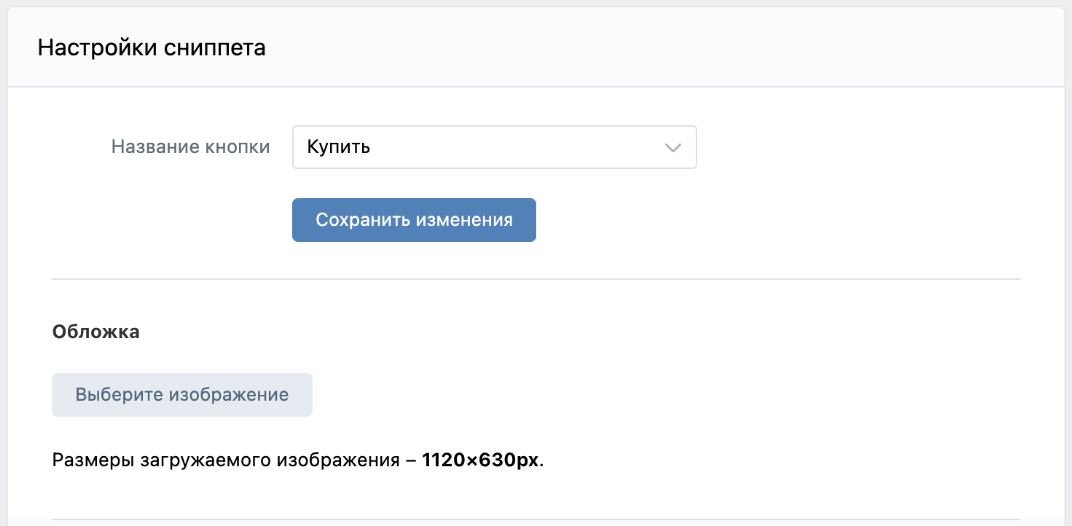 Snippet Settings
The name of the button
The name of the button is displayed when a link to the mini-app is published in a community record or in a personal message.
 Button name and cover
Cover
An image that is displayed in the snippet when a link to a mini-app is published in a community entry.
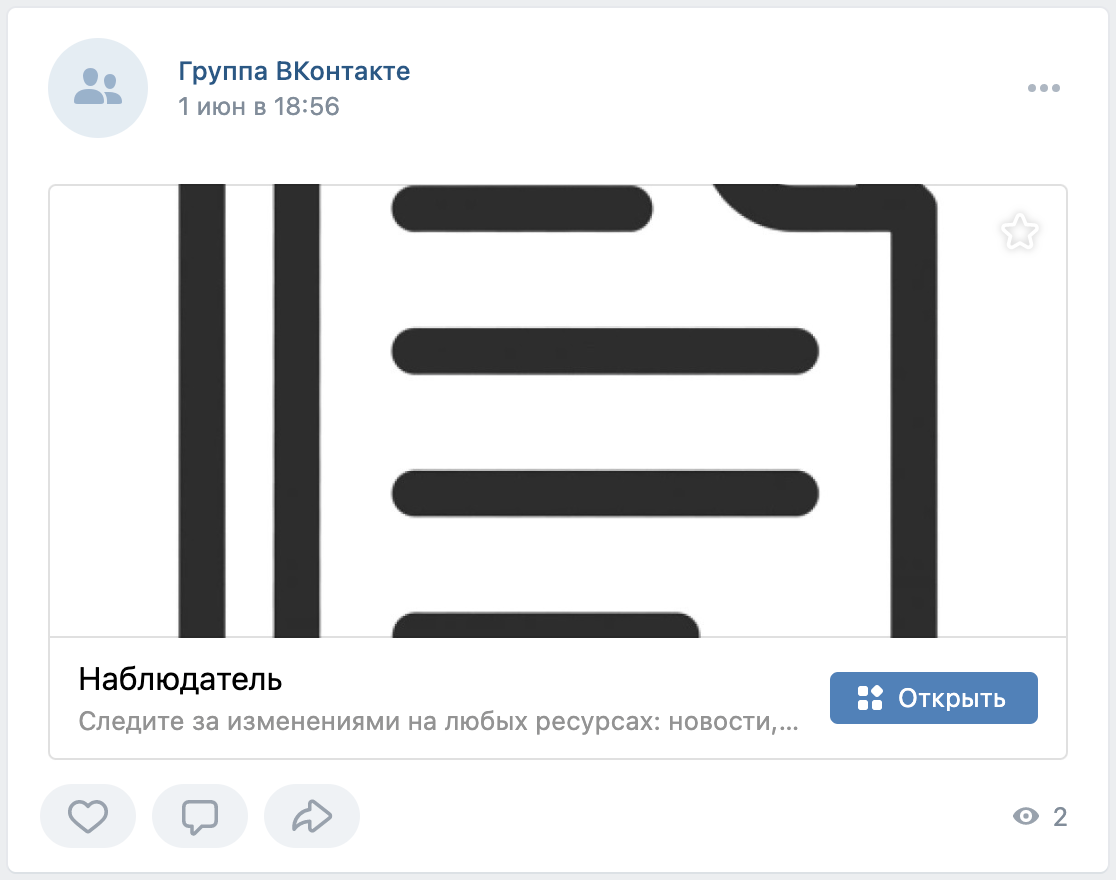 Button name and cover
- •Size: 1120×630 px.
- •Format: JPG or PNG.
Covers and screenshots
 Covers and screenshots
Square cover
The cover image is used in mobile version of VKontakte , mini-application notifications, and mini-application settings in communities.
 Square cover
- •Size: 150 x 150 px.
- •Format: JPG, PNG or GIF.
Square cover for catalog
An image that is used in the snippet when publishing a link to a mini-app in a personal message, on a mini-app shortcut on a mobile device, and in a mini-app directory.
The image is loaded automatically if it is loaded. square cover .
Square cover for the directory
Image parameters:
- •Size: 278×278 px.
- •Format: JPG, PNG or GIF.
You can change the cover no more than 2 times in 2 weeks.
Icon for mobile directory
The color of the base of the square cover for the catalog is selected automatically based on the dominant color in the cover. You can set it up manually. The transparency effect of 12% is applied to all colors..
The color of the base is indicated for light and dark themes in the form of a HEX code.
Square cover for the recommendations section
The image used in the recommendations section.
- •Size: 576×576 px.
- •Format: JPG, PNG, GIF or BMP.
Screenshots of the app
Screenshots of the mini-app are used on the installation screen, as well as in the section Screenshots of the app in the mobile application VKontakte> Screenshots need to be downloaded one at a time.
Application screenshots
Screenshot parameters:
- •Height: At least 600 pixels.
- •Format: JPG, PNG, GIF or BMP.
- •The ratio of the parties is no more than 2 to 1.
How to find:
- 1.Open the VKontakte app..
- 2.Go to section Services .
- 3.Select the app and click on its name.
- 4.Press the **** button.
- 5.Press the button Annex .
- 6.Go to section Screenshots of the app .
Materials on the topic
- •
- •
- •

