The translation was generated automatically and may contain mistakes
Working with Pixel
Creating a pixel is VKontakte and working with it in an advertising office.
Creating a Pixel
- 1.
To open up all possibilities advertising office Create any announcement.
- 2.
Go to the advertising office.
- 3.
Go to section Retargeting .
- 4.
Go to section Pixels .
- 5.
Press the button Creating a Pixel .
- 6.
In the pop-up window, press Creating a Pixel :
- •Enter the name of the pixel.
- •In the field Authorized domain Enter the domain of the site on which the pixel will be installed.
Note.
- •Field Authorized domain It is not necessary to fill, but it is desirable - so you can limit the replenishment of the audience from other sites.
- •To collect the audience from all subdomains of the site, you need to write the address in the following format:
*.example.com.
- •In the field Allowed Mini App id Enter the identifier of the mini-app on which the pixel will be installed.
- •Select the theme of the site.
- •Select a box Automatically create an audience for a pixel .
- •Press the button Create .
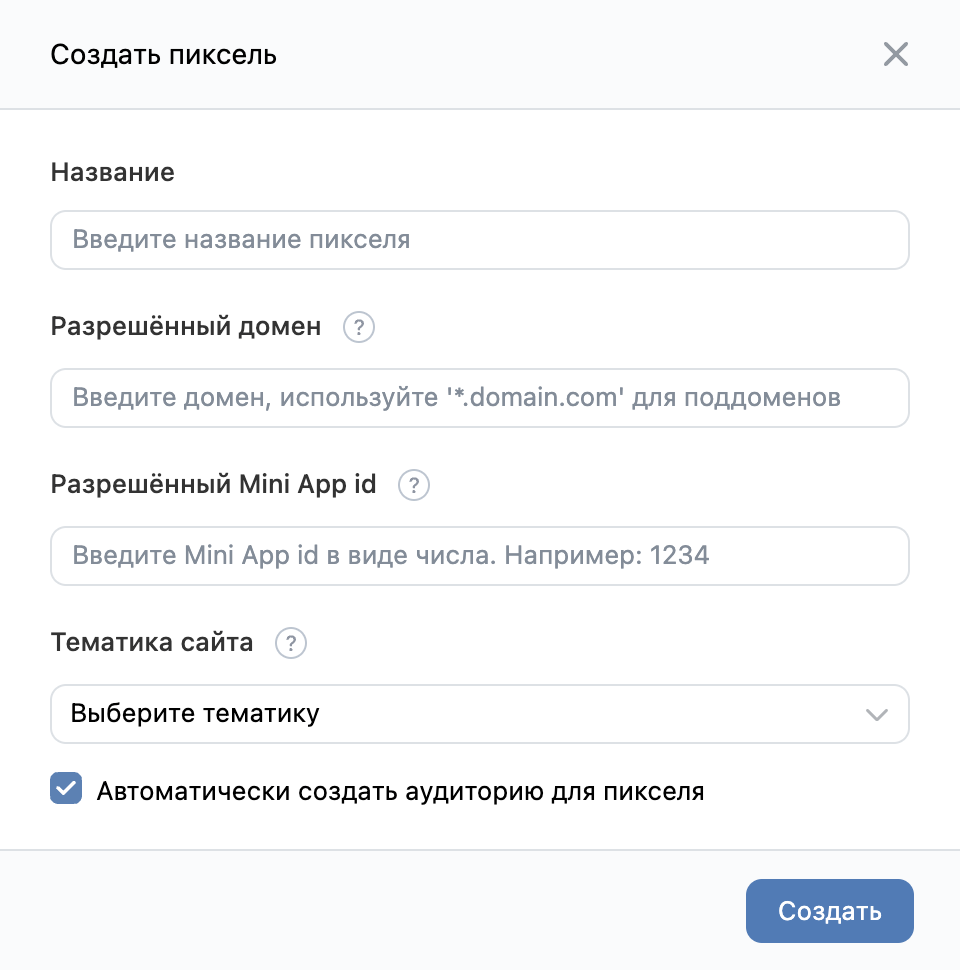 Create a pixel
 - •
Note. No more than 40 pixels can be created.
After creating a pixel, a window will open with the pixel code to insert into the site.
Creating a Minimum Filled Announcement
- 1.
Open up. advertising office .
- 2.
Press the button Continue without purpose .
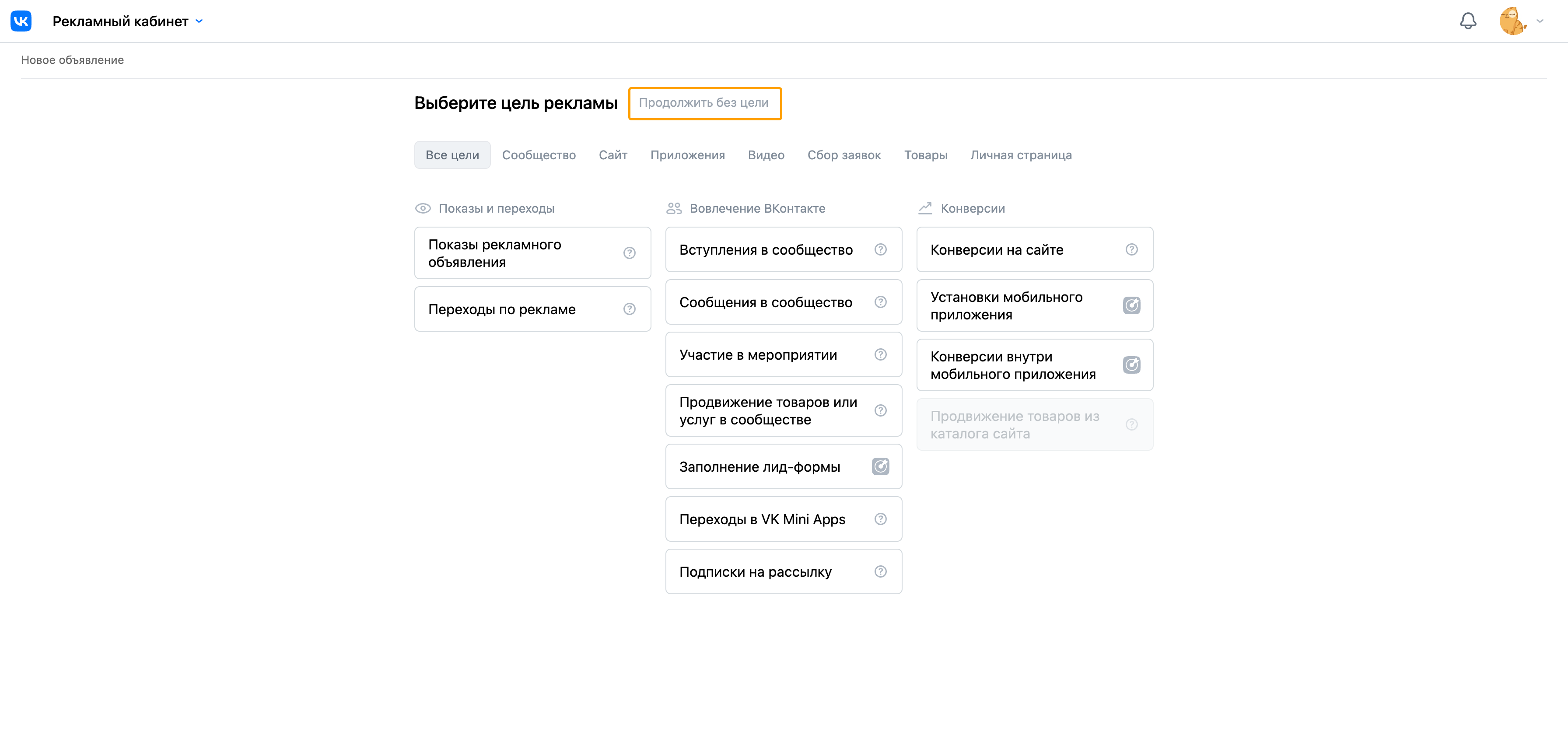 Advertising office. Continue without purpose
 - 3.
In the block Additional Formats choose Annex .
- 4.
In the dropdown, select the mini-app.
- 5.
Press the button Continue .
 Advertising office. Additional formats
 - 6.
In the block Design :
- •Write the title.
- •Add a description.
- •Upload the image.
- •Select the theme of the announcement.
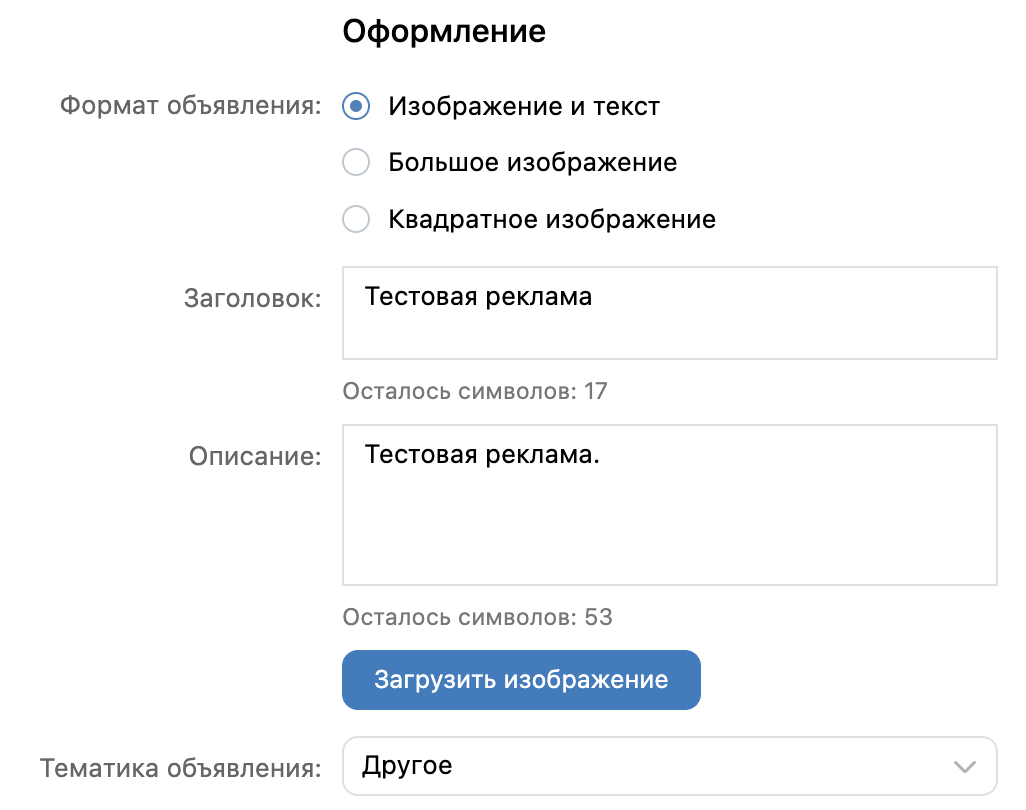 Advertising office. Registration
 - •
- 7.
Press the button Creating an Announcement .
Pixel Editing
- 1.Go to advertising office .
- 2.Go to section Retargeting .
- 3.Go to section Pixels .
- 4.Click on the pixel name.
- 5.Select from the drop-down list Edit .
- 6.Make changes.
- 7.Press the button Save .
Pixel Removal
- 1.Go to advertising office .
- 2.Go to section Retargeting .
- 3.Go to section Pixels .
- 4.Click on the pixel name.
- 5.Select from the drop-down list Delete .
- 6.In the pop-up window, press the button Yes.. .
Note. After removal, all the audiences in which the pixel was listed as a source will cease to be replenished, but will not disappear.
Search for pixel code
- 1.Go to advertising office .
- 2.Go to section Retargeting .
- 3.Go to section Pixels .
- 4.Click on the pixel name.
- 5.Select from the drop-down list Edit .

