The translation was generated automatically and may contain mistakes
Working with audiences
You created a pixel and installed it on the site. To start collecting an audience, you need to create a retargeting audience, and set a rule for which users to collect there.
Creating an audience
- 1.
Go to advertising office .
- 2.
Go to section Retargeting .
- 3.
On the tab Audiences Press the button Creating an audience .
- 4.
In the pop-up window, press Creating an audience :
- •Give the name of the audience.
- •In the block Source Select the item Get it with a pixel .
- •In the dropdown, select the pixel that will gather that audience.
Note. It should be a pixel that is installed on your site and which in the advertising office on the tab Pixels It has the status of “working?2?.
- •Set up a rule by which users will get into the audience.
Note. After a specified period, users will be removed from the audience.
- •Press the button Create .
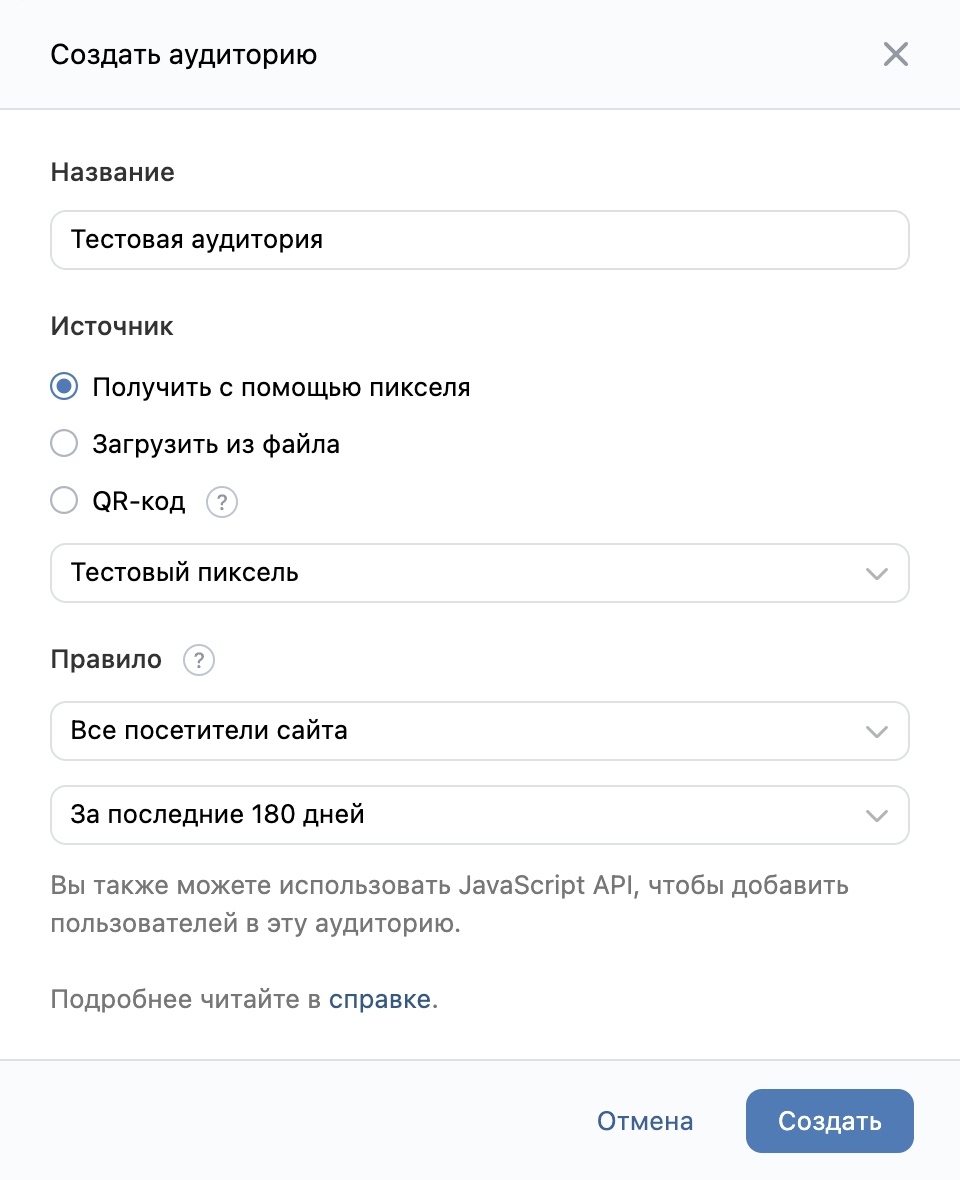 Create an audience
 - •
Editing audience rules
- 1.Go to advertising office .
- 2.Go to section Retargeting .
- 3.On the tab Audiences Click on the name of the audience.
- 4.Select from the drop-down list Editing the rules .
- 5.Make changes.
- 6.Press the button Save .
Find the audience that fills the pixel
- 1.Go to advertising office .
- 2.Go to section Retargeting .
- 3.Go to section Pixels .
- 4.Click on the pixel name.
- 5.Select from the drop-down list Audience .
 Pixel Audience
Checking which audiences users gather from certain pages of the site
- 1.
Go to advertising office .
- 2.
Go to section Retargeting .
- 3.
On the tab Audiences Press the button Checking the reference .
- 4.
In the pop-up window, press Checking the reference :
- •Enter the link.
- •Press the button Check .
- •
Removing the audience
- 1.Go to advertising office .
- 2.Go to section Retargeting .
- 3.On the tab Audiences Click on the name of the audience.
- 4.Select from the drop-down list Delete .
- 5.In the pop-up window, press the button Yes.. .

