Debugging
Debugging in the browser
VK Bridge events that can be used on the desktop website are tagged with Web in the guide. The easiest way to test if the platform receives these events is to launch the desktop version of the mini app and intercept them right in the browser. Note that not all events are supported on the desktop website.
Debugging on mobile devices
Eruda
The Eruda console is a convenient tool for debugging Android and iOS mini apps. You can see an example of how it works in the Eruda mini app. Clicking the icon in the lower right corner opens a full-featured debug console right inside the mini app.
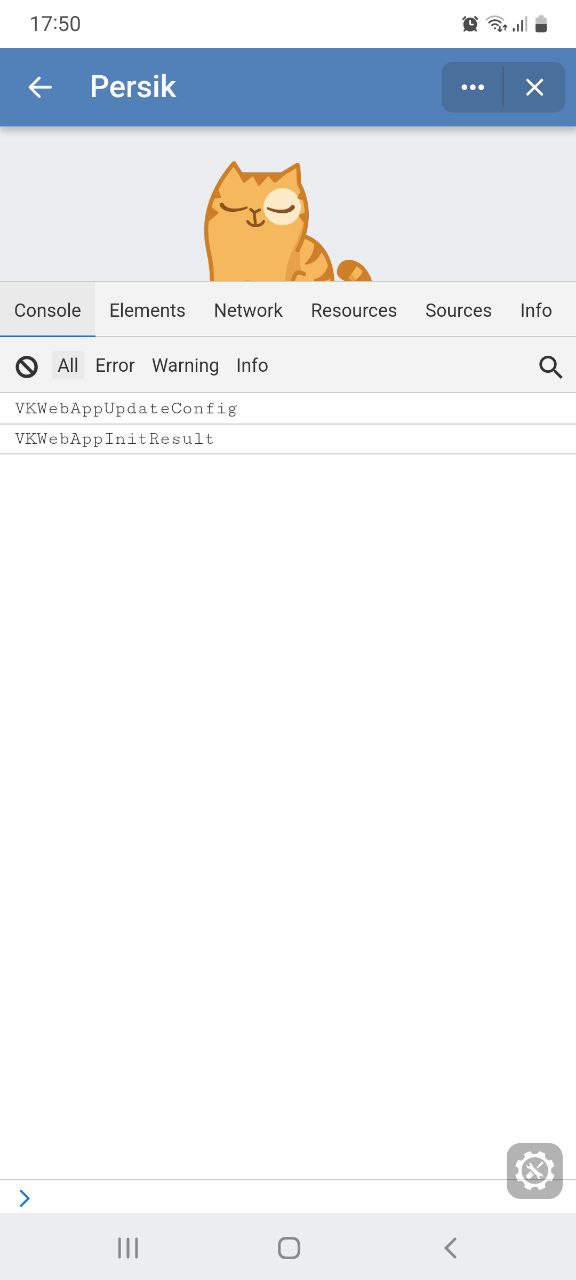 Eruda console
Enabling the console
Before developers can use the Eruda console, mini app administrators need to enable it in the mini app control panel:
- 1.
Open My apps → Manage → Settings.
- 2.
In the Mobile client version section, check the Eruda debugging console option. After this, mini app administrators will be able to use the console.
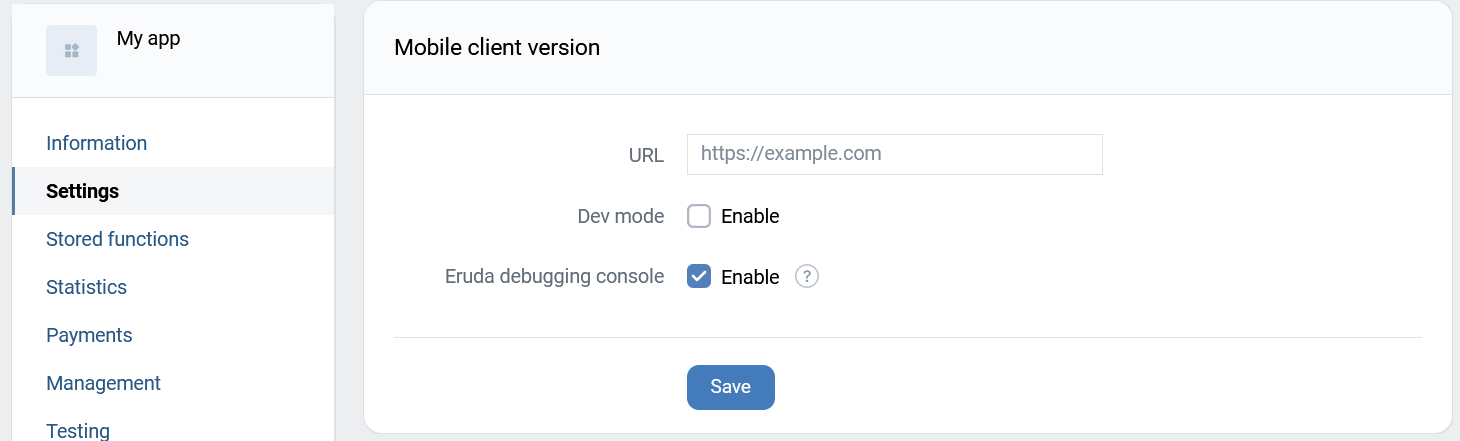 Console settings
Using the console
To use the Eruda console for debugging:
- 1.
Launch the mini app.
- 2.
Click the ••• button.
- 3.
From the menu, select Show console. If the console is already open, the menu will display the Hide console option.
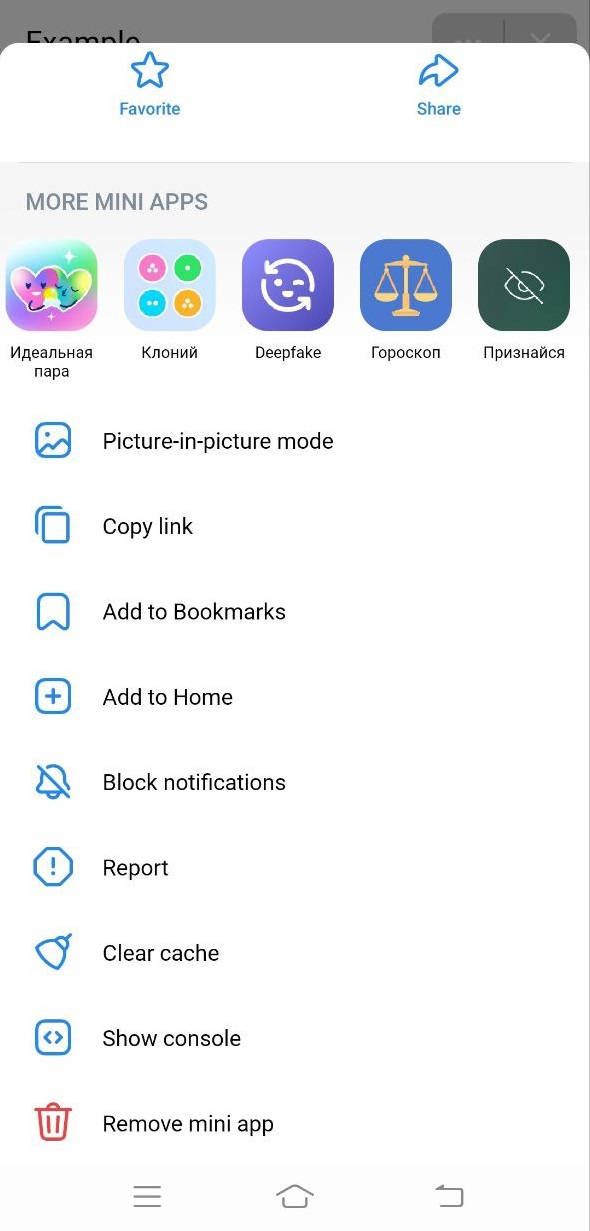 Eruda console
 - 4.
To open the debug console directly within the mini app, click the icon that appears in the bottom right corner.
Note. The Eruda console is built into the create-vk-mini-app library, which is used to create mini apps from a template. This library is available for the following platforms:
Chrome DevTools
Debugging is performed using the desktop browser. To debug an Android mini app, use Сhrome Remote debugging on Android devices. There is no such feature for iOS.
You can view web content in Android apps via WebView.
To get the mini app to display in WebView, follow these steps:
- 1.
Create a mini app.
- 2.
Specify the URL of the mobile version of the mini app in placements settings.
- 3.
Connect the device to your computer via USB.
- 4.
Perform step 1 of the list.
- 5.
Perform step 2 of the list.
Now, when debugging via USB, the mini app opened on Android will appear in Chrome DevTools at
chrome://inspect/#devices.
Debugging using mockups
If you don't have an Android device on hand, use the vk-bridge-mock library. It emulates receiving data on your desktop. Calling library events will return test data that you can use for debugging.
Using the library
- 1.
Install the library:
Shellnpm install @vkontakte/vk-bridge-mock || yarn add @vkontakte/vk-bridge-mock - 2.
Connect the library in the
index.jsfile.JavaScriptimport bridge from '@vkontakte/vk-bridge-mock'; - 3.
Use the methods of the
bridgeobject:JavaScriptbridge.subscribe((e) => { if (e.detail.type === 'VKWebAppGetUserInfoResult') { // do something } }); bridge.send('VKWebAppGetUserInfo', {});
Example of the test data returned
{
  "type": "VKWebAppGetUserInfoResult",
  "data": {
    "id": 743784474,
    "bdate": "21.12.2000",
    "bdate_visibility": 1,
    "city": {
      "id": 2,
      "title": "Saint Petersburg"
    },
    "country": {
      "id": 1,
      "title": "Russia"
    },
    "photo_200": "https://sun1-91.userapi.com/s/v1/ig2/Dcf-SWu7nVYDDldq9oQegiC06VqsSa43-HpDxzPjrvFCUUk9nSevY2Uf9xzm0bxvLfgsTOH6XiiW-zeLcDhPDj_w.jpg?size=200x200&quality=96&crop=26,26,204,204&ava=1",
    "photo_max_orig": "https://sun1-91.userapi.com/s/v1/ig2/trHNebJQhG4BmLxC8h4hOpDU6bKRy6uJi586wcyFcCj5fzrwYk7AtoNab-RSil0Bp9b569VQyGK_skG9e6oK7Ap7.jpg?size=256x256&quality=96&crop=0,0,256,256&ava=1",
    "sex": 2,
    "photo_100": "https://sun1-91.userapi.com/s/v1/ig2/M4vtl7tcmeP6ANUgE0vU7JZWuJszbHaN5QcCcK2xD66EIc6SeSA1NyFVLTSOt2iLOkFhJSJ4DawEJGOjzKtszMpR.jpg?size=100x100&quality=96&crop=26,26,204,204&ava=1",
    "first_name": "Persik",
    "last_name": "The Ginger",
    "can_access_closed": true,
    "is_closed": false
  }
}
Changing test data
If you need to modify the test data to see how the mini app will behave if the user, for example, hasn't specified a city, you can override it:
import { response as res } from  '@vkontakte/vk-bridge-mock';
res.VKWebAppGetUserInfo.data = {
  type: 'VKWebAppGetUserInfoResult',
  data: {
    city: {
      id: 1,
      title: 'London'
    },
    country: {
      id: 1,
      title: 'UK'
    },
    photo_200: 'https://pp.userapi.com/c841034/v841034569/3b8c1/pt3sOw_qhfg.jpg',
    photo_max_orig: 'https://pp.userapi.com/c841034/v841034569/3b8c1/pt3sOw_qhfg.jpg',
    sex: 0,
    photo_100: 'https://pp.userapi.com/c841034/v841034569/3b8c1/pt3sOw_qhfg.jpg',
    first_name: 'Friedrich',
    last_name: 'Engels',
  }
}
More on the subject
The library supports the following events:
- •
- •
- •
- •
- •
- •
- •
- •
Tester groups
You can test a version of your mini app in the Test group (mini app settings) section.

