Biometric authentication
For users to access your mini app, you can enable authentication via biometric data, such as by fingerprint or face recognition. Implementing this authentication method can be done using the events of the VK Bridge library.
By using biometric authentication, you help protect users' personal information and add additional verification before granting access to the mini app.
Supported devices
- •
Biometric authentication only works on devices that support biometric data, including fingerprint recognition, face recognition or both.
- •
Biometric authentication is only available on iOS and Android devices.
- •
On some Android devices that support biometric data, face authentication may not be available.
How it works
This is what the authentication process looks like.
When authentication is disabled
- 1.
The mini app requests the user's permission to use biometric data for authentication, either by fingerprint or face, depending on which method is available and chosen by the user to access the device.
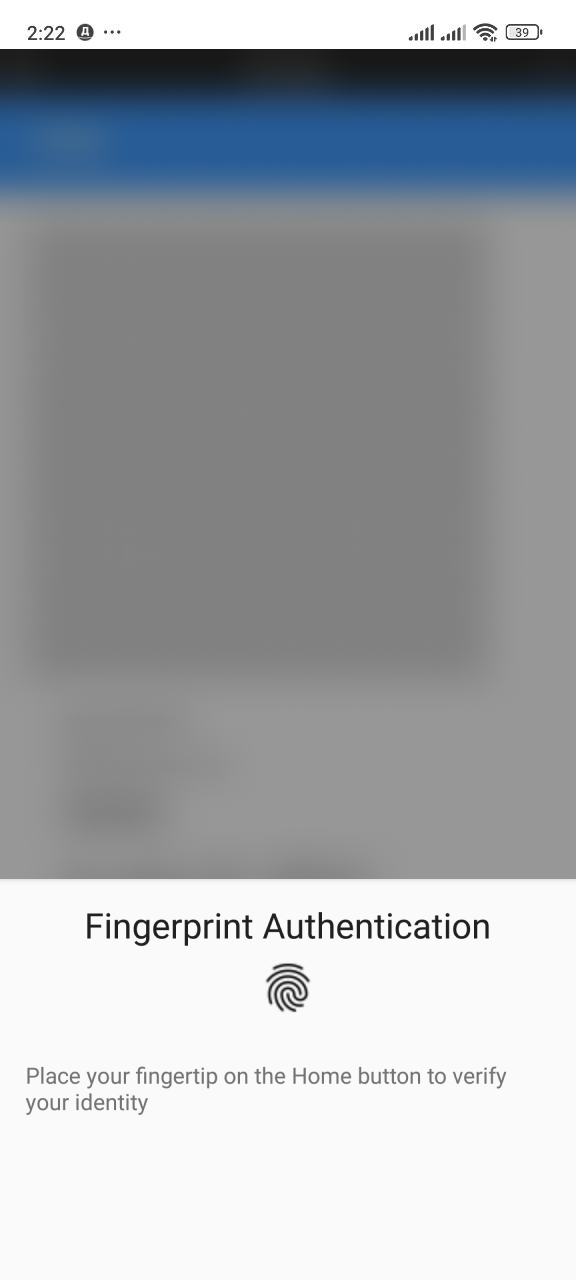 Biometric usage request
Here, the mini app requests permission to use biometric data and creates an access token, an arbitrary string defined by the developer that is saved in secure storage on the device.
- 2.
After this, the user will be able to use biometric authentication. The string saved on the device is retrieved from storage by fingerprint or face recognition.
- 3.
The developer uses the obtained value as the data access token.
To authenticate the user, it's necessary to compare the obtained access token with the one saved in the mini app. We recommend performing token comparison server-side.
When authentication is enabled
- 1.
The user launches the mini app and authenticates using biometric data. The string saved on the device is retrieved from storage by fingerprint or face recognition.
- 2.
The developer uses the obtained value as the data access token.
To authenticate the user, it's necessary to compare the obtained access token with the one saved in the mini app. We recommend performing token comparison server-side.
How to implement
To incorporate user authentication into your mini app, use the events provided by the VK Bridge library.
Creating an access token
- 1.
Request user permission to use biometric data using the
VKWebAppSecureTokenRequestAccessevent. - 2.
Create an access token using the
VKWebAppSecureTokenSetevent. This token is an arbitrary string unique to the mini app.
Access token retrieval
- 1.
Use the
VKWebAppSecureTokenGetInfoevent to check whether the access token is saved on the device. - 2.
Retrieve the access token using the
VKWebAppSecureTokenGetevent.
Obtaining information
Use the VKWebAppSecureTokenGetInfo event to check if biometric data is available on the user's device and whether they have granted permission to use biometric authentication in the mini app.
Access token removal
To remove the access token from storage, use the VKWebAppSecureTokenRemove event.
Related materials
- •
- •
- •
- •
- •

