Game advertising
To draw in players to your game, use the VK Ads platform. We will show your ads to VK users who are most likely to be interested in your offer. Create an ad campaign and launch your ads in just a few simple steps.
VK Ads is a unified platform for launching promotion across VK projects and the ad network. VK Ads algorithms help increase sales and attract new customers. You can advertise more than just games. For case studies showing how VK Ads helps different companies promote their business, see Help.
This section explains how to connect ads for your app. For more details about game ads and the ad account, see VK Ads Help.
How it works
- •
Use the VK Ads ad account to create a campaign, configure ad groups and ads, and launch your ads. For details, see How to launch ads.
- •
After passing moderation, your ads will appear in users’ stories and news feed: in both the mobile and desktop versions of VK.
- •
VK Ads uses special algorithms to optimize ad delivery:
- •Ads are shown to the audience specified in the settings.
- •Priority is given to users who are more likely to complete the target action.
- •
- •
Payment will be deducted from your account for ad impressions within the set budget.
Before creating ads
- •
Think about the ad content and format. In some cases, a colorful picture and a short text work well, while in others, a short video is the way to go.
- •
Make sure that your ad complies with Rules for placing Advertisements. Ads that violate the rules will not pass moderation.
- •
Some ad categories require additional documents. Send them to the Support chat after submitting your ad for moderation. Document review may take time, so keep this in mind when planning your campaign dates.
How to launch ads
Step 1. Sign in to the ad account
Sign in to VK Ads using your VK ID.
For more information about registering an ad account, see VK Ads Help.
Step 2. Create a campaign
- 1.
On the Campaigns tab, click Create.
- 2.
On the Targeted actions tab, select VK, OK, Mini Apps, Dzen, then select VK Mini Apps & Games.
- 3.
Specify the game you plan to promote: paste the link or select it from the list.
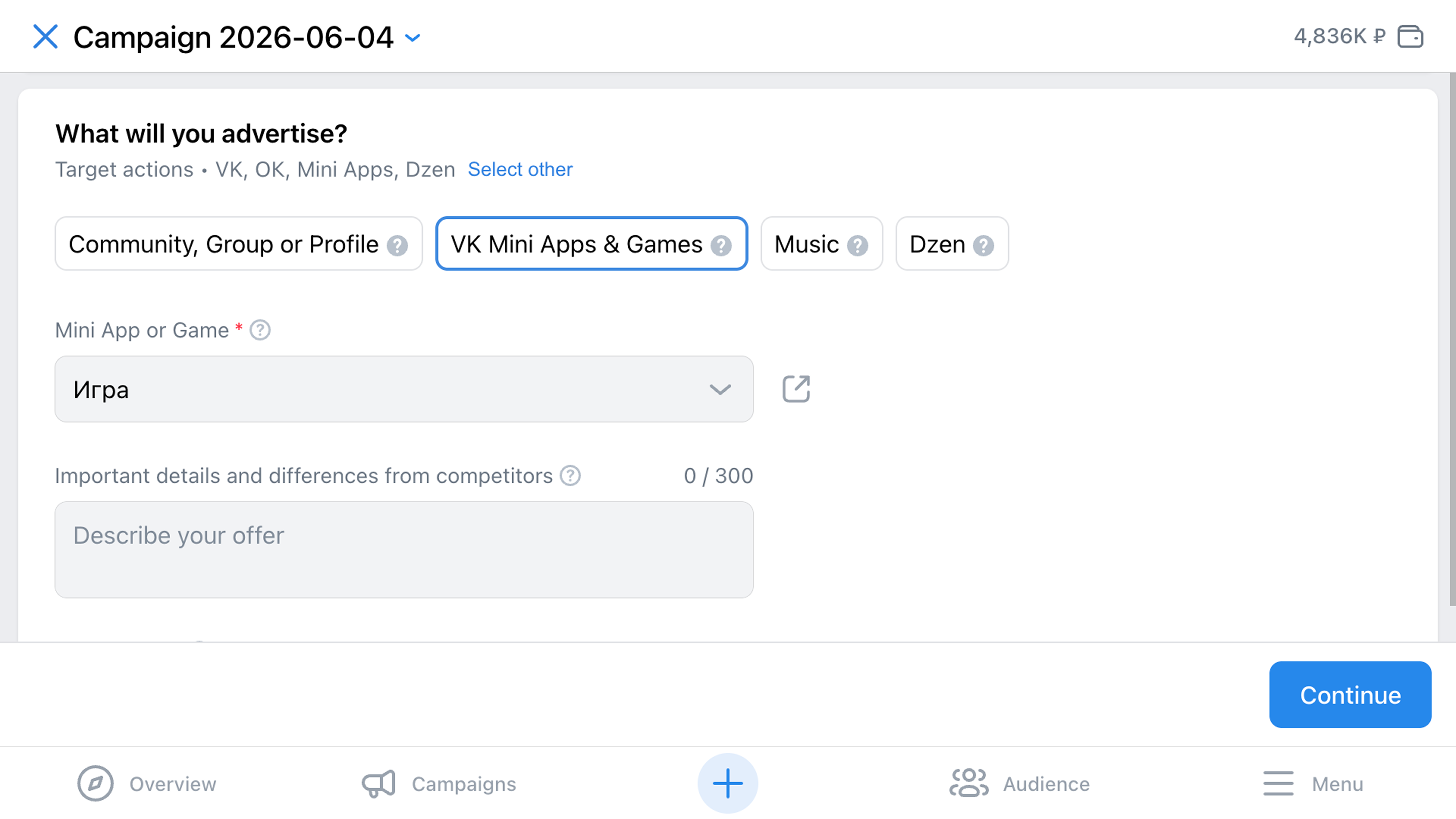 Setting up a game ad campaign
You can promote any game, even if you are not its administrator.
Step 3. Configure target actions
A target action is the result you want to get from your ads. It affects delivery optimization, audience selection, and the button text in the ad.
For all games, the Launch mini app target action is available. If additional events are configured in the game via VKWebAppTrackEvent, they will automatically appear in the ad account as target action options. Statistics for the selected event will be available inside the game.
Step 4. Set budget and campaign dates
- 1.
The Campaign budget optimization option is enabled by default. It automatically distributes the daily budget across ads, increasing the share for those that generate more target actions. You can disable the option and set the budget for each ad group manually.
See VK Ads Help for details on optimization.
- 2.
The bidding strategy determines how the system manages your bid within the budget:
- •
Minimum price: you specify only the budget, and the system adjusts the cost of the target action for you to get the maximum number of target actions within the budget.
- •
Limit price: you specify the budget and the maximum cost of the target action. The system will try not to exceed it, but does not guarantee this.
See VK Ads Help for details on strategies.
- •
- 3.
Set the budget: daily or for the entire campaign period. The higher the budget and the longer the delivery period, the greater the reach.
Ads are delivered through an auction: each time a user opens a placement, the system compares the ads that match the user and selects those that deliver the best results compared to competitors.
See VK Ads Help for details on auction.
- 4.
Specify the campaign dates and click Continue.
Step 5. Set up an ad group
Configure ad groups: for each one, set the show time schedule, audience, and placements.
Schedule and budget
- •
If you selected a bidding strategy in the previous step, you can only specify the show time for the ad group — ads will run for the entire campaign period.
- •
To avoid running ads for the entire period, specify the delivery dates and time.
 Setting up show time
 - •
If you disabled campaign budget optimization, configure the budget and delivery dates for each ad group separately, as in Step 4.
Target audience
- •
To show ads only to users who may be interested in them, configure your target audience parameters: region, gender, age, and interests.
- •
If you have your own audiences you want to target, select their characteristics in the Custom audiences block.
See VK Ads Help for details on targeting.
URL parameters
Add UTM tags to the game link to distinguish traffic sources. You can add tags automatically, manually, or not use them at all.
 Setting up UTM tags
See VK Ads Help for details on UTM tags.
Placement
Choose where you want to show your ads. You can enable automated placement selection or select only the placements you need. For promoting games, VK stories and the news feed are available: mobile and web versions.
Click Continue and proceed to setting up the ad.
Step 6. Set up the ad
Add a description, upload an image or video, and specify the text on the target action button.
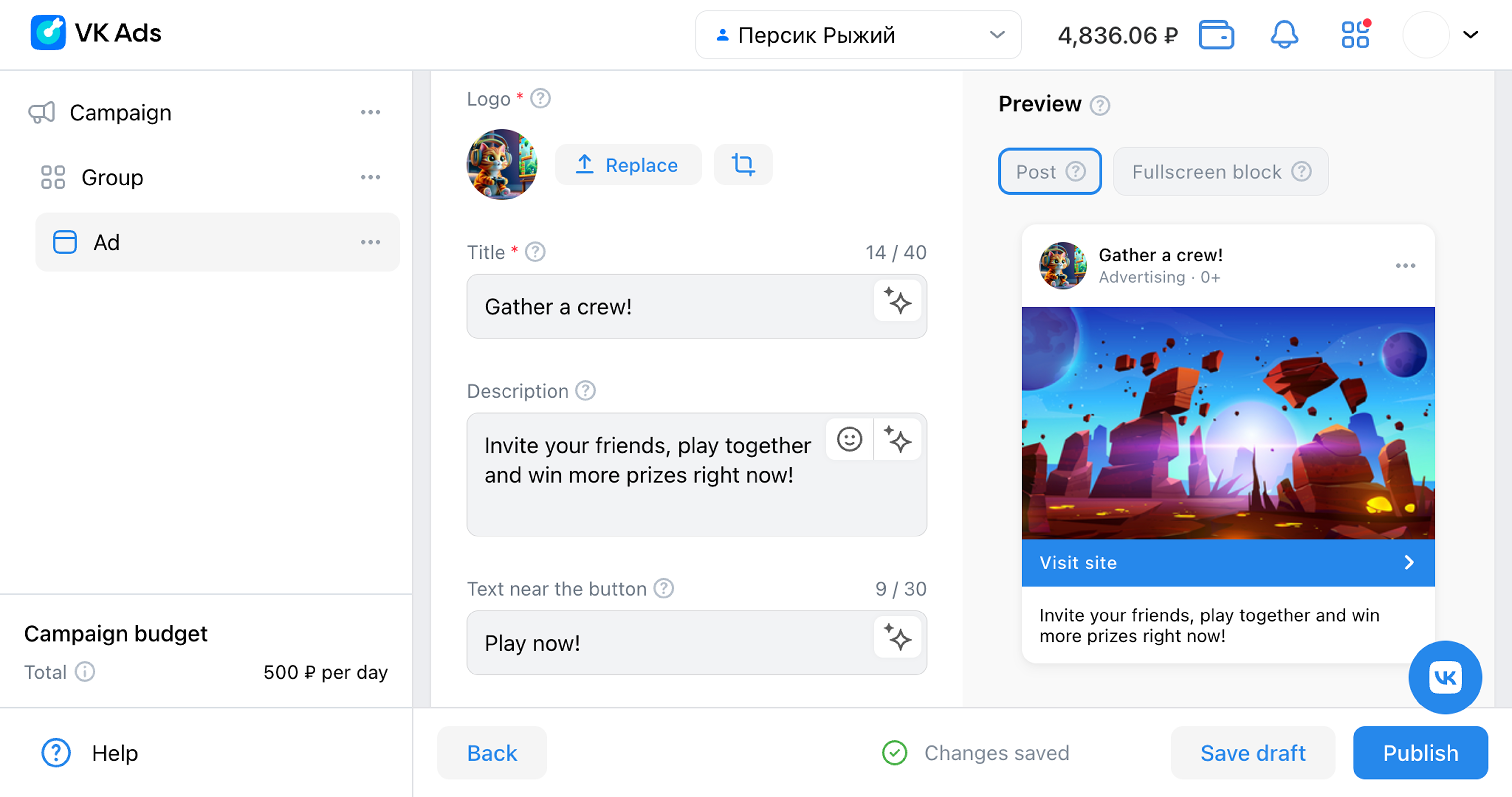 Setting up an ad
You cannot use emojis or ALL CAPS text in the ad description.
Click Publish — the ad will be sent for review. If it complies with the placement rules and there are enough funds in the account, the campaign will start automatically — either right after review or on the selected start date.
You can return to any of the previous steps: edit, save as a draft, and fix any issues.
How to create additional ad groups and ads
All ad groups and ads in the campaign are displayed in the list on the left.
Within each campaign, you can create multiple ad groups and configure separate delivery dates, target audiences, UTM tags, and placements for them.
To add an ad group:
- •In the left menu, click ••• next to the campaign name → Create group.
- •Or click ••• next to an ad group → Copy group.
 Adding ad groups and ads
You can create or copy an ad in the same way.
Results analysis
VK Ads provides statistics. Select metrics for a more detailed analysis of your ad campaign and customize the statistics display.
See VK Ads Help for more details.
Use cases
See examples of promoting apps with VK Ads in the case studies.
Related materials
- •
- •

