Launch screen
Until the game initializes the connection to the platform by sending the VKWebAppInit event, user will see the launch screen. By default, it's a square catalog cover on a white background. You can replace the static image with an animation.
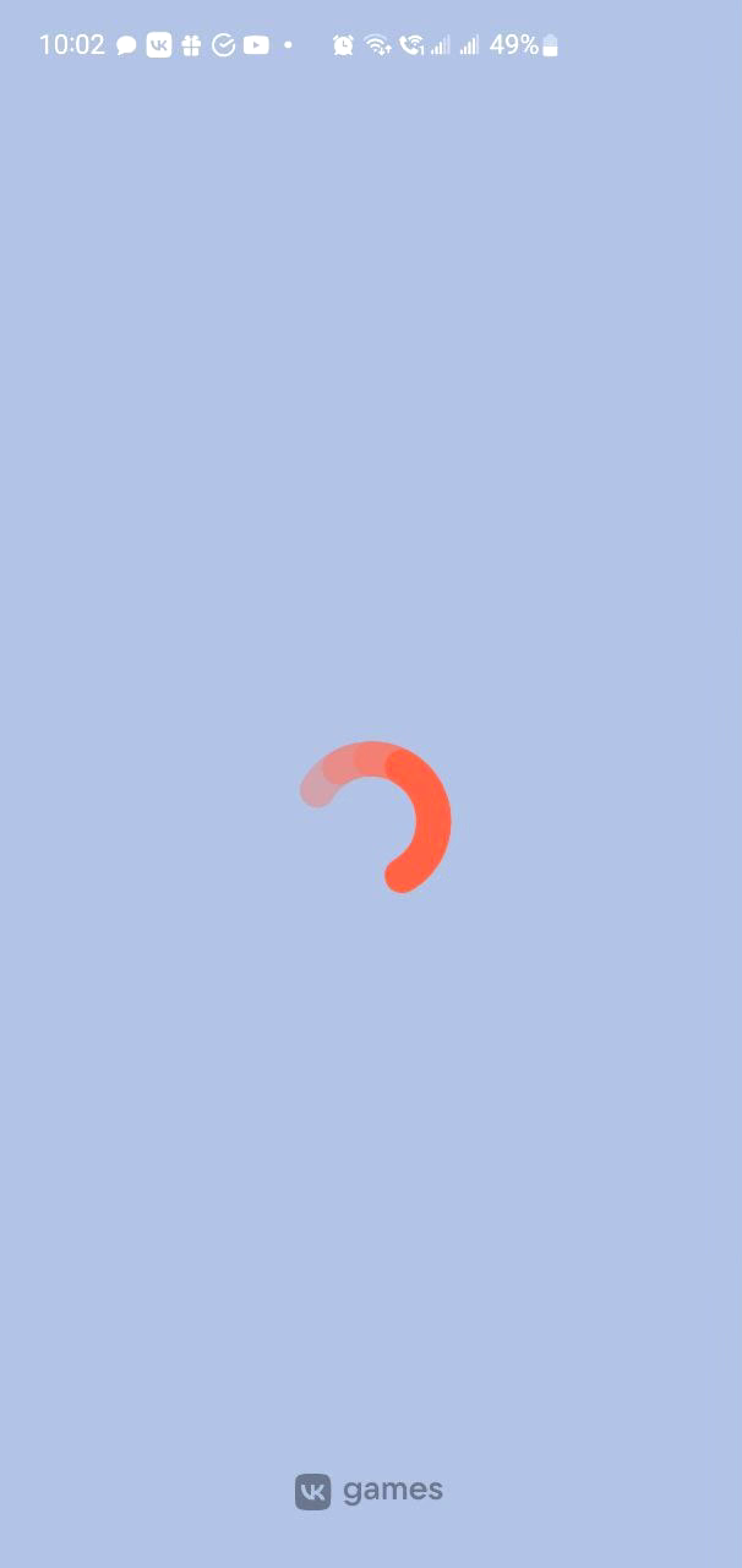 Launch screen
Creating animations
Make a vector image in the Lottie format. If you have SVG files on hand, use an online SVG to Lottie converter.
Image restrictions:
- •Maximum file size: 24 KB,
- •Image size: 96×96 px.
Check that the animation is working
The performance of Lottie animations may vary across different platforms. We recommend referring to the list of supported features when creating animations and testing loading screens on various platforms.
Android app
Android doesn't support 3D animation on Lottie screens.
Android uses the lottie-android library from Airbnb. Animations can be checked using the preview on the LottieFiles website. Supported features.
iOS app
iOS uses the rlottie library from Samsung. Animations can be checked using the preview on the rlottie website. RLottie runs the same on all platforms.
If the animation doesn't work
If the animation on rlottie doesn't work, add "ddd": 0 to each object in the layers array.
Mobile and desktop websites
The desktop version of the VKontakte website uses the lottie-web library from Airbnb. Supported features.
Screen settings
- 1.Open Apps → Settings → Design → Launch screen.
- 2.Enter the HEX code of the background color, such as #54C45D.
- 3.Upload an image in the Lottie format.
- 4.Check the Icon animation checkbox if the image is animated.
- 5.Click the Save button.
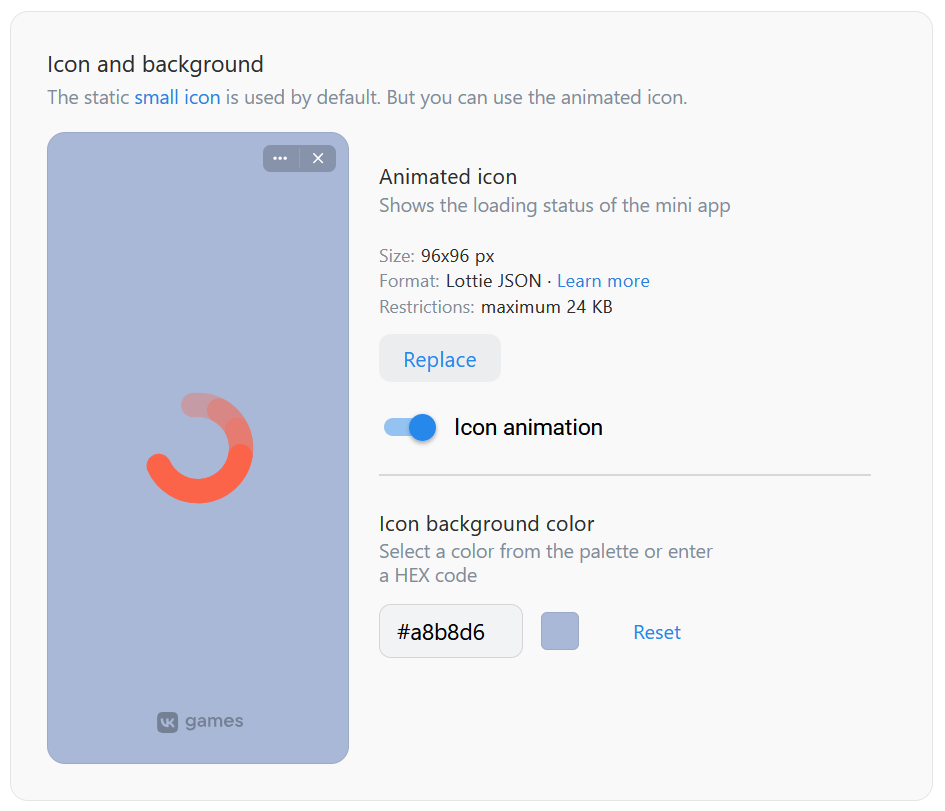 Launch screen setup

