The translation was generated automatically and may contain mistakes
Sale of Subscriptions
In Odnoklassniki, it is possible to offer the user in-game bonuses, goods and services not in the format of a single purchase, but in the format of a regular subscription to the goods.
In this case, the OKs for the service will be debited from the user not once, but every time after some time.
Selling subscriptions is different from selling products. Classmates send a notification to the application server only when paying or canceling a subscription.
How to Sell Subscriptions
Step 1. Prepare a Subscription
Send it to the address api-support@ok.ru Subscription data:
Parameter | Description | Unit of measure |
|---|---|---|
The Tripartite Period | Duration of the free subscription period. The minimum duration is 1 day. If a trial subscription is not provided, specify 0. | Days, hours, minutes. |
Length | Duration of one subscription period. The minimum subscription duration is 1 week. | Days, hours, minutes |
Cost | Subscription price for one period. | Okay.. |
Subscription icon | Link to the subscription icon with a resolution of 256×256 px. | |
productId | Subscription ID in Classmates. | |
Title | Subscription title (1-3 words). The name should reflect the essence of the subscription. | |
Description | A brief description of the subscription (1-2 sentences). In the description, specify what service the user subscribes to, what he buys. |
For example, subscription data might look like this:
- •The trial period is 3 days.
- •Duration is 1 day.
- •The cost is 50 OK.
- •productId — apples.
- •The name is Three Apples.
- •Get three bonus apples every day!
Step 2. Prepare the server side of the application
- 1.
On the application server, define a URL that will be used to receive payment or unsubscribe notifications.
- 2.
On the server side, implement the processing of notifications that the site sends in the form of GET request . This notice is used when purchasing a subscription.
More details in section Processing requests in Classmates .
Step 3. Specify the callback address in the application settings
In the settings of your application in the control panel specify URL for payment notifications of Classmates assigned to Step 2 .
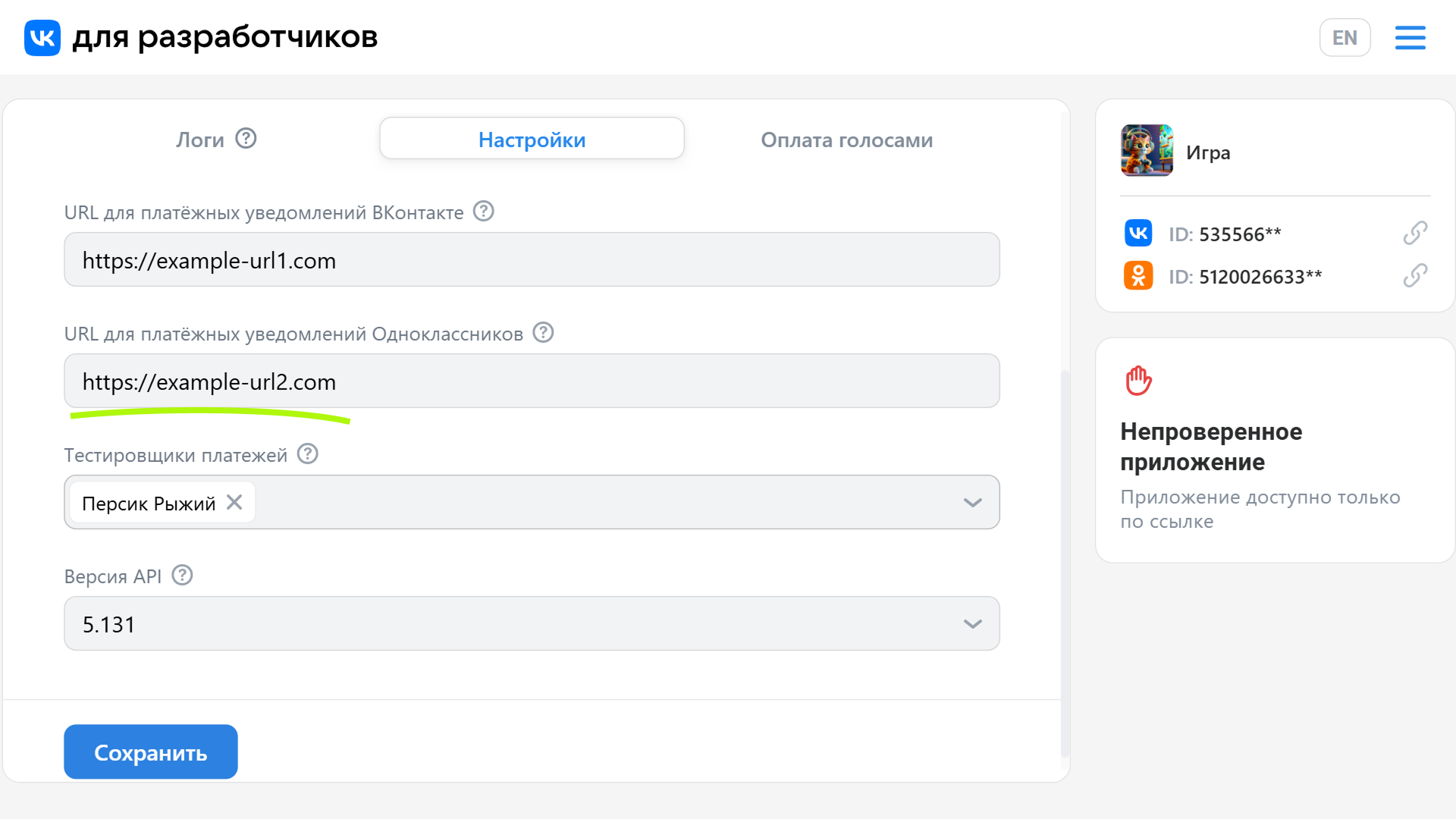 Customize URL for payment notification
Step 4. Call the VK Bridge event to show the purchase window
Use the event to call the subscription selling window on the user side VKWebAppShowSubscriptionBox VK Bridge libraries, for example:
bridge.send('VKWebAppShowSubscriptionBox', {
 action: 'create',
 item: 'sale_item_subscription_1', // Идентификатор подписки
 })
 .then( (data) => {
 console.log('Покупка прошла успешно', data);
 })
 .catch( (e) => {
 console.log('Ошибка!', e);
})- •In Classmates, only values are supported
createandresumeparameteraction. In both cases, a new subscription is created. - •In the parameter
itemtransmitted the value you passed to theproductIdwhen sending subscription data.
Data exchange
- 1.
To show the subscription window, call the event
VKWebAppShowSubscriptionBoxLibraries VK Bridge .- •
The VK Bridge library sends a request to the site, which provides subscription information for display in the purchase window. Developer Subscription Information in Advance send e-mail address.
- •
The site checks whether the user has enough OKs on the account.
If the virtual currency is sufficient, the platform will show a dialog box to confirm the payment.
If virtual currency is not enough, the platform will offer the user to buy them with a bank card or an electronic wallet. After the purchase, the exchange of data between the platform and the application server takes place in the same way as in the case of a sufficient amount of virtual currency in the account.
- •
- 2.
After the user clicks Pay up In the purchase window:
- •
The platform sends the application server to Payment notification URLs in Classmates Notification in the form of GET request which states that the user has subscribed.
When signing up in the parameter
extra_attributesSubscription data is transmitted. More details in section Processing of payment notifications in Classmates . - •
The application server provides the user with a subscription and returns a response to the site about the successful processing of the order. After receiving a response, the site considers the subscription issued.
The application, in turn, can perform any actions that visually show the user that the purchase took place.
- •
Important comments about working with subscriptions
- •
Classmates sends notifications only when selling or canceling a subscription.
Notices are not given for regular subscription renewals. In this case, the site simply debits money from the user's account to your application account.
- •
For a message about changing the subscription status, the platform sends GET request . This notice is used both to purchase and to unsubscribe. To determine a specific action, you need to analyze the parameter
extra_attributesthis notification.
Cancellation and renewal of subscriptions
Cancellation of the subscription is possible in the following cases:
- •
If there are not enough OKs on the user’s account during the next write-off.
The site will first try to replenish the account with a bank card, an electronic wallet.
If you do not manage to replenish the number of OKs, Classmates will cancel the subscription.
If the user replenishes his account within 5 days, the subscription will be restored automatically.
- •
If the user cancels the subscription on their own initiative.
The user can cancel the subscription to the page payment and Subscription Management .
Test mode
It is important to test the application work related to purchases and payments before making it available to a wide range of users.
Read more about getting access to the test mode of payments and advertising in the documentation — API Classmates .
Materials on the topic
- •
- •

